Features
Calendar Integrations
Features
Calendar Integrations
Our calendars are an integral part of our workflows if we have a lot of meetings or appointments to keep track of. Taking notes on events is a way to stay organized and remember what we need to do.
The Capacities calendar integrations give you the easiest way to have an overview of your events every day and to take notes from events in your calendar. You can create objects from events, and events from objects. The event information automatically syncs between your calendar and Capacities.
How does it work
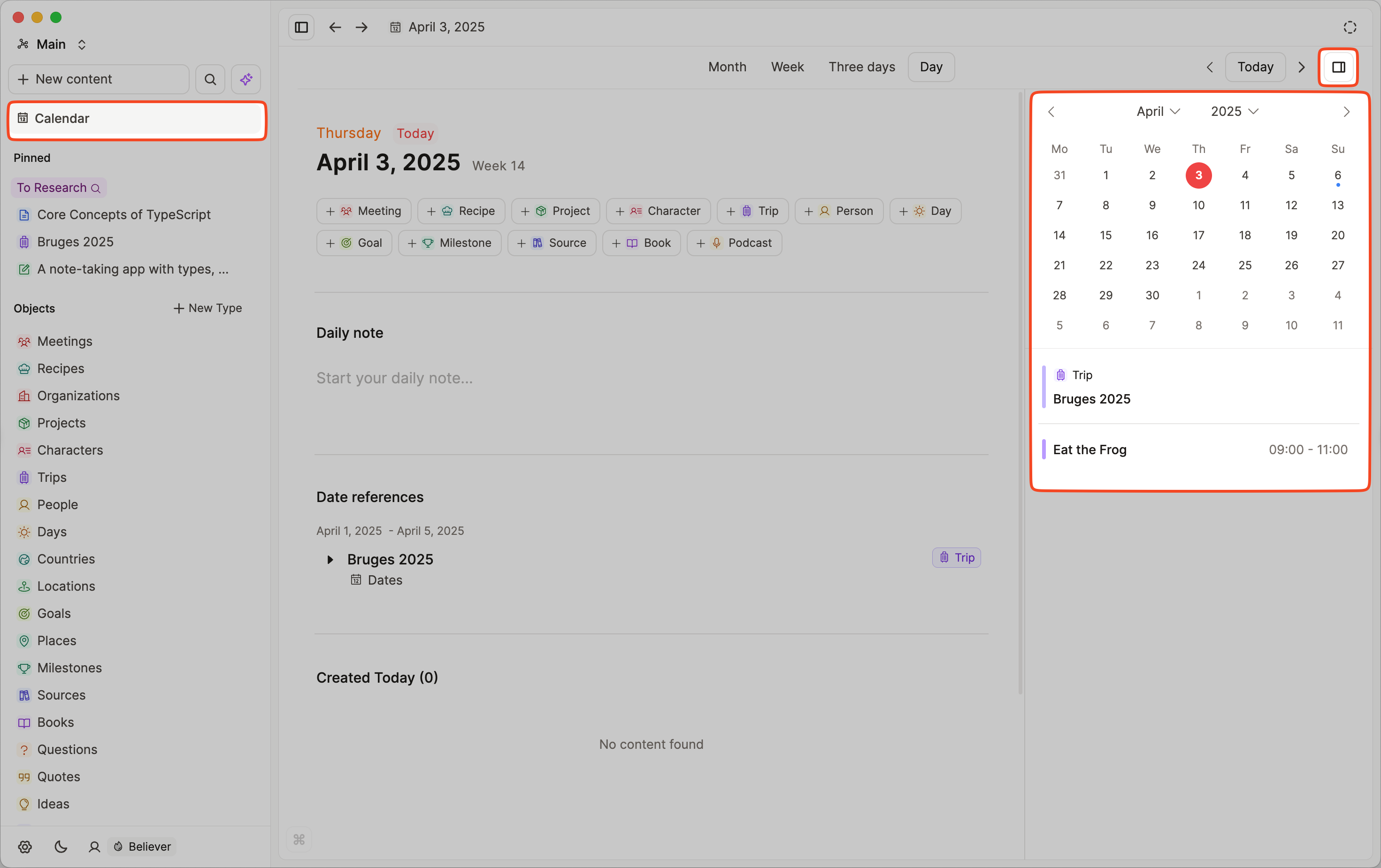
Capacities calendar integrations displays your calendar events in your calendar in Capacities. This gives you an overview of all your events on a given day.
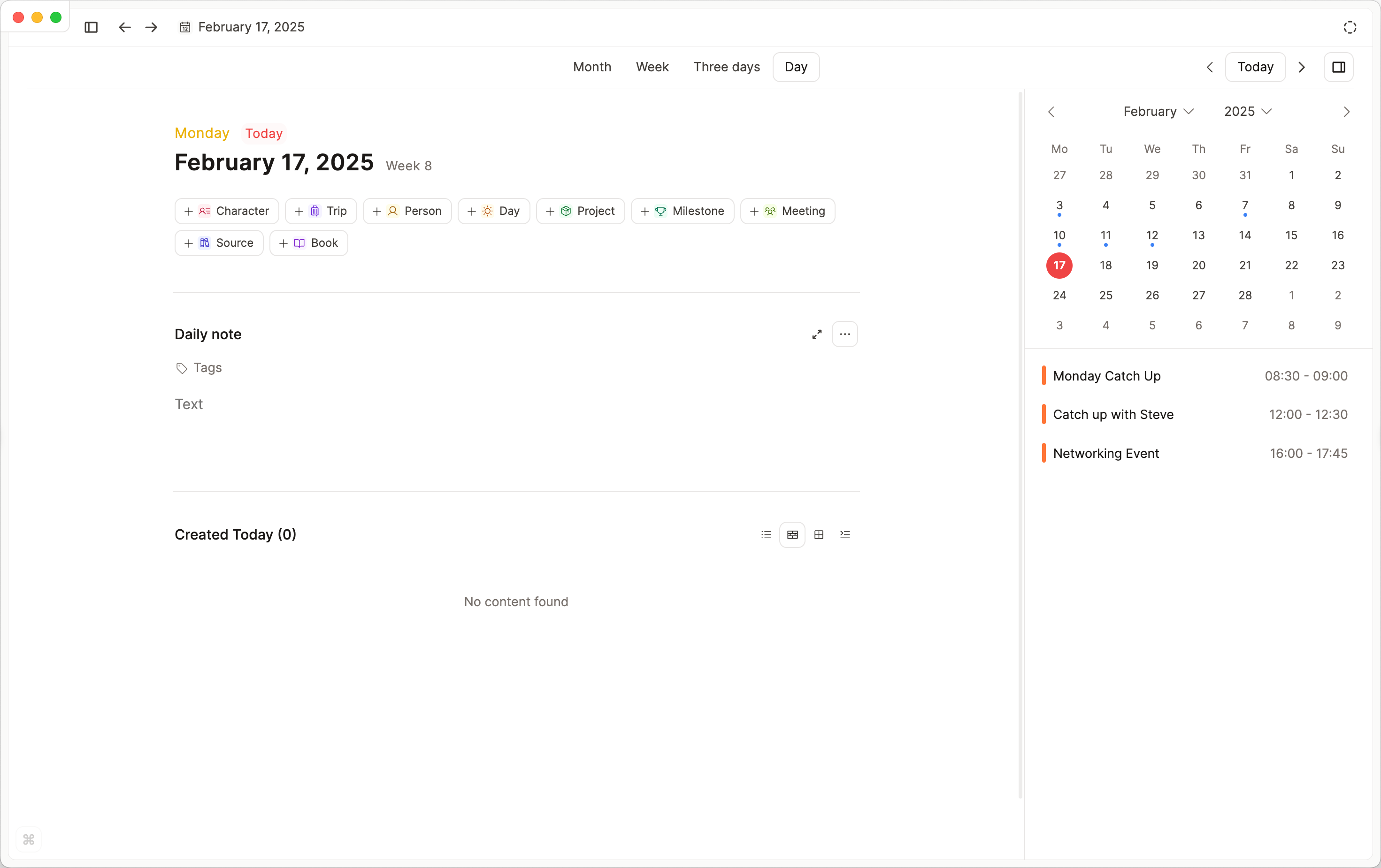
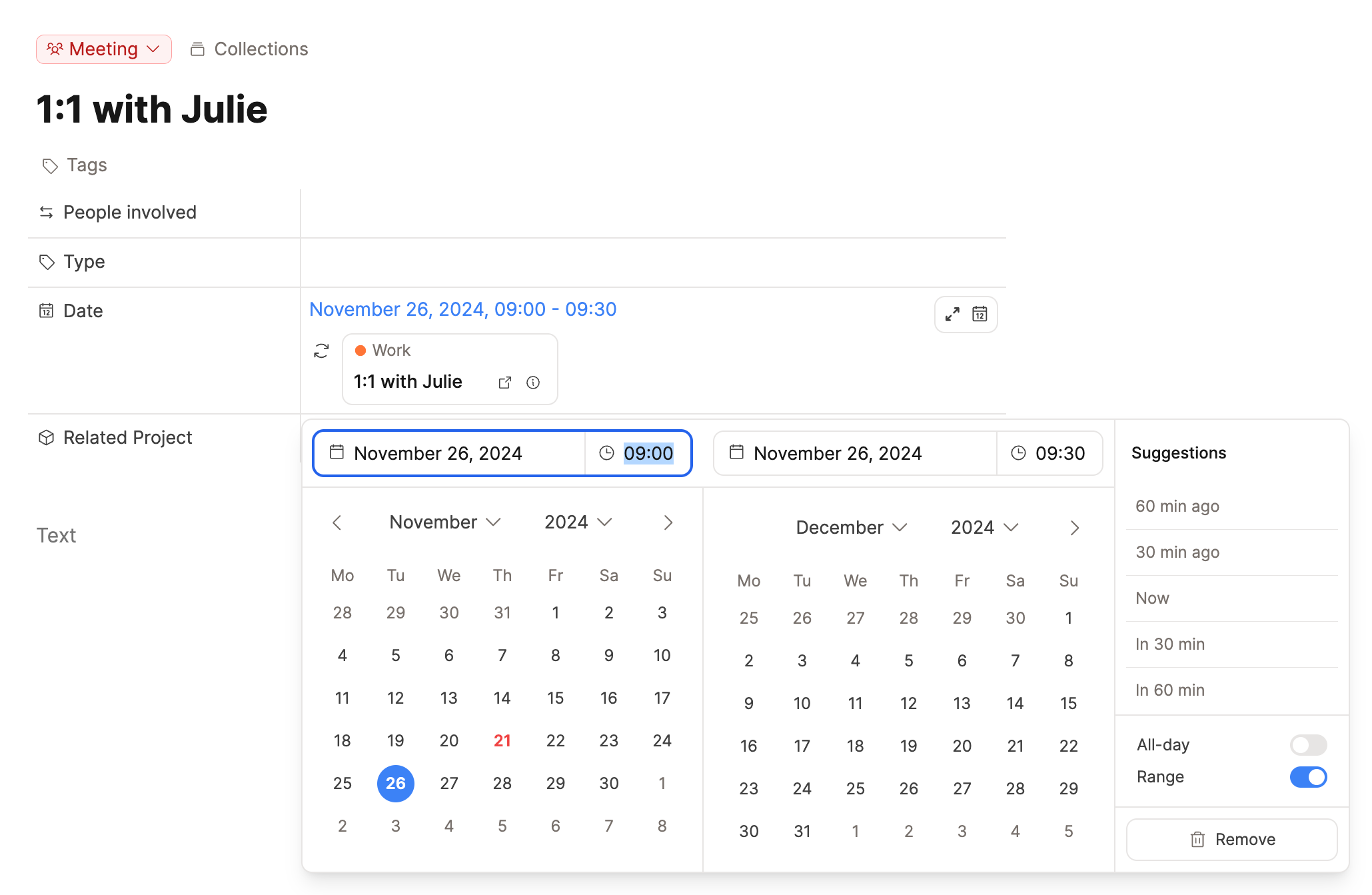
From the Capacities calendar though, you can quickly create objects that are synced to the calendar event. Your object needs to have a date property to be able to connect it to a calendar event.
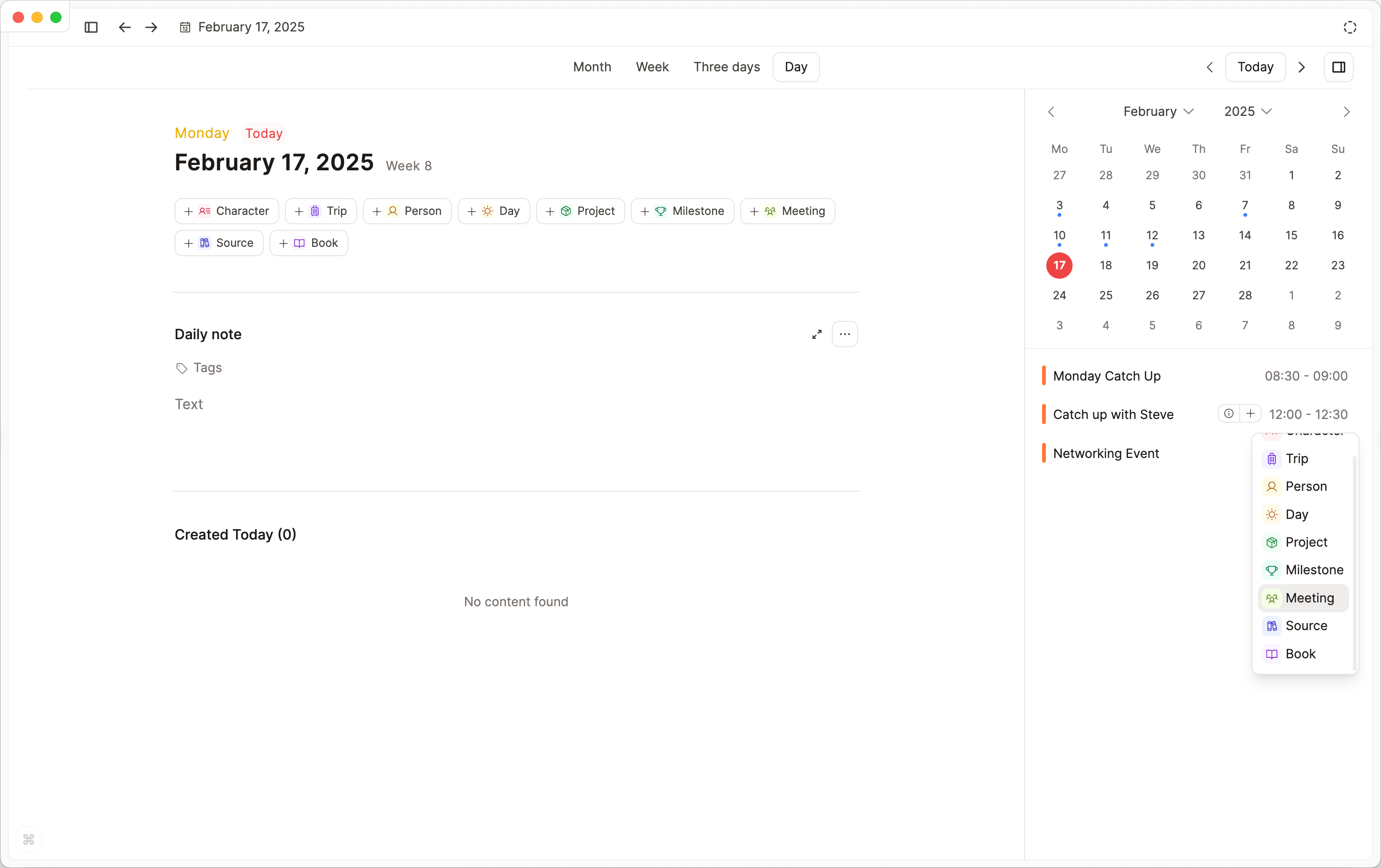
The calendar event is now linked to the date property of that object. In your Capacities calendar, the event will be replaced by the object. All event information becomes part of the object's date property.
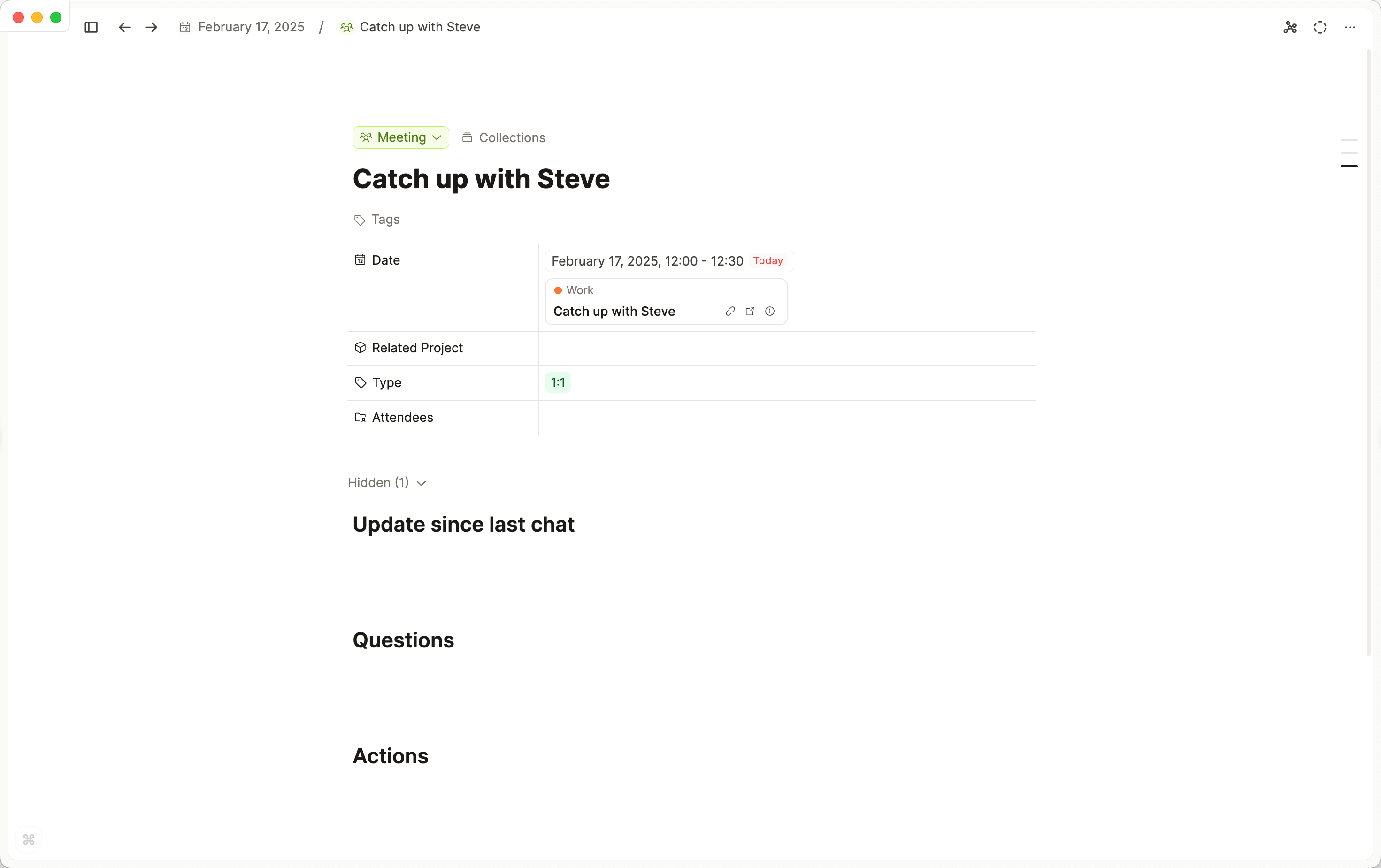
Once you've created the object, you can update the date or time if needed, and it will reflect in your calendar. Also, if your event gets updated in your calendar, Capacities will update the object in Capacities.
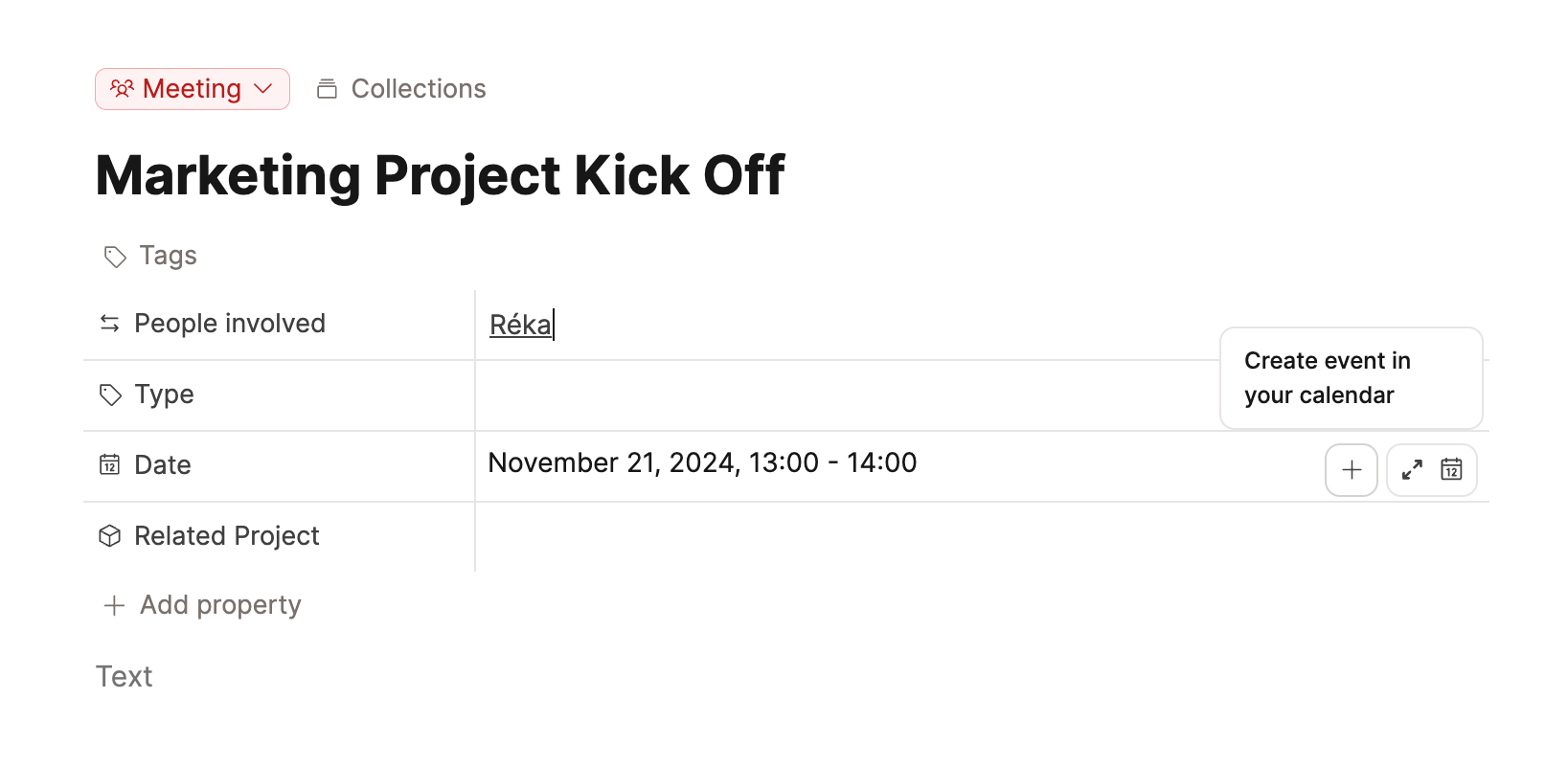
On top, if you've created an object already, and want to create a corresponding event in your calendar, your date property will give you that option.
Events in your calendar are not automatically created as objects in Capacities. They get connected to date properties of notes as soon as you create a note from an event. Your calendar events are stored in your calendar provider and not in Capacities. This way, you're in control of which events make it into your note-taking system.
Please be aware that synchronization of events between your calendar and Capacities is not real-time. Events can take up to 30 seconds to update or display.
Setup
To set up calendar integrations, go to Settings > Calendar integrations and follow the instructions there.
Once you have set it up, go to the 'Calendar' button, then make sure the left sidebar is open. This is where your events will be.
Capacities currently supports the following calendar integrations:
- Google Calendar
- Microsoft 365 Calendar
- Apple Calendar (via CalDAV, iCloud)
- Other CalDAV calendars, such as Nextcloud and Fastmail
Calendar integrations need a CalDAV or provider account you can sign in to. Capacities does not support ICS files, public calendar links, or webcal subscriptions.
Apple Calendar
Use Apple Calendar when your events live in iCloud. Capacities then shows the calendars stored in iCloud.
The Apple Calendar app on your phone or computer can also show calendars from other accounts you added there. Those calendars do not appear in Capacities through Apple Calendar. Connect the original account instead:
- Google events: add Google Calendar
- Outlook or Microsoft 365 events: add Microsoft Calendar
- Nextcloud or Fastmail: add that CalDAV account
- Another calendar server: add CalDAV
If you only see those events inside the Apple Calendar app, you still need the original account in Capacities.
Subscribed calendars in the Apple Calendar app also do not come through. Capacities does not support public .ics files or webcal:// links. If you want that support, add a request on our feedback board.
Calendar integration settings
After you have connected your calendar integration, you can configure the integrations to your needs.
- Calendar settings: In the calendar integration settings, you can choose which of your calendars should be accessible in Capacities. You can also choose in which spaces the events should be shown in the calendar.
- Object settings: If your object has a date property, you can define if you want calendar events to be created for that object. You can select this under
Object types><Your object>>Calendar Settings.
What are calendar integrations not for?
Calendar Integrations are not a full replacement of calendar, reminder, and time-based To-Do apps. Capacities focus is on notes and information around events and meetings.
- To manage events, we recommend using a calendar app
- If you want to work with tasks and reminders, we recommend to use Capacities' task management feature or task actions in combination with a task management app.
Here are some more details on considerations when to use Capacities calendar integrations.👇
Calendar integrations won't replace your calendar app
Capacities calendar integrations sync events with date properties in your notes. If an event gets updated in your calendar, Capacities will update the event in your notes. If you update an event in Capacities, it will update the event in your calendar. Nevertheless, Capacities is not and will not become a full replacement for your calendar app.
Here are some limitations and things to keep in mind:
- Capacities does not allow you to manage your events from the Capacities calendar: You can view your events and create notes from them, and if you change the date property of an object, Capacities will update the event. You can also create events in your calendar from your notes, but Capacities does not support creation and full editing of events in your Google or Outlook calendars. You need to use your calendar app if you want to create events without notes, create recurring events, move events around, or edit your events' properties.
- Recurring events cannot be created or updated from Capacities.: If you want to update a date property of a note connected to a recurring event, you need to disconnect the note from the event. You can then change the date of that note.
That being said, we plan to add more functionality to the Capacities calendar over time to make the experience more seamless. If you have any feedback, please add it to our feedback board.
Calendar provider requirements and local calendar support
Capacities also requires a connection to your calendar provider to sync your events reliably across your devices. Your provider (and company) needs to support outside calendar access. If your company only allows to show the status of a calendar event outside of your company's domain, you won't be able to use Capacities calendar integrations at the moment.
Capacities calendar integrations do not support synchronization to the local calendars on your device at the moment. While this could be a workaround for the above problem, we don't have near-term plans to add this to Capacities. If you're interested in this feature, please vote on this feedback ticket.
Calendar integration errors
There are many reasons why a calendar integration can fail. If a calendar integration fails, you'll see error messages in the app.
Steps to resolve the issue:
- Check if your integration is still connected to Capacities. Open the settings and check if you see an error message next to your integration connection. If you see an error message, reconnect Capacities to your integration. Delete your connection and follow the instructions in the settings to reconnect Capacities to your calendar.
- Check the most common error codes below to resolve the issue.
- If none of the above steps helped, you can create a ticket on our feedback board with as much information as possible. Please include the error message and the error code if you have one.
Common error codes and how to resolve them
- Code 2408: The integration does not have the necessary permissions. You need to grant Capacities all permissions in the setup process.
- Code 3498: It is very likely that you already have an active connection to Google (either with this account or another account). Go to your Google connections and remove Capacities Calendar Integration from the list of connected apps. Then, reconnect Capacities to Google
- Code 2891: It is very likely that you already have an active connection to Microsoft (either with this account or another account). Go to your Microsoft connections and remove Capacities Calendar Integration from the list of connected apps. Then, reconnect Capacities to Microsoft.
- Code 3322: Authentication with your calendar failed. Please try the steps above to resolve the issue.
- Code 2789: Fetching events from your calendar failed. Please try the steps above to resolve the issue.
- Code 2339: Updating an event in your calendar failed. Please try the steps above to resolve the issue.
- Code 9232: The Capacities Calendar Integration is disabled in your calendar provider. Please check your calendar provider settings to enable the integration or ask your administrator to enable it.
FAQs
- I can't find the object type I want to create an object for
Add a date property to that object type so the calendar event can be connected via this property. Then it will show up in the object list. If it still doesn't show up, you might need to adjust the calendar integration settings in the settings of that object type. - The date and time information is attached to the wrong date property
If you have more than one date time property, you need to move the correct one to the top of your property list. You can rearrange the order of your properties in the object type settings. You may need ti disconnect the calendar event from the incorrect property and add the correct one after. Generally we advise that you have one date property per object type. You can use date ranges to create start and end dates if needed - Can I change the calendar colours in Capacities?
No, you can change them in Google Calendar though. - Can I connect multiple Calendar accounts?
Yes you can, click 'Add Integration' to start the process again. - Can I subscribe to an ICS file, public calendar, or webcal link?
No. Capacities calendar integrations do not support ICS files, public calendar links, or webcal subscriptions. Use Google, Microsoft, Apple Calendar (iCloud CalDAV), or another CalDAV account you can sign in to. - I connected Apple Calendar but I do not see events from Google or Outlook
Apple Calendar in Capacities only reads calendars stored in iCloud. The Apple Calendar app can show other accounts you added there, but those do not come through. Connect the original account in Capacities, for example Google Calendar or Microsoft Calendar. - I connected a calendar. Where do my meetings appear?
Open the Calendar in Capacities. Events show on the day they belong to. They are not turned into objects automatically; create a note from an event when you want one in your space. On mobile, open the Calendar tab and pick the day. Use Timeline for date references and linked objects for that day. See Calendar on mobile. - Does Capacities sync Apple Reminders?
No. Apple Reminders are not supported. For to-dos in Capacities, use tasks (including the task actions available on mobile). - Do calendar invite attendees link to Person objects automatically?
No. Capacities does not auto-link invite attendees to Person objects. Add people yourself with@or an object-select property when you want that link.
Ask a question! - The Docs Assistant knows everything about the documentation, and the ideas and feature requests from other users.
Create a ticket on our feedback board. - Let us know if you have an idea for a feature, improvement or think there is something missing.
Request additions to the documentation. - If your questions are not getting answered, let us know and we will extend the documentation.