Reference
User interface
Reference
User interface
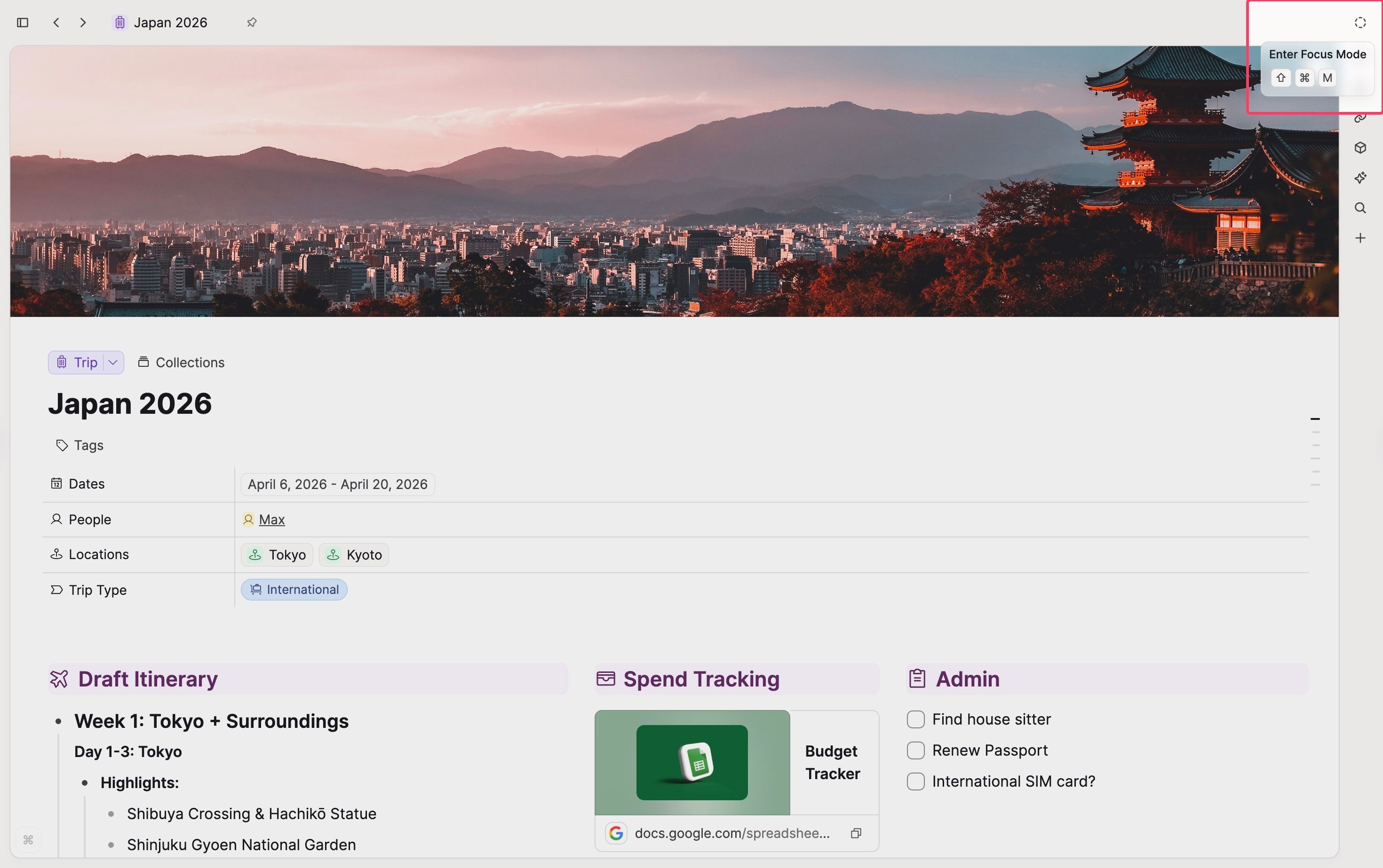
Focus Mode
Capacities ProHide all UI elements with the focus mode button, so you can concentrate on the work at hand.
Open the left sidebar. At the bottom of the screen, next to the light/dark mode toggle (sun/moon), find the circle with a dashed outline. That is Focus Mode.
On desktop, that same bottom-left area also keeps an optional timer (5 to 60 minutes). Back and forward there follow the tab you are in. See Back and forward. Capacities remembers the last timer duration you picked. When the timer ends, a short chime plays and a completion card stays until you continue. Entering and leaving Focus Mode also plays a short sound cue.
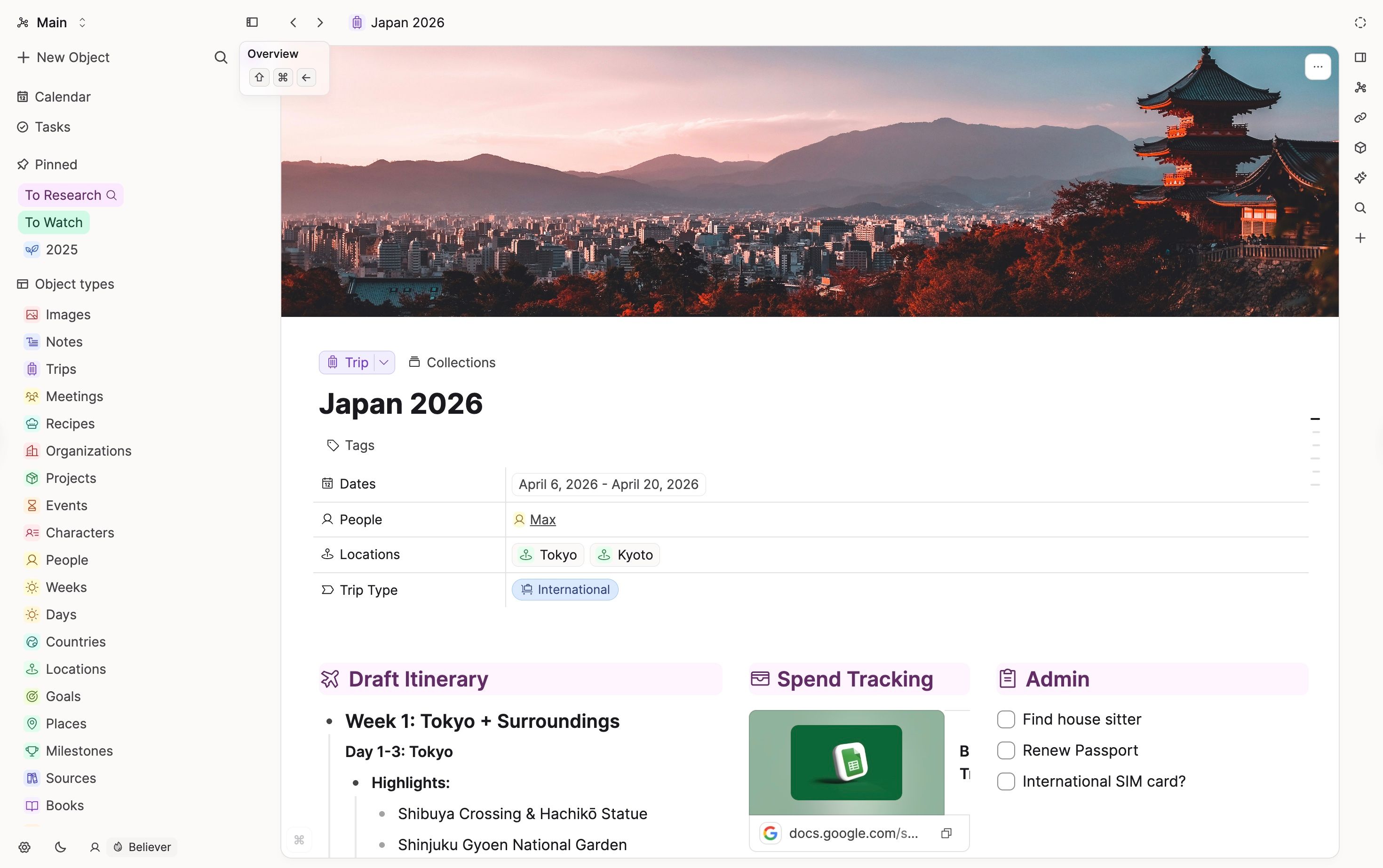
Floating inspector
On object pages, a floating inspector sits on the right edge of the content. Hover over the indicator to open it.
The inspector has two tabs:
- Outline: automatic table of contents from headings on the page. The tab stays visible even when there are no headings, with a short empty state when the outline is empty.
- Info: text statistics and created-at details for the object.
Use the pin button in the top bar to keep the inspector open while you work. See How can I create a table of contents? and Where can I find text stats and created-at info? for more detail.
Left Sidebar
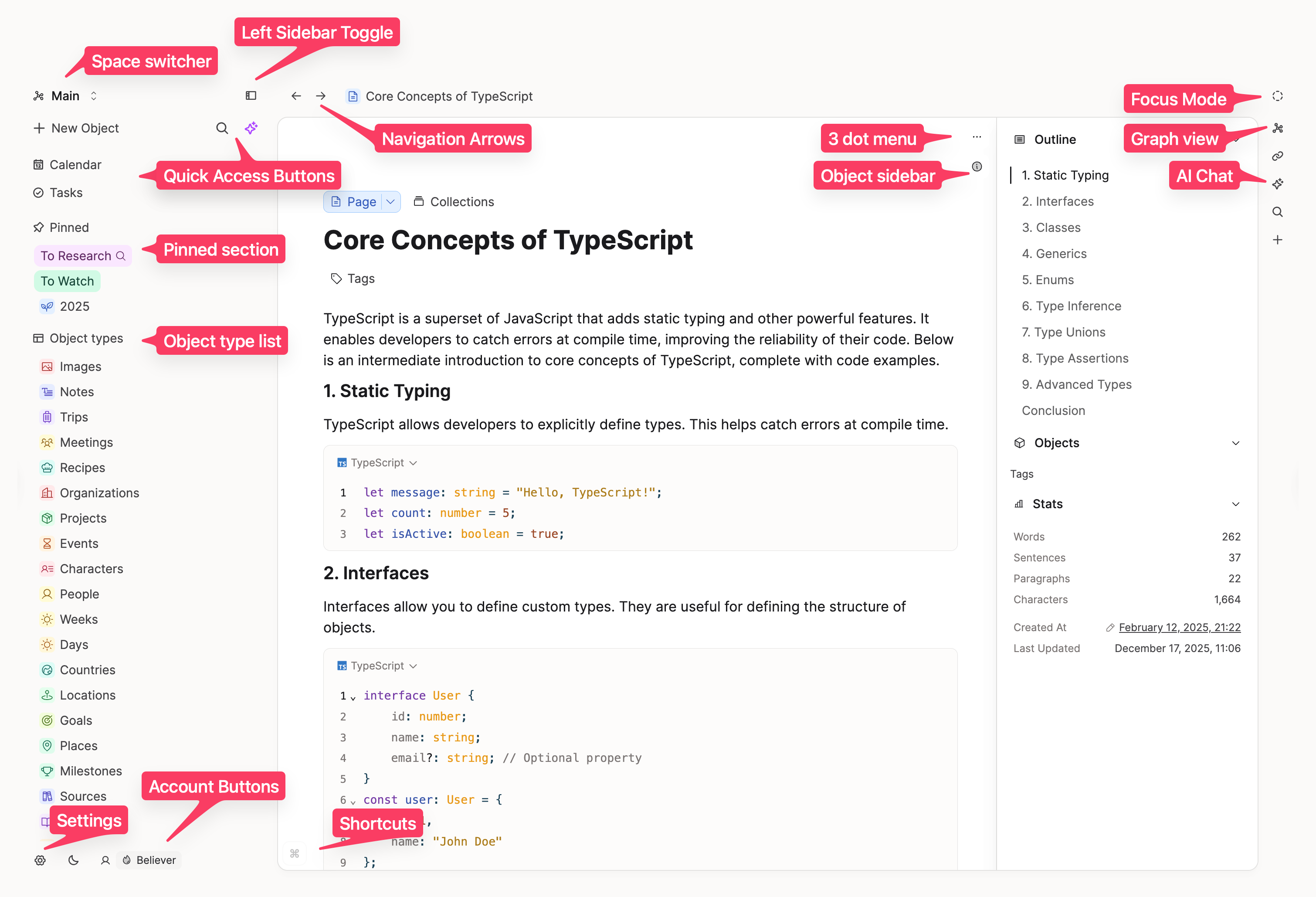
The left sidebar in Capacities is designed to provide easy access to various features and sections of the app.
Space Switcher
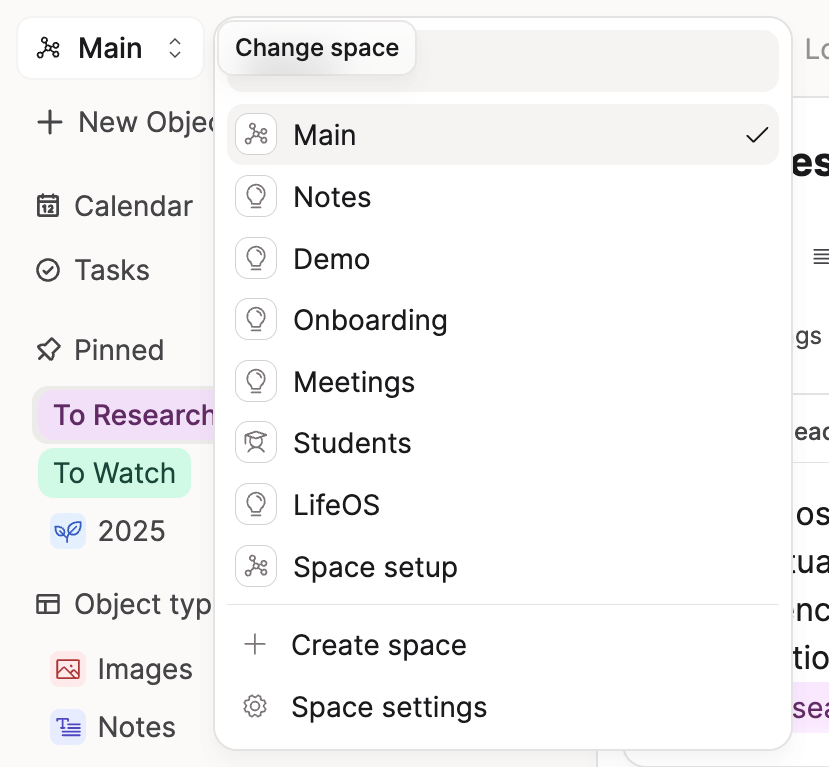
If you have multiple spaces you can switch between them with the button in the top left. If you are a new user, it will be called 'Notes'.
Quick Access Buttons
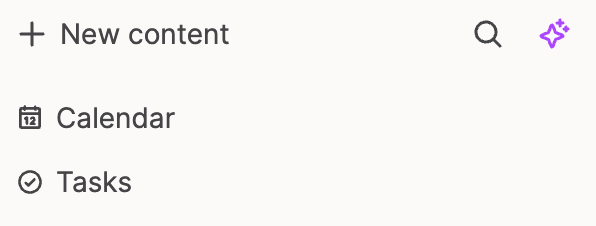
+ New Contentlets you create an object of any type.- The Search icon opens search for the space you are in
- The star icon opens the AI assistant (if you have AI enabled in Capacities)
Calendartakes you to the Capacities central calendar. Double click to go to Today.Shift + clickToday opens that day's daily note in the side panel.Taskswill open the task dashboard if you have enabled Capacities Tasks.
Shared
Shared in the left sidebar opens an overview of every object you have shared in the current space. The entry appears as soon as you share your first (or next) object. See Sharing in a knowledge graph for how sharing works.
Object Type List
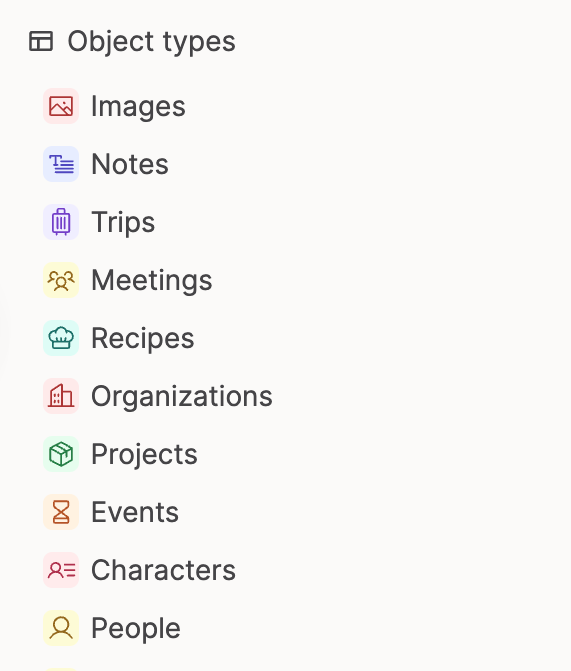
In Capacities, every object has a type. All of your object types will be listed in the sidebar so you can easily access your content by type. The list can be rearranged to suit your preferred order.
Sections
Sections in the left sidebar are groups of pins: shortcuts to objects and object types you open often. Use New Section to create groups such as Work or Personal, then pin items with + in the section header or via the object menu (... → Pin).
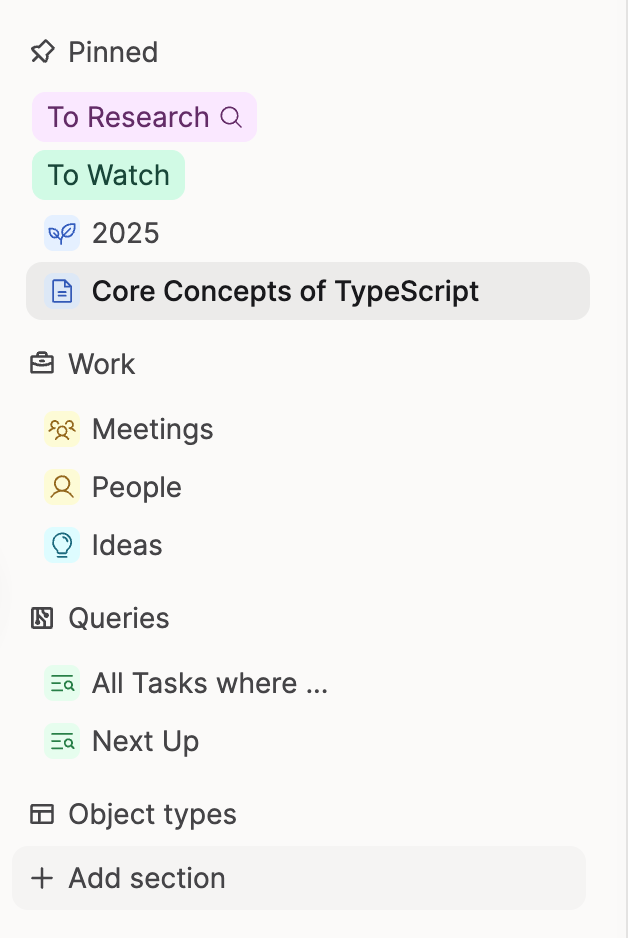
Deleting a sidebar section does not delete the content that was pinned there.
“Section” also means something else on an object type dashboard (the tabs under a type such as People). Those are views of content within that type, not sidebar shortcuts.
For the full distinction (including duplicate People entries and how to pin or delete), see Sections.
Help Sections
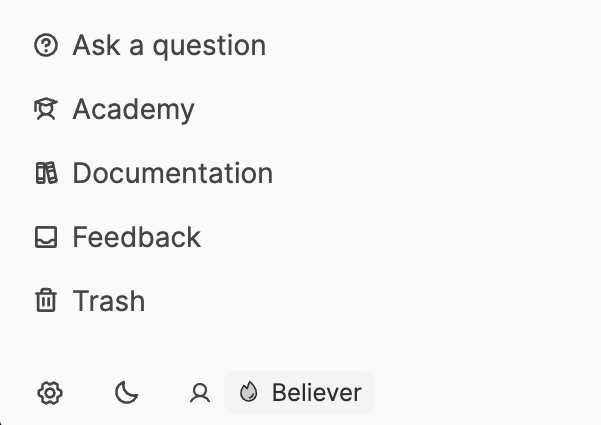
At the bottom of the sidebar you will see links to our chatbot (trained on our documentation and videos), the academy, the documentation, our feedback board and your trash.
You can collapse this if you don't need to see it by clicking on the section name.
Account Buttons
At the very bottom of the screen you will always see the settings cog, Focus Mode (circle with a dashed outline, Pro), the appearance toggle (sun/moon), and your account details. You can log out from here.
FAQs
- Where do I find the three-dot menu?
On desktop, the three-dot menu (...) is above the object title on the right side. A good visual guide is to follow the horizontal line of the object type label to the right. - Why is my left sidebar empty?
Please refresh your app with Cmd R (Mac) or Ctrl + R (Windows). - Why can't I see my object type list?
Your sidebar sections might be toggled closed. If you see 'Object types' listed in the sidebar, please click on it. - What is the difference between "Remove from this section" and "Unpin from Dashboard"?
Remove from this sectionremoves a sidebar pin.Unpin from Dashboardremoves a tab/section on an object type dashboard. See Sections. - Why can't I see Focus Mode?
- Open the left sidebar and look at the bottom of the screen, next to the sun/moon appearance toggle. Focus Mode is the circle with a dashed outline.
- Confirm you are on Capacities Pro (or Believer) and that the plan is active on this account.
- If the button is still missing after a refresh (
Cmd/Ctrl + R), contact support with your plan and app version.
- What is the difference between an object and a section?
See Sections. Short version: objects are your content; sections are navigation (sidebar pins or dashboard tabs).
Ask a question! - The Docs Assistant knows everything about the documentation, and the ideas and feature requests from other users.
Create a ticket on our feedback board. - Let us know if you have an idea for a feature, improvement or think there is something missing.
Request additions to the documentation. - If your questions are not getting answered, let us know and we will extend the documentation.