Spaces
Spaces
Spaces are a container for all your notes. You can have one space for all notes, or several spaces that you split your notes between.
Your first space
The onboarding creates your first space , which is called ‘Notes’ by default. You can rename this space at any time; it’s a normal space with the same capabilities as any other space you create later.
To rename the space, go to Settings > Space Settings.
Creating a new space
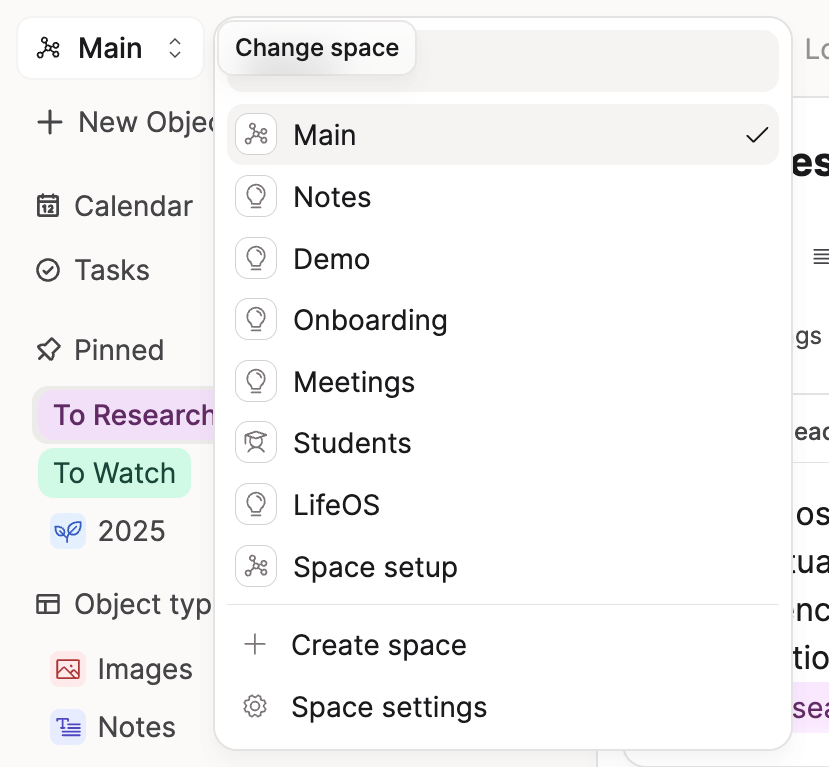
Click your active space's name in the top-left corner of the app, then choose Create new space.
When you create a space, you can start with Basic Setup or a blank space.
Basic Setup adds ready-made types (for example people, meetings, projects, and books) with connected properties and queries. New signups get this by default. You can still change everything later.
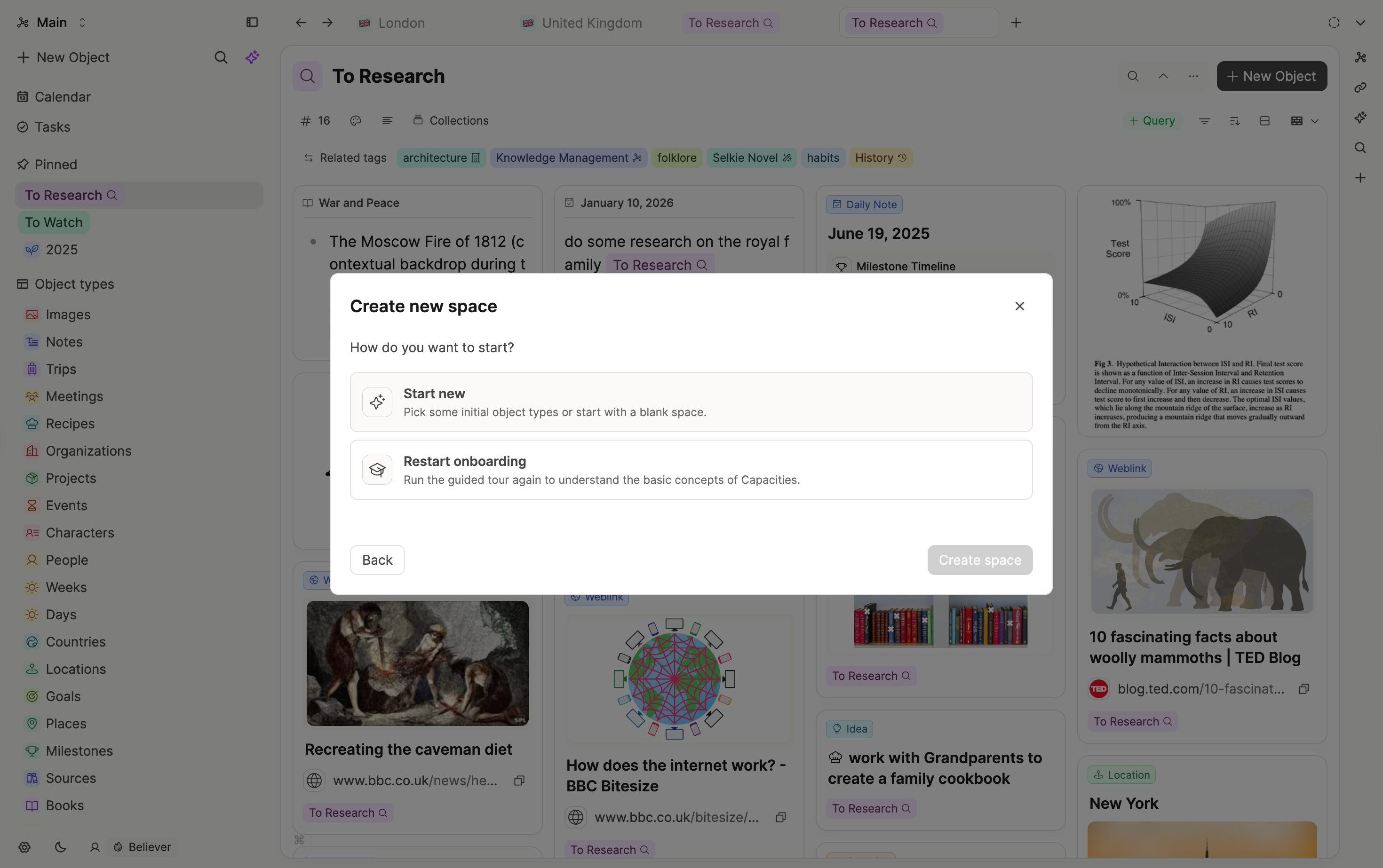
Here you can also choose to restart the onboarding.
You can also restart the onboarding from Settings > Account. This creates a new space with the onboarding experience and leaves your existing content untouched, so there's no risk of losing anything.
Switching between spaces
Desktop
Use the space switcher in the top-left corner to move between your spaces. You can also switch spaces from the command palette by searching "Open <space-name>".
When you switch spaces, Capacities opens the place you chose for that space under Settings > Editor > When this space opens. See Opening behavior per space and device.
Mobile
Open the left sidebar (swipe right or tap the home icon) to find the space switcher at the top. See Capacities on Mobile for more.
Tablet
The space switcher is in the bottom-left corner of the left sidebar. See Capacities on Tablets for more.
Deleting a space
You can delete a space by going to Settings > Space Settings > Delete Space.
Deleted spaces are soft-deleted for 30 days and can be restored in Settings > Account > Deleted Spaces.
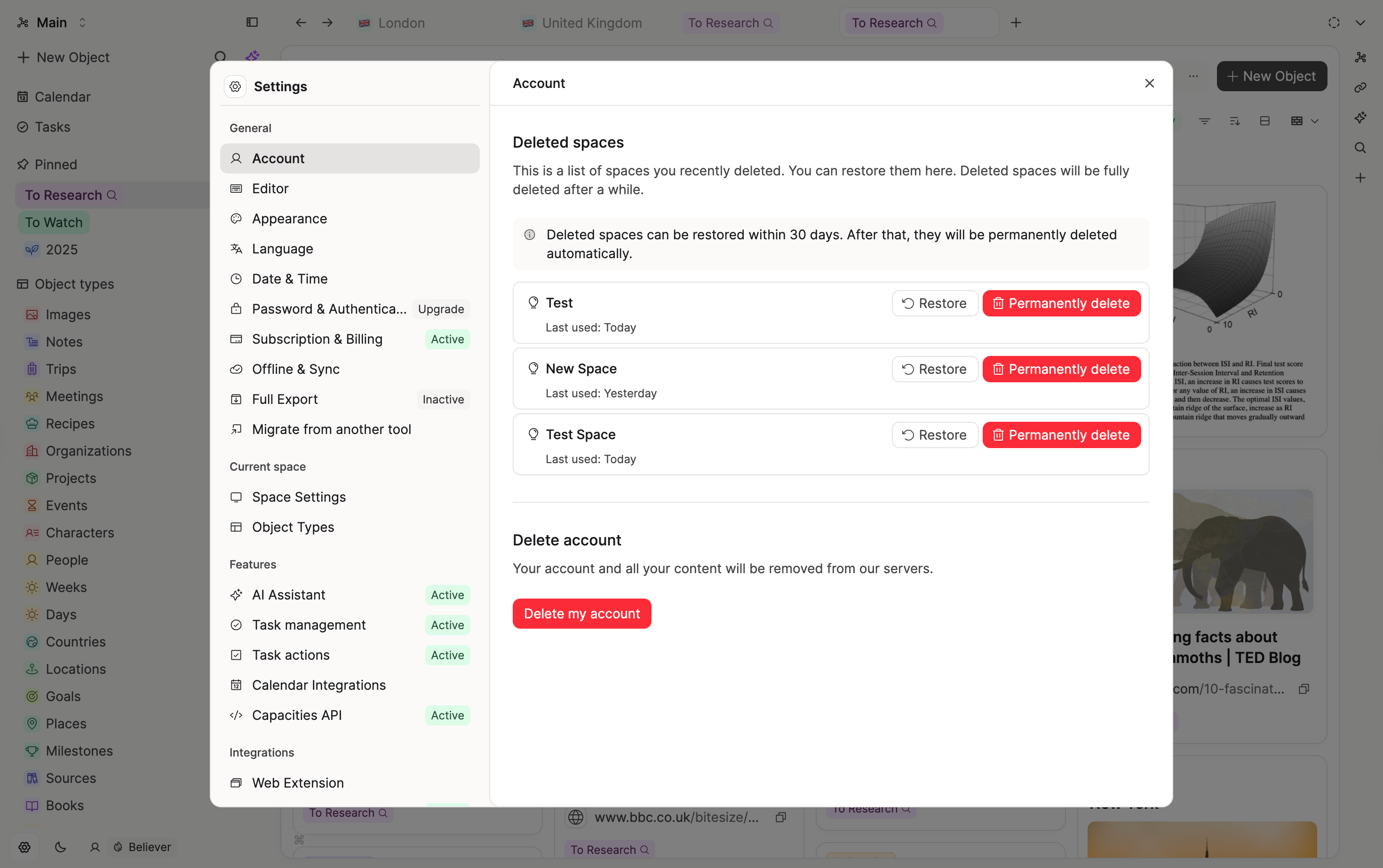
To remove a space immediately, go to Settings > Account > Deleted Spaces and click "Permanently delete".
How Many Spaces?
Spaces are completely separate from each other. Each space has its own object types, tags, collections, and organizational structure. Because of this, you need to carefully consider how many spaces to begin with.
We lay out some considerations below.
All-in-one space Pros
- Powerful search across all your content in one place
- Only one space to manage
- All your objects can be linked together — connections across work and personal content happen naturally
- Tags work across all your object types, giving you one unified layer of thematic organization
Multiple spaces Pros
- More focused search results — if you know you never need to see work items in your personal space, search will surface fewer irrelevant results
- More control in organising your notes by domain — you might not need a "Meetings" object type for all domains of your life
- Perhaps work/life balance — no need to see work-related things at the weekend
- Specialist use-cases (e.g. TTRPG)
Multiple spaces Cons
- Search is scoped to the current space. You need to switch spaces before searching. The command palette makes this fast ("Open
<space-name>"), and Pro users can use the Raycast integration for global search across all spaces — but it is still a consideration. - No linking across spaces. Objects in one space cannot reference objects in another. If you find yourself wanting to link a "Person" from your work space to a "Book" in your personal space, a single space may serve you better.
FAQs
- I want a fresh start. Do I need to delete my account?
No. Create a new space from the space switcher in the top-left corner. You can restart the onboarding during setup. Your existing spaces stay until you delete them. See I want a fresh start. Do I need to delete my account?. - How many spaces should I start with?
We recommend starting with one and creating another space if you are sure you want the separation. You can always try a new space with Basic Setup or a blank space. Your existing content stays untouched. - Can I merge spaces?
Not directly. You can export one space and then import the content into another. Note that links between objects will not carry over, so you may need to recreate some connections manually. - Can I transfer one object type from one space to another?
Not directly. You'll need to recreate the object type in the target space, export the objects from the source space, and import them into the target. See type conversions if you also need to remap properties. - How do I delete a space?
Go toSettings > Space Settings > Delete Space. See Deleting a space above for full details on recovery and permanent deletion. - Can I share or collaborate in a space?
Spaces are personal and cannot be shared with other users at this time. You can share individual objects via the sharing feature. - Does search work across all my spaces?
No. Search is scoped to the space you currently have open. Pro users can use the Raycast integration to search across all spaces globally.
Ask a question! - The Docs Assistant knows everything about the documentation, and the ideas and feature requests from other users.
Create a ticket on our feedback board. - Let us know if you have an idea for a feature, improvement or think there is something missing.
Request additions to the documentation. - If your questions are not getting answered, let us know and we will extend the documentation.