Features
Task Management
Features
Task Management
Everyone needs a system to help them get things done. Having that system embedded directly in the context of your work, without the need for any setup, is what makes it just work.
The principle is simplicity: create a task from anywhere, find it exactly where you need it, and use built-in views to execute on what matters.
📺 Watch this video or read on for more information.
Activate Task Management
Task management in Capacities is opt-in. To add the task management features, you can simply create your first task like any other object or click on Add new type and select Task from the basic object type section.
If you want to continue with your own task management processes or you don’t want to see tasks in Capacities, you can hide all task management features in the Task Management settings.
Create a Task
It’s simple to create a task in Capacities. Here's a list of all the methods:
- Shortcut in text
()followed by space or/taskvia the slash command menu - Global Shortcut
Cmd + Shift + T(Mac) orCtrl + Shift + T(Windows) - Quick Add in Left Sidebar
Hover over 'Tasks' and you will see the
+button. - In task views
Look out for the
New Taskbutton. It will intelligently fill in information based on where it is. - Command Palette
Just type
taskand then enter and the task modal will pop up - On Mobile If you long-tap on the task icon in the bottom bar, you can directly create a task at any point. You can also create a task in the “+” menu in the bottom bar
Status, Priority & Deadline
The task object type comes with status, priority and deadline properties.
Status
If no status is assigned, the task is listed as open. You can assign statuses to begin your task management workflow.
The default statuses are
- Not started
- Next Up
- In progress
- Done
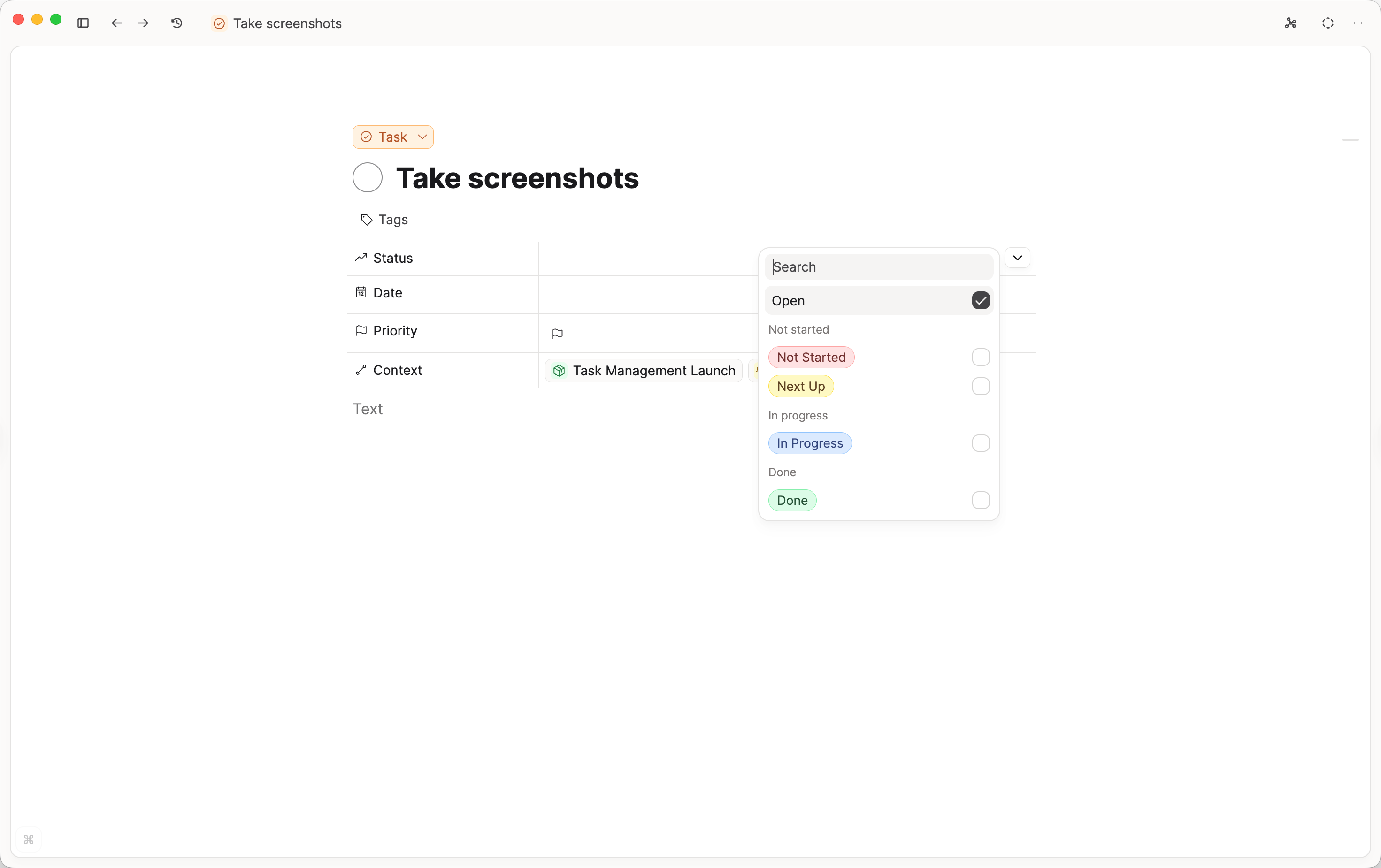
These will form the columns in the Kanban views available throughout the app for your tasks. If you'd like to rearrange the order of the statuses, go to Settings > Task Management > Status Customization and click and drag the six dots to the left of each status to change the order. From here, you can also add your own statuses, change the label colors and add icons.
Each status belongs to a category: Not started, In progress, Blocked, or Done. The category is separate from the status name. Capacities uses it to decide where tasks show up.
Statuses in the In progress category appear on Today and on today’s calendar even when they have no date. That keeps active work visible. Statuses in Blocked (for example On Hold, or Waiting For in the GTD preset) do not. If a waiting-style status appears on Today without a date, open Settings > Task Management > Status Customization and move it into the Blocked category. See Why do undated tasks show in Today?.
If you want simple task management, you can ignore the status property and just mark your tasks as done using the checkbox.
Priority
There are four priority levels:
- No Priority (default)
- Low (
!) - Medium (
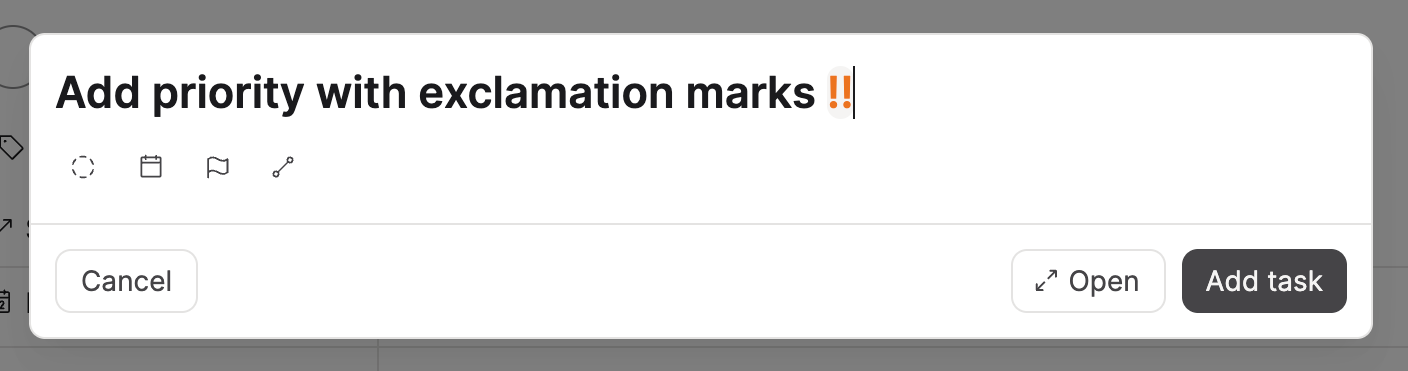
!!) - High (
!!!)
Your tasks will be automatically ordered by priority.
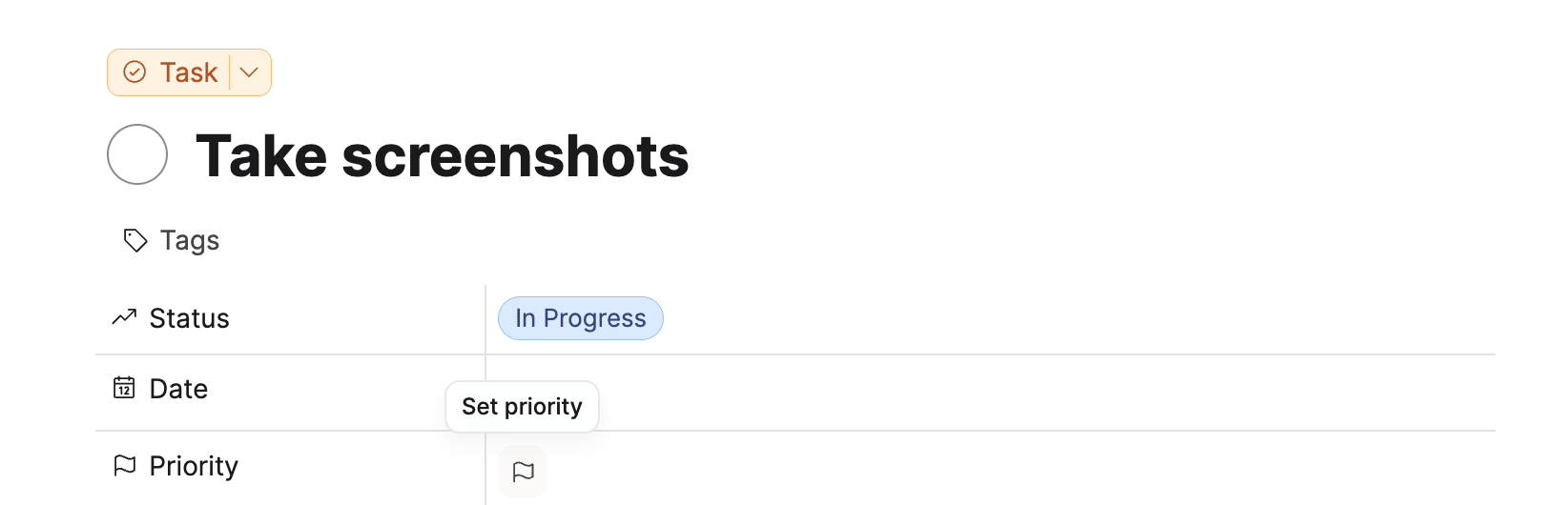
You can set it by clicking on the priority flag.
You can also set it in the quick task modal by typing exclamation marks.
Deadline
Tasks can also have a deadline in addition to a scheduled date.
Use deadlines when something must be finished by a certain day, even if you schedule the actual work separately.
Deadlines change how tasks appear in the main task views:
- Inbox: tasks with only a deadline do not appear in Inbox (they count as triaged)
- Today: overdue and due-today deadlines appear alongside overdue/today scheduled tasks
- Future day views: each day shows tasks that are scheduled on that day or due on that day
Across the main task views, tasks with deadlines are ranked above tasks without deadlines. Earlier deadlines rank first, used as a tie-breaker after priority and scheduled date.
Progress indicator
If a task contains checkboxes or tasks inside it, the task checkbox shows a subtle progress ring.
This gives you a quick visual sense of how much of that task is already completed without opening it first.
Contextualize a Task
Tasks are relevant at different times and in different contexts. Capacities supports you in working with tasks by showing you relevant tasks when you need them. The only thing you need to do is to fill out the relevant properties in your task. There are two options to show tasks in the places you need them:
Schedule a task
By adding a date to your task, you schedule your task. Scheduled tasks will be removed from your task inbox and will be moved to the scheduled section. On top, scheduled tasks show up in your calendar on the corresponding day.
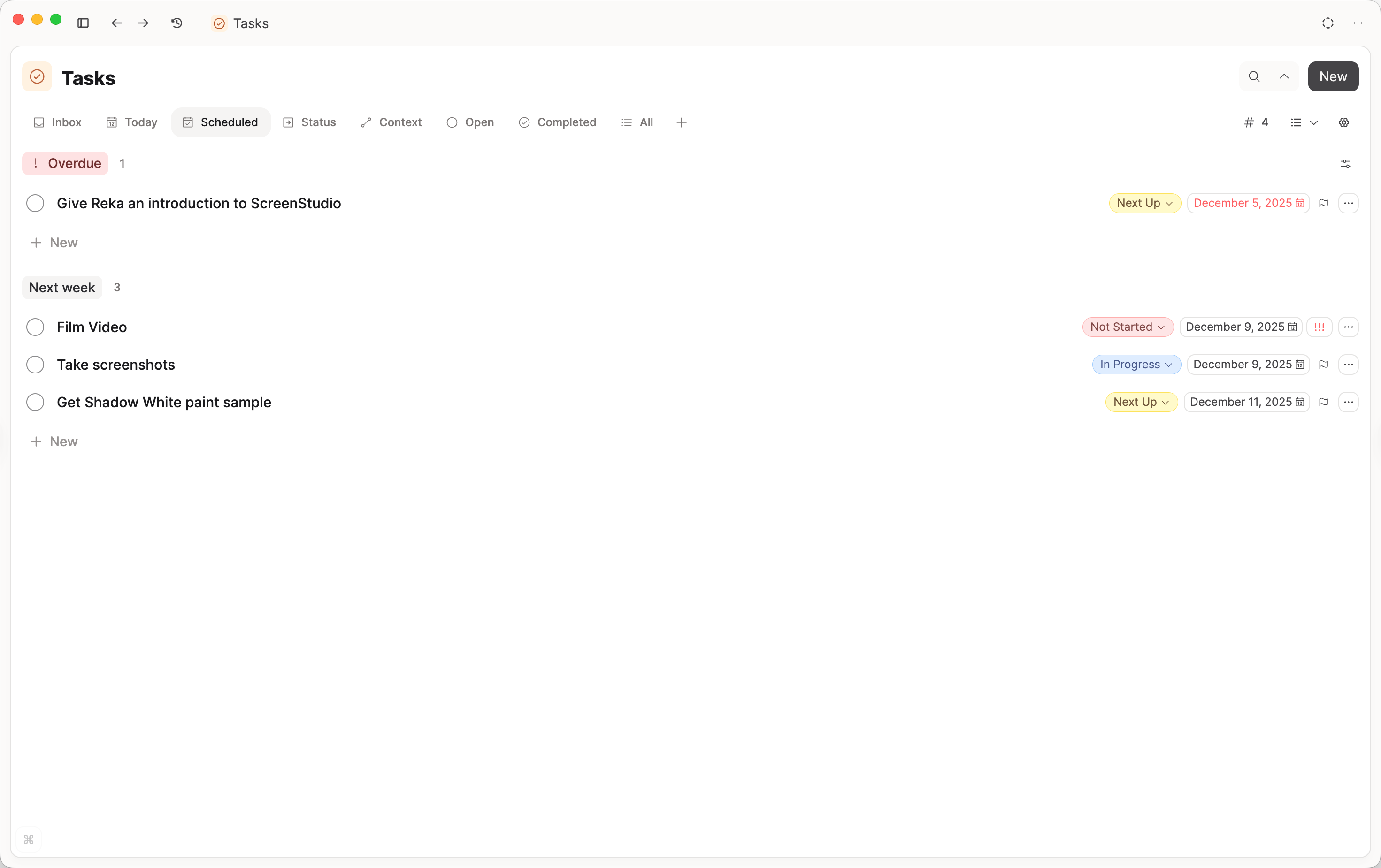
On today’s day in your calendar (and in the Today task section on the daily note), you will not only see tasks scheduled to today but also:
- overdue tasks (scheduled to a day in the past), so you don’t miss them
- tasks whose status is in the In progress category, including those with no date
- tasks with overdue or due-today deadlines
- tasks you marked done today
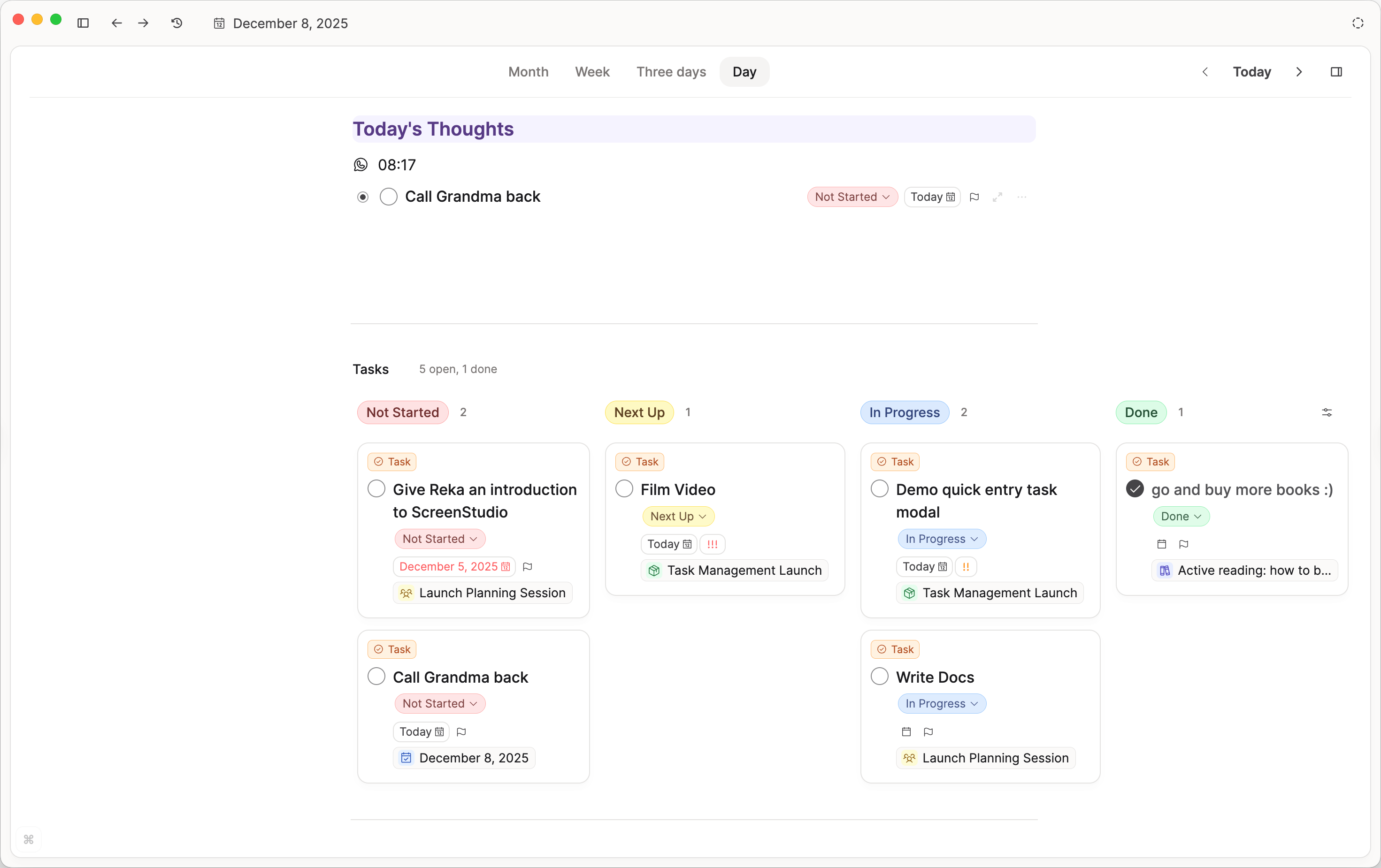
On days in the past, you’ll see all tasks you completed on that day, so you automatically get a record of what you have achieved.
In your calendar, you can choose how to view your tasks.
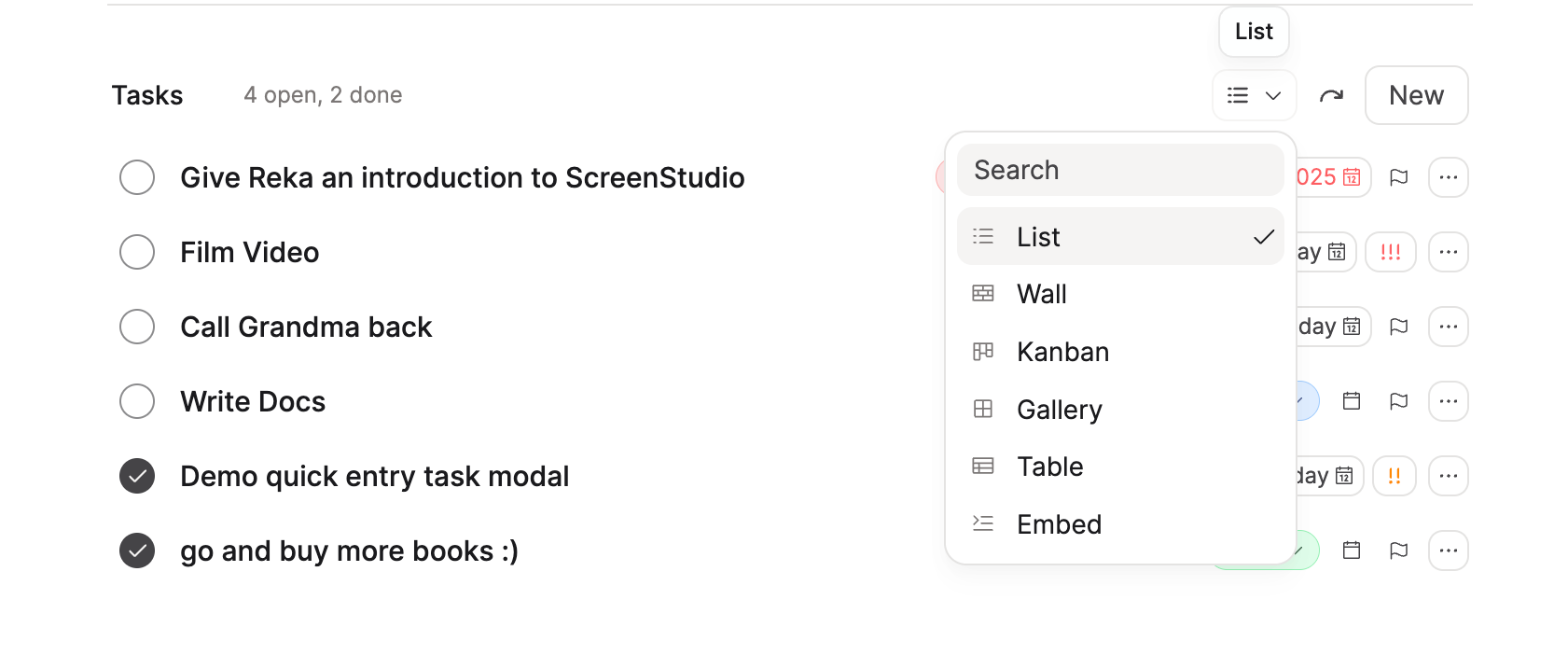
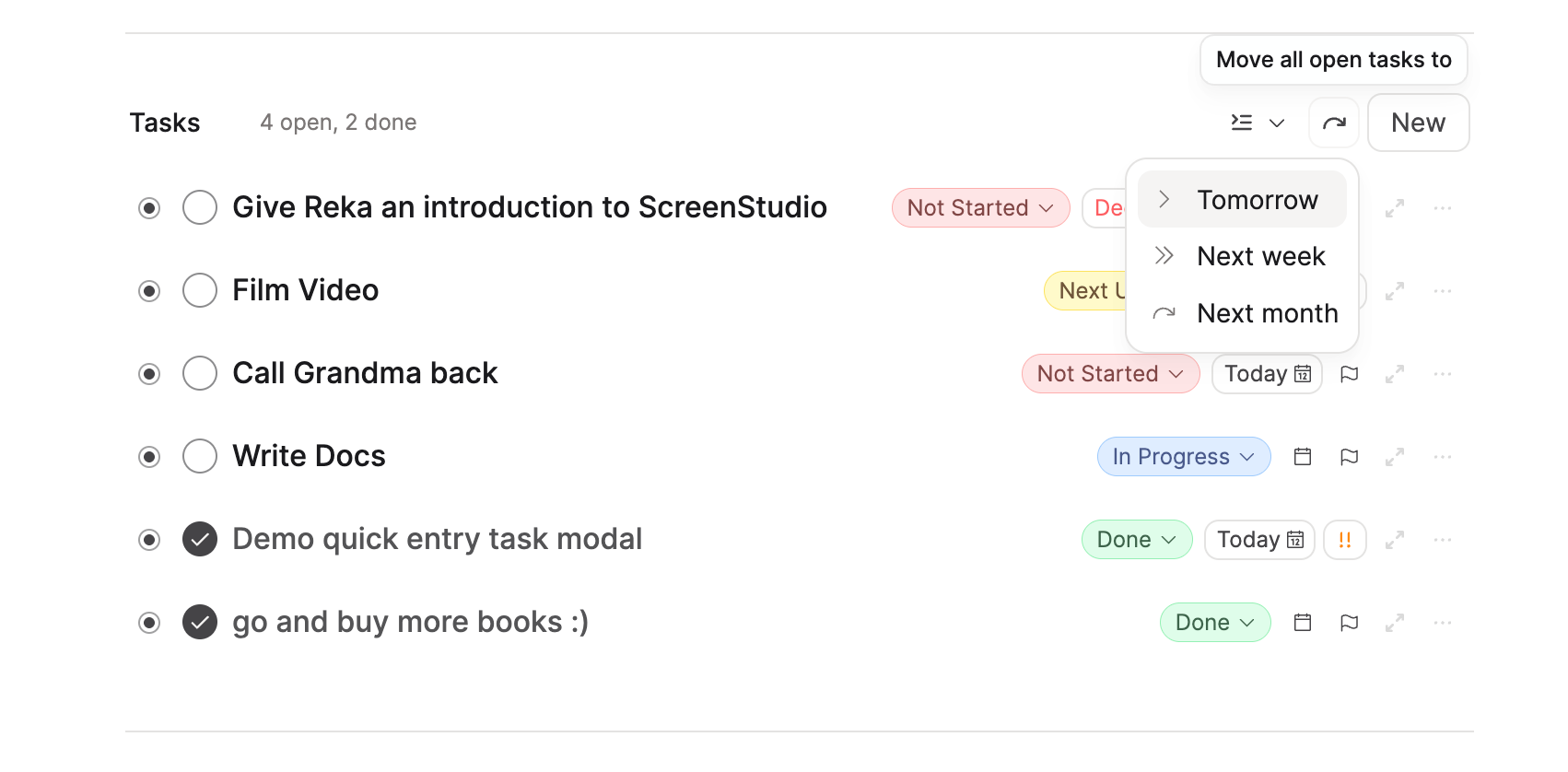
On today’s calendar view, you can also move all tasks you scheduled for today to another day with the arrow icon.
When you create a task, you can set priority and date by simply adding it to the title of your task. You can, for example, name your task “Prepare weekly meeting !! tomorrow 2pm,” and Capacities will automatically fill the date (”tomorrow 2 pm”) and priority (medium, !!) for you.
If you want to keep the literal text and skip this keyword-based autofill, press Esc while editing the task title.
Link it to your existing objects
If you create a task on a project page, it is automatically linked to this project.
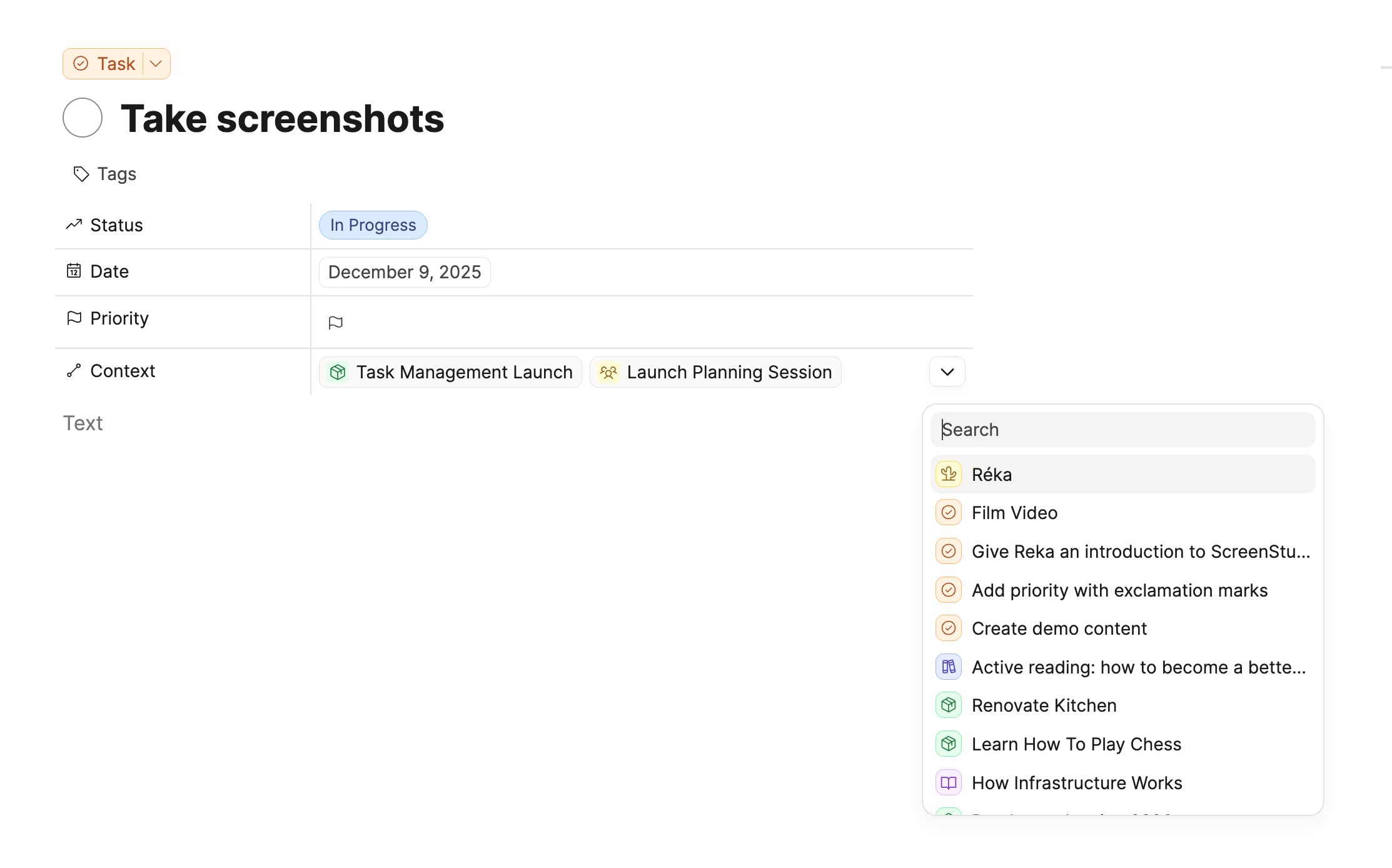
If you create a task without an explicit context, you can link it in the Context property. The context picker supports multiple selections, exact-match search, creating new context objects from the menu, and creating a page directly from the picker. All objects can be searched from this dropdown.
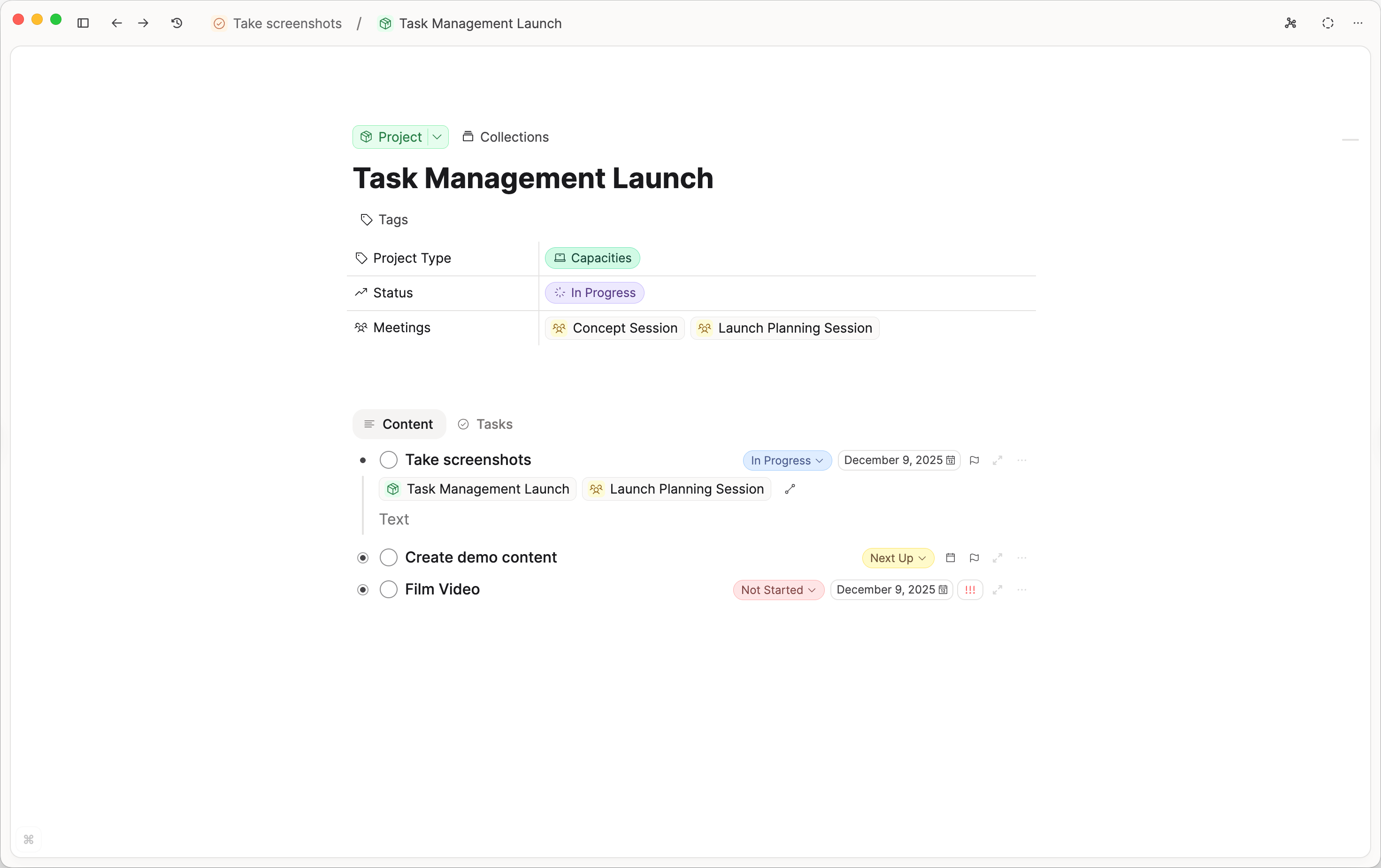
Next time you open that linked object, you will see the task in the blocks. You can arrange this as needed. For example, organizing your project task list by phase.
You will also automatically see a tasks tab, which you can switch between for a bird's eye view of all your tasks related to just that object. When the object has included tasks or to-dos, that tab shows a progress ring.
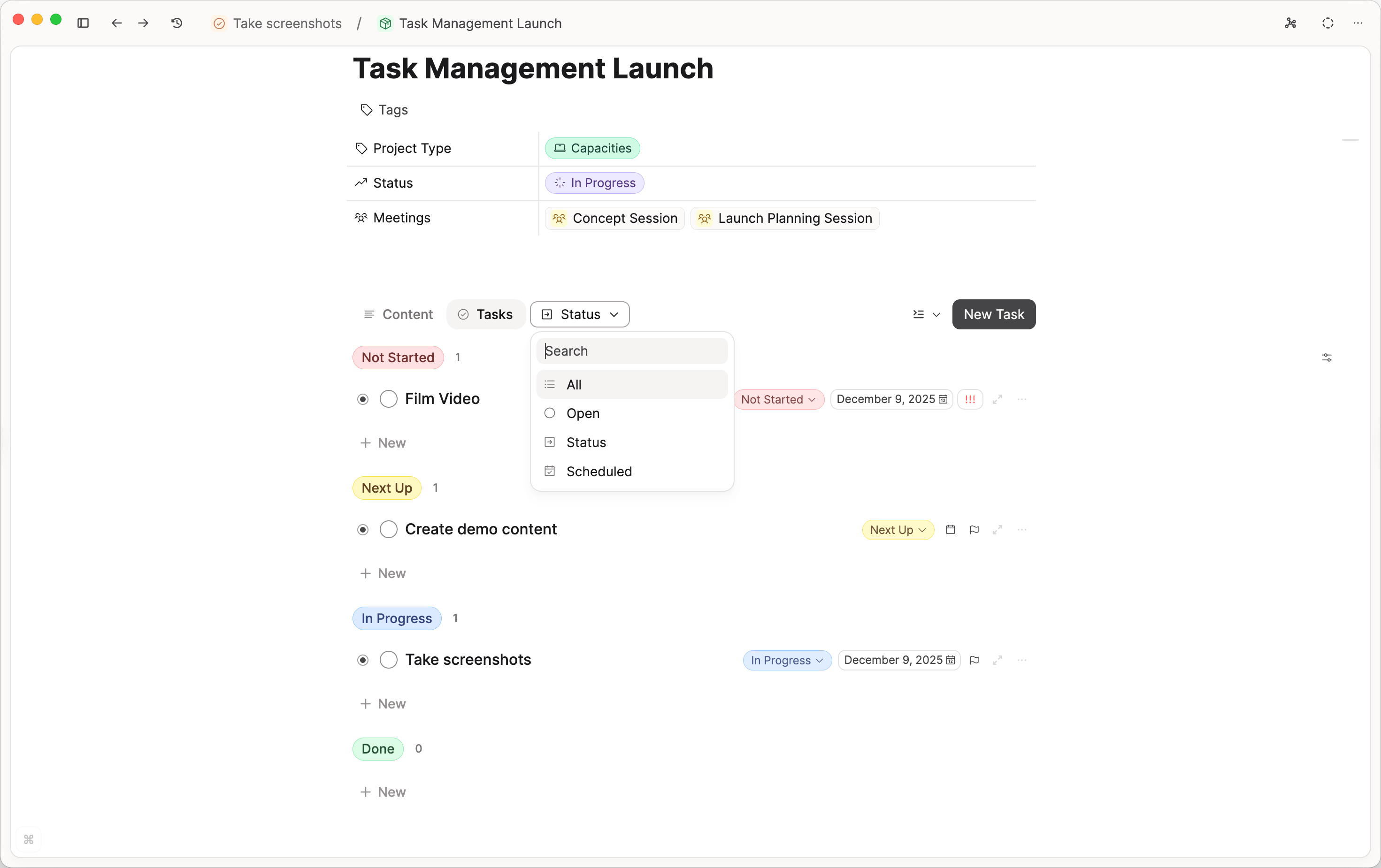
This tab also gives you built-in views to help process your tasks accordingly. You can choose between:
- All: All tasks related to this object
- Open: All open tasks related to this object
- Status: All tasks related to this object in a Kanban board based on their status
- Scheduled: A chronological order of all scheduled tasks related to this object, similar to the calendar view.
If you are already in an object and you create a task, the task tab will also be created, and the 'Context' property will automatically be filled in.
If you create a task through the Cmd + Shift + T modal (Mac) or the Ctrl + Shift + T modal on Windows, you can use @ to link your objects for context.
Review and Process your Tasks
To get an overview of all your tasks, you can go to the task dashboard. Click on the task button in the left sidebar to see the task dashboard.
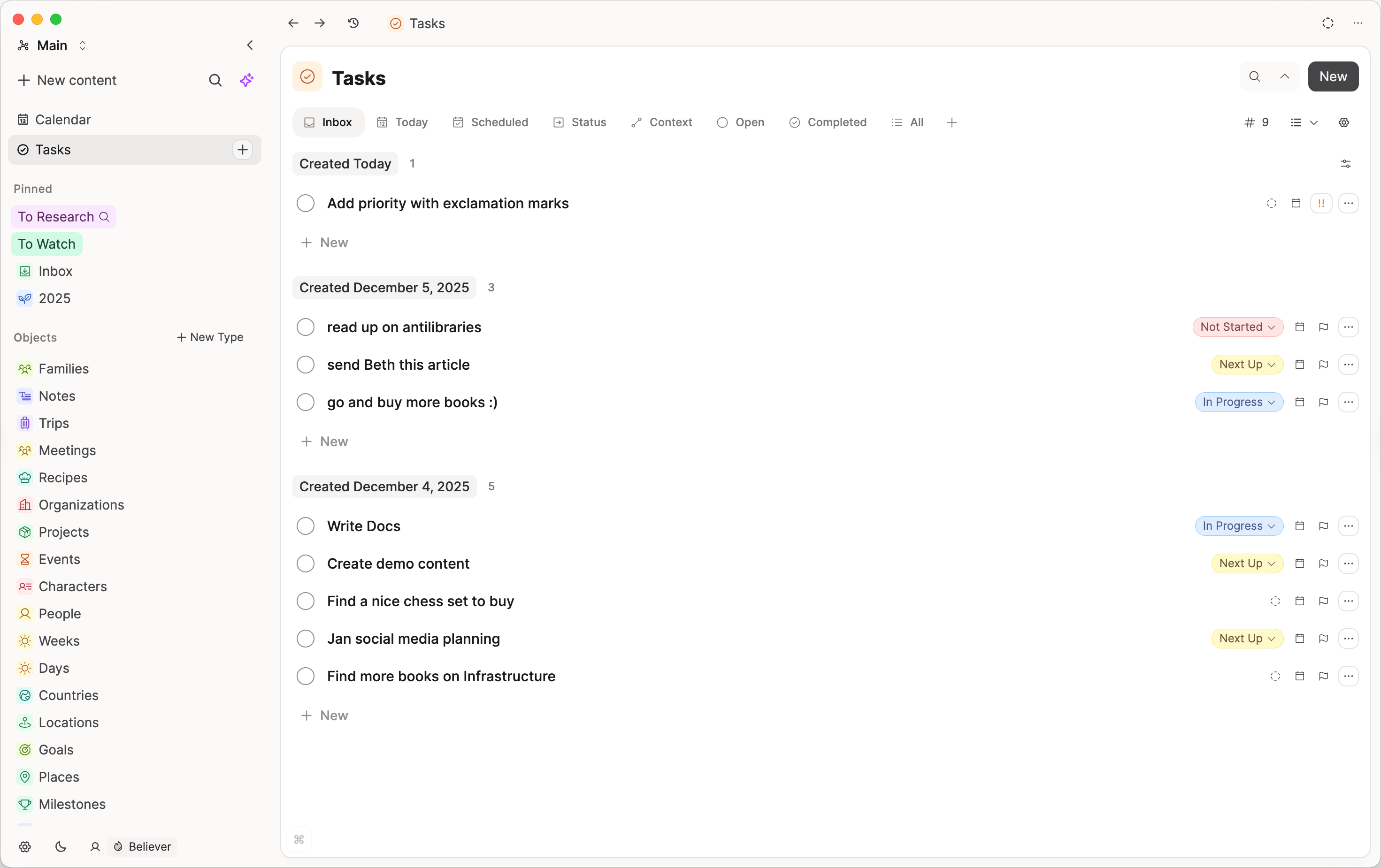
It works like any other object type dashboard, just with some extra built-in sections that you do not need to set up:
- Inbox: All tasks without a scheduled date or without a status, grouped by when they were created. To clear tasks from the inbox, assign either a date (schedule it), a deadline, or a status.
- Today: All tasks scheduled for today, tasks with overdue or due-today deadlines, and undated tasks whose status is in the In progress category, grouped by status and ordered by priority.
- Scheduled: All tasks that have been scheduled, grouped by their date property. Overdue tasks are shown at the top for rescheduling.
- Context: All tasks grouped by their context, ordered by priority and status. In other words, tasks are grouped by the objects linked in their Context property. You can change that group order manually with the layer icon on the right-hand side (manual group order). This is not available for the built-in task sections on the daily note.
- Tags: All tasks grouped by the tags they are assigned to.
- Open: All undone tasks ordered by their priority and status.
- Completed: All tasks in the order you have completed them.
- All: All your tasks. You can apply your own filter and sort choices here and save them as queries. This is the same view you get with other objects as well.
In these views, tasks with deadlines are ranked above tasks without deadlines. Earlier deadlines come first, used as a tie-breaker after priority and scheduled date.
For all built-in views, you can change the view from the default list with the view button on the right-hand side.
Create your own sections
Beyond the built-in sections, you can add your own dashboard sections based on queries.
Click on the + next to the dashboard sections and then click new query. When you add a tab, Recommendations offers ready-made views you can start from (for example filter by a label, show only checked or unchecked items, or a kanban grouped by labels).
You can build your own task query and save it as a section.

Because a dashboard section is “just” a saved query, you can customize both:
- What you see: filter conditions (e.g., status, tags, date present/empty)
- How you see it: list vs kanban, grouping, sorting, and hiding empty groups
Here are some examples.
“Someday” (or any status) section
If you use a Someday style workflow, you can create a section that shows all tasks with that status:
- Filter:
StatusincludesSomeday(or your chosen status)
This same pattern works for any other status you want quick access to (e.g., “Next Up”).
A custom “Inbox” definition
If the default inbox doesn’t match your workflow, you can build your own inbox query. This can be useful if you want an inbox that specifically represents “unprocessed tasks” rather than “tasks without date/status”.
GTD-style “contexts” using tags
For a full GTD setup (status preset, next-action lists, projects, areas, weekly review), see Getting Things Done. For common questions about outcomes vs next actions, areas, and what appears on the calendar, see Tasks and projects.
Capacities’ built-in Context section is based on the objects tasks are linked to (via the Context property).
If you also use “contexts” in the Getting Things Done sense (e.g., Home, Office, Desk, Work laptop, City center), you can model these using tags on tasks and then build sections such as:
- “Work laptop”: Filter tasks where
Tagsincludeswork laptop
The goal is to quickly jump into a set of tasks you can do where you are, without spending time deciding what’s possible in that moment.
Open tasks from specific objects (team or projects)
You can also create sections that pull tasks linked to a set of objects. Start from all notes, then:
- Filter → Object types → Tasks.
- Filter → Properties → Status does not include done.
- In the same Properties filter, click + Filter, keep and, and set Backlinked (context) objects includes the people or projects you care about.
- Optional: set Group to Context for one section per person or project.
This is useful if tasks are scattered across multiple people or project objects, but you want one place to review them.
For details, see the Backlinks reference.
Note that a task can show up more than once if it appears in multiple objects (for example, referenced in both a project object and a related asset object).
Customize your dashboard
You can click on a tab in the dashboard and click 'Remove' if you do not want to see it. Removing a section only hides it from the dashboard. Your saved query is not deleted and can be added back later via the + button.
Note that you cannot remove the 'All' section.
You can click and drag the tabs around to rearrange them.
You can edit a saved query or collection title from the object dashboard tab menu without opening the full query page.
You can see this and the examples above in practice in this Youtube video
Recurring tasks
Recurring tasks let you keep one task object and automatically move its next due date after you complete (or skip) an occurrence.
📺 Watch this video or read on for more information.
What a recurring task is
A recurring task in Capacities is still a single task object with:
- a date property,
- a recurrence rule, and
- an occurrence history (completion/skip log).
When you act on a recurring task, Capacities records that occurrence and schedules the next one.
Examples of recurring tasks:
- Water the plants — every 3 days
- Team standup notes — every weekday
- Review monthly budget — on the 1st of each month
- Back up laptop — every Sunday
- Annual performance review — once a year
How to create a recurring task
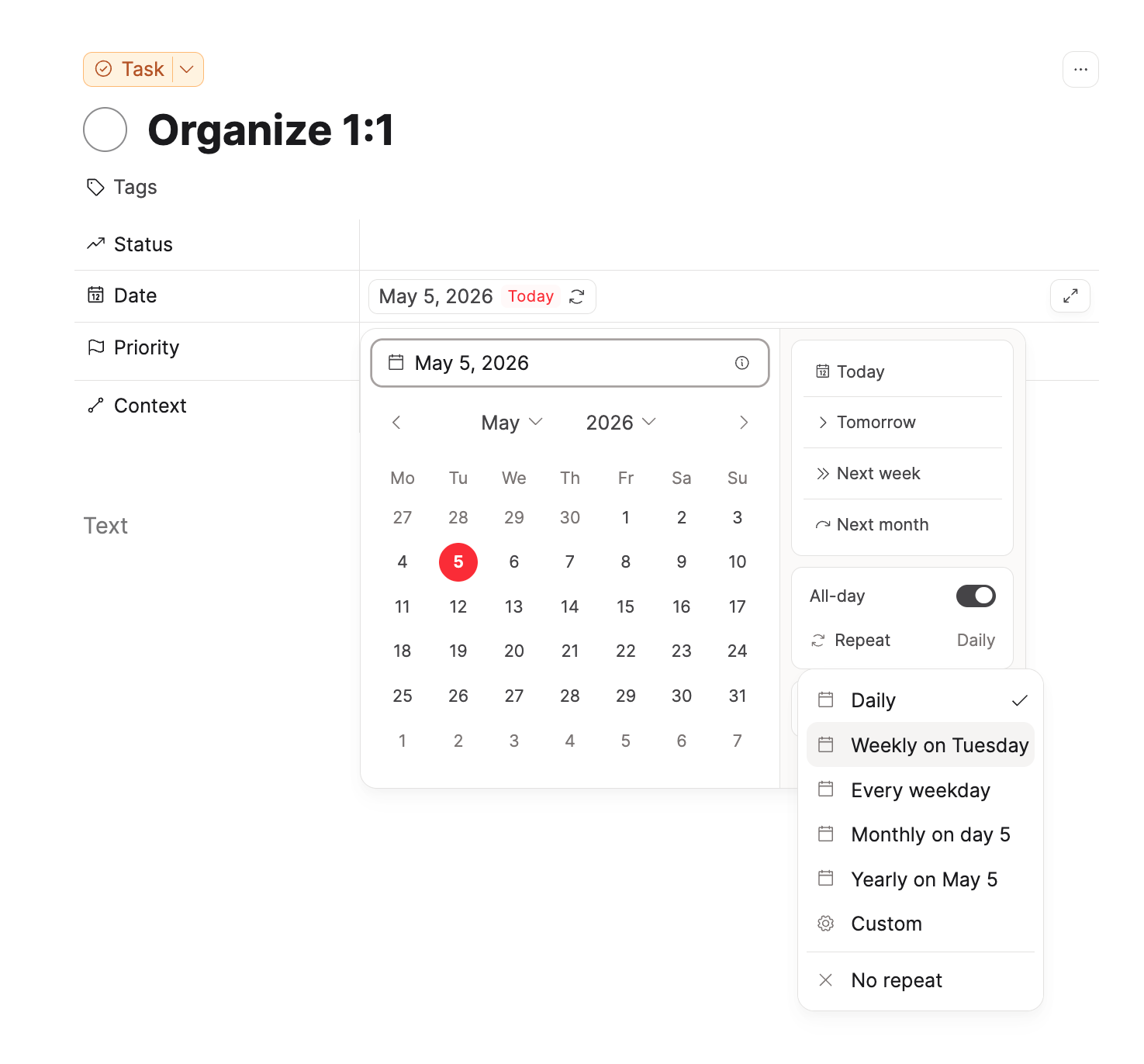
- Add a date to a task.
- Click 'repeat' in the date picker.
- Choose a preset (
Daily,Weekly,Weekdays,Monthly,Yearly) orCustom.
Recurrence modes
Capacities supports two scheduling modes:
1. Scheduled Date (fixed rhythm)
Use this when your task should happen on a fixed calendar rhythm, for example:
- every Monday,
- every month on the 15th,
- every year on March 1st.
In this mode, the schedule follows the calendar pattern. Completing the task late or early does not shift future dates — the next occurrence is always anchored to the original rhythm.
Examples:
- Pay rent — on the 1st of every month (always due the 1st, regardless of when you paid last month)
- Weekly team sync notes — every Monday (stays on Mondays even if you logged it Tuesday)
- Annual tax filing reminder — every April 1st
2. Completion Date (interval after done)
Use this when the next due date should be based on when you actually complete the task, for example:
- every 3 days after completion,
- every 2 weeks after completion.
In this mode, the next date is calculated from your action time. If you complete the task late, the next occurrence shifts accordingly — useful for habits that depend on the last time you did them.
Examples:
- Water the plants — 3 days after last watered (if you water on a Thursday instead of Tuesday, the next reminder is Sunday, not Friday)
- Clean the coffee machine — 2 weeks after last cleaned
- Call Mom — 1 week after last call
Custom recurrence options
In Custom, you can configure:
- Every: interval and unit (
day,week,month,year) - On: pins the recurrence to specific days within the chosen interval.
weekly: pick one or multiple weekdays (for example, every Tuesday and Thursday)monthly: same day-of-month (for example, the 15th), an ordinal weekday pattern (for example, first Monday), last day, or last weekday (for example, last Wednesday)yearly: same month/day (for example, March 1st) or an ordinal weekday-in-month pattern (for example, first Monday of March)
- Ends: controls when the recurrence stops generating new occurrences.
Never— the task repeats indefinitely. Use this for open-ended habits or responsibilities with no planned stop date (for example, weekly team sync or daily standup).On date— the recurrence stops after a specific date. No new occurrence is scheduled beyond that date. Once the last occurrence is completed (or passed), the task can be marked permanently done. Use this for time-boxed commitments, such as a daily check-in that only runs during a project or a weekly review that ends when a course finishes.
What happens when you mark a recurring task done
When you mark a recurring task as done:
- Capacities logs the occurrence as completed.
- The task date moves to the next scheduled occurrence.
- If the task has a deadline, the deadline also moves forward to the same relative position on the next occurrence.
- If recurrence catch-up has already moved the task date forward, the deadline is also moved forward and clamped so it is never earlier than the new scheduled date.
- If no future occurrence exists (for example, recurrence has ended), the task is marked permanently done.
Overdue recurring tasks and catch-up choices
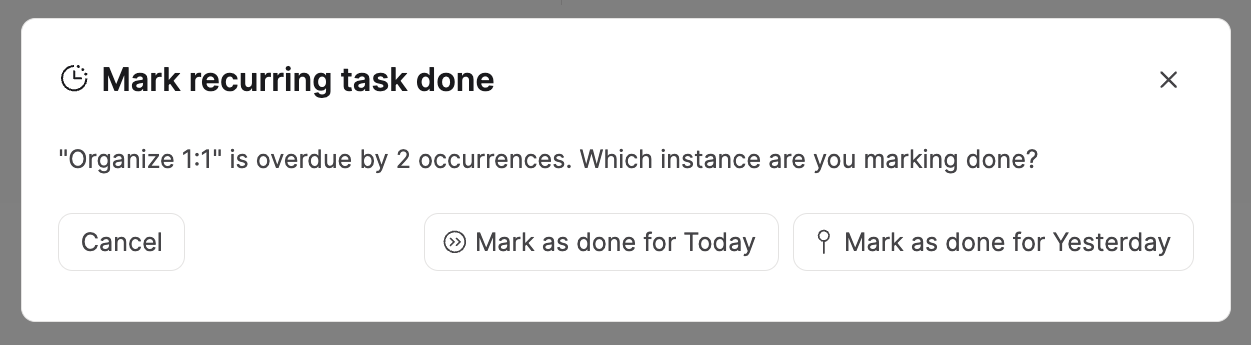
If a recurring task is overdue by multiple instances, Capacities can prompt you with options so you can decide how to advance:
- Advance one: process only one instance.
- Catch up (to now / before now): absorb missed instances and jump forward.
This helps you avoid manually clicking through many missed repetitions.
Skipping recurring tasks
You can skip an occurrence by clicking on the status property and selecting skip.
Skipping an occurrence:
- records a skipped log entry (where applicable),
- advances the schedule without marking completion for that instance.
For overdue tasks, skip can also use catch-up options to move forward faster.
Excusing recurring tasks
If you're on holiday or intentionally taking a break, you can excuse a recurring task for that occurrence.
You can do this from the status property by selecting excuse.
Excusing an occurrence lets you move on without counting it as a completion, and your streak will be maintained.
Occurrence log
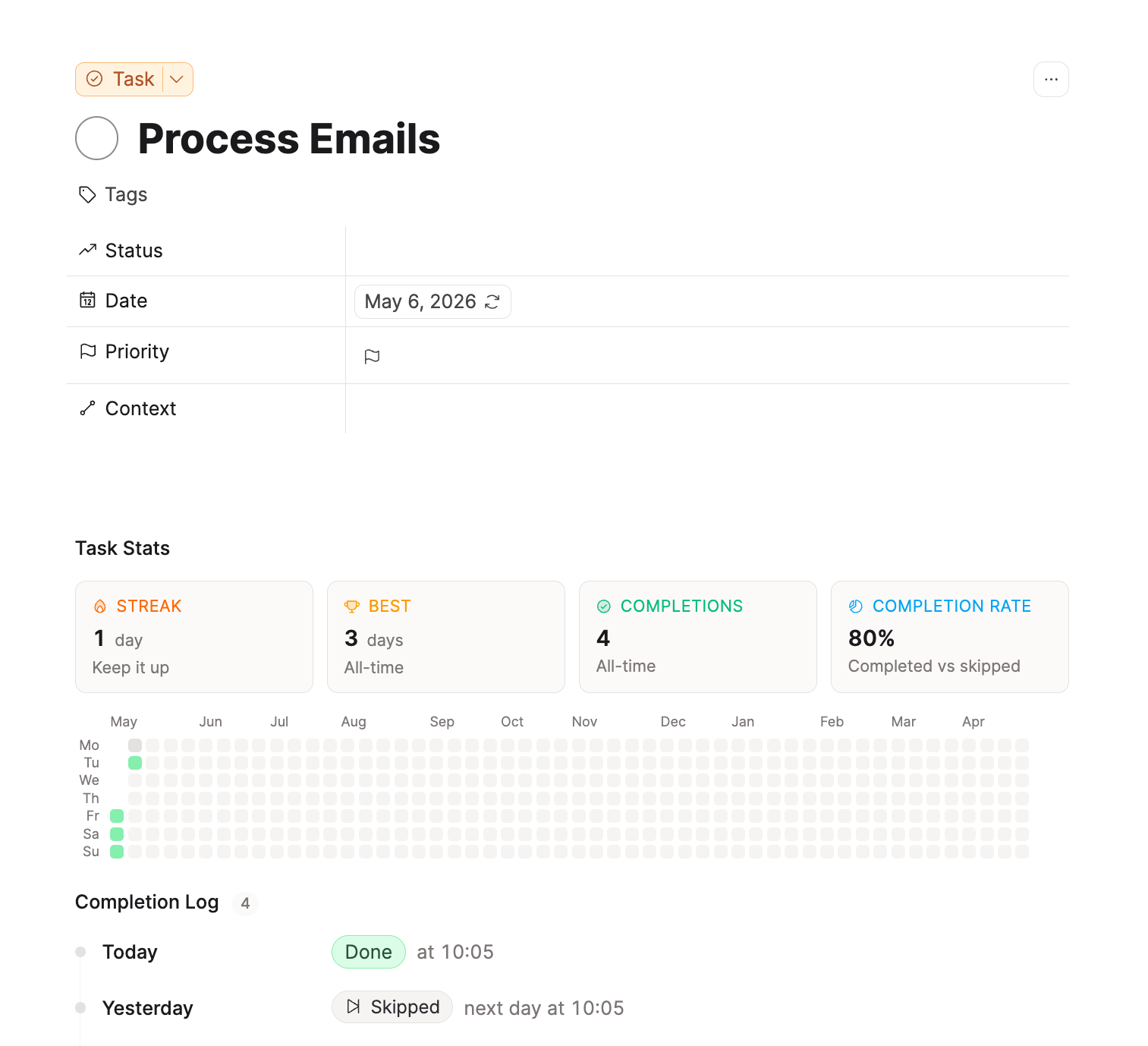
Recurring tasks keep an occurrence log with entries for:
- completed occurrences (including status used for completion),
- skipped occurrences,
- action timestamp and scheduled date.
You can review this log on the task page to understand consistency over time.
Recurring task stats
On the task page of a recurring task, you can see the following stats:
- current streak
- best streak
- total completions
- completion rate
For daily/weekly-like patterns, Capacities also shows a heatmap view to visualize completed, skipped, missed, and upcoming expected days.
Editing an existing recurring task
You can change recurrence settings later (pattern, mode, interval, end date).
The task remains the same object, and recurrence-related history is retained in the occurrence log.
If you reschedule a repeating task with Today or Tomorrow, or by putting a date in the title, Capacities keeps the completion history. After the first logged occurrence, you are asked before recurrence is removed. This also applies on phone.
Filter recurring tasks in queries
In task queries, you can now filter the date property by whether a task is recurring or is not recurring.
This makes it easy to build separate views for recurring routines and one-off tasks.
Practical recommendations
- Use Scheduled Date for calendar-anchored routines.
- Use Completion Date for cadence-based habits tied to when you actually do the task.
- Add an end date for temporary routines.
- Use catch-up when returning after a break, so your task list stays realistic.
- Check the occurrence log and stats to review your real execution pattern, not just intentions.
Roadmap
The current version of task management is a “Version 1”. We have ideas and plans to extend task management in Capacities.
If you're looking for a more dedicated task management solution, you can use task actions in combination with a task management app.
We want task management to be simple and effective. If you want to know more about the philosophy behind tasks in Capacities, we recommend our blog post. Nevertheless, there are a few ideas we have in mind.
We are not sure when and in what form these ideas will be added to Capacities. If you are interested in these features, please vote on them but don’t expect them to be added in the near future.
- Collections for tasks: At the moment, we aim for simplicity but we could imagine collections to serve as high-level areas for your tasks like “work” and “private”. You can vote here.
- Reminders: Get notified for scheduled tasks. You can vote here.
- Synchronization with your calendar: Similar to events, synchronize tasks from Capacities with tasks from your calendar. You can vote here.
FAQs
- Can I use my own object type with the additional features that Capacities' task management offers?
This is not possible and it is not planned. - Can I add properties to the Capacities Task Object?
This is not possible and it is not planned. - Can I put tasks into collections?
Not at this time. More in the roadmap section above. - Are recurring tasks supported?
Yes. Capacities has a full recurring-task model on a single task object. You can:- Repeat on fixed rhythms (for example every Monday, every 2 weeks, monthly on the 1st)
- Create the next instance after completion (Completion Date mode)
- Show and catch up overdue recurring instances
- Track streaks and recurrence history on the task page
- Nest checkboxes or tasks inside a recurring task (they reset when you complete the occurrence)
See Recurring tasks. For when to use a project or area instead, see Tasks and projects. - How do I build a reusable shopping list or monthly checklist?
Use a Task template: the task title is the list name, and the items are checkboxes in the body. Make it recurring so completing the task resets the checkboxes for the next run. Same pattern for monthly checklists. Step-by-step is in Tasks and projects. - How do I keep a running to-do list?
Use many tasks with statuses (for example Next Up or Someday), not one endless checklist. See Tasks and projects. - Are reminders supported?
Not at this time. More in the roadmap section above. - How can I work with subtasks?
You can use checkboxes or tasks within tasks. There is no explicit concept for sub-tasks in Capacities.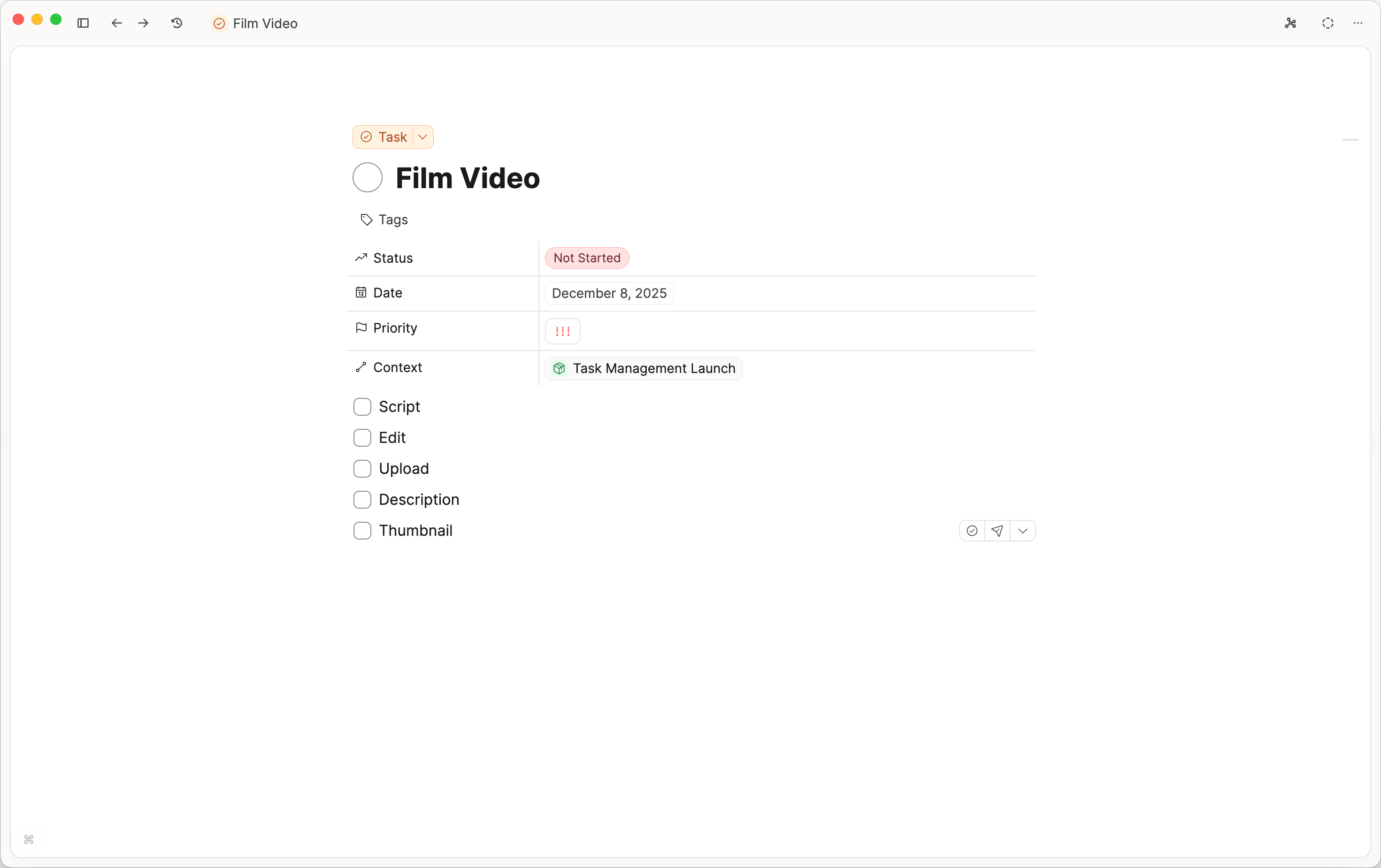
- How can I add my own statuses?
You can add your own statuses inSettings > Task Management > Status Customization. You can also change the label colors, icons, and categories (for example Blocked) too. - Why do undated tasks (such as Waiting For) show in Today or on the daily note?
Today also includes undated tasks whose status sits in the In progress category. Move waiting-style statuses into Blocked in Status Customization if they should stay off that list. See Why do undated tasks show in Today?. - Why can't I edit a task status label from the picker?
Task status labels are managed in Settings > Task Management > Status Customization, not inline on the status menu. If inline editing is not available, Capacities guides you there. See Why can't I edit a label directly?. - Nothing happens when I type
/task
This will only work if you are using Capacities in English. If you are using a different language, please switch to that (e.g. Aufgabe, Tâche, Tarea) - Why can't I see the task tab?
You need to create a task first, or add the task type. - Can I remove the tasks from the content tab?
No, this is required for the context property to work. If you wish to hide them, a workaround would be to create another Content property called 'Tasks'. Tasks will be appended to that second Content property and you can toggle that task section closed. - Can I change the default view of tasks when they are embedded in notes?
You can.Go to Settings > Object types > Task > Change default view. - Can a block or a toggle be used as context?
No, context is for objects only. Blocks (such as toggles, numbered lists or bullet points) cannot be used as context. The context will be taken from the object they are found in. - Can I jump to the exact position of a task in its context object?
You can do this via theObjects insidesection in the side panel. Open the linked context object, then useObjects insideto jump to the task in place. - Can I filter to find all projects with open tasks?
Not at this time. Backlinked (context) objects filters for specific objects. You cannot filter those backlinks by their object type in one step from that property alone. From an object’s Backlinks view you can filter by type, then save with + Query. - How do I change the recurrence pattern?
Remove the existing recurrence, then create a new one with the date, time, and cadence. - What happens to any subtasks in the recurring task after completion?
Your subtasks will reset, meaning they will be unchecked. - What happens to any notes I've created in a recurring task when I complete the task?
The notes remain in the task. Either keep them as a log or delete them. - Why don't I see future tasks in my calendar?
There is no sync from Capacities tasks to your external calendar, such as Google or Microsoft.
Capacities does have an internal calendar, which will show all tasks on that date. Fill in the date property in the task in order to make use of that. - How do I show future tasks?
You can use theScheduledtab in the Tasks dashboard, or use the calendar to move to a specific date. - Where is the task manager?
To enable task management in Capacities, go toSettings > Task Managementand activate it there. - Why did the task heatmap disappear?
The heatmap is a feature of recurring task. If you remove the recurrence, the headmap will disappear.
Ask a question! - The Docs Assistant knows everything about the documentation, and the ideas and feature requests from other users.
Create a ticket on our feedback board. - Let us know if you have an idea for a feature, improvement or think there is something missing.
Request additions to the documentation. - If your questions are not getting answered, let us know and we will extend the documentation.