Tags
Tags
Tags in Capacities are simple keywords you attach to your content so you can group and find related things later.
Tags are one of the core organizational structures in Capacities. Object types focus on what an object is. Is it a project, a meeting, a person? Tags approach organization from a different angle: what key words can you apply? These are often topics, life areas, or themes, such as Health, Personal Finance, Decision Making, and much more.
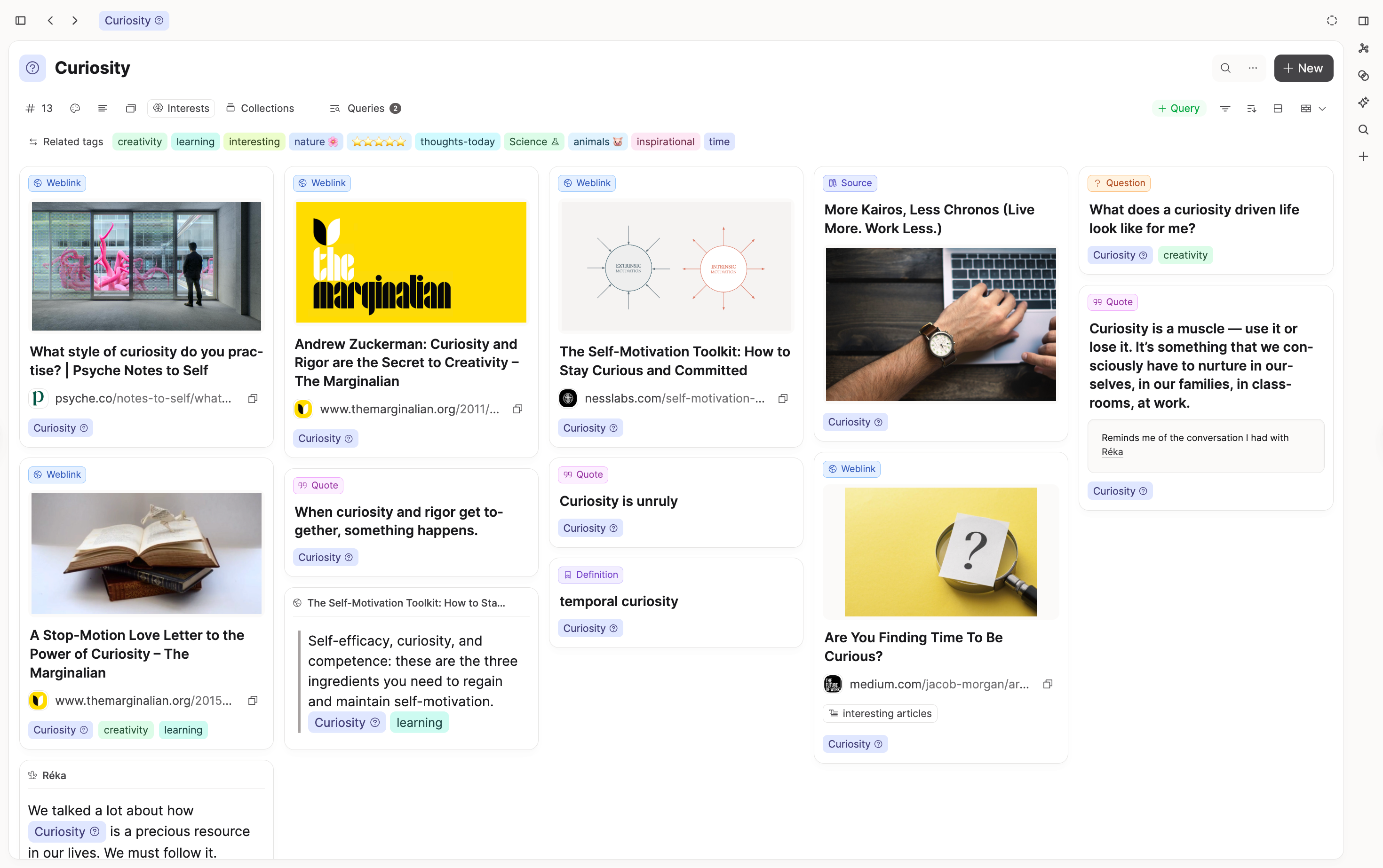
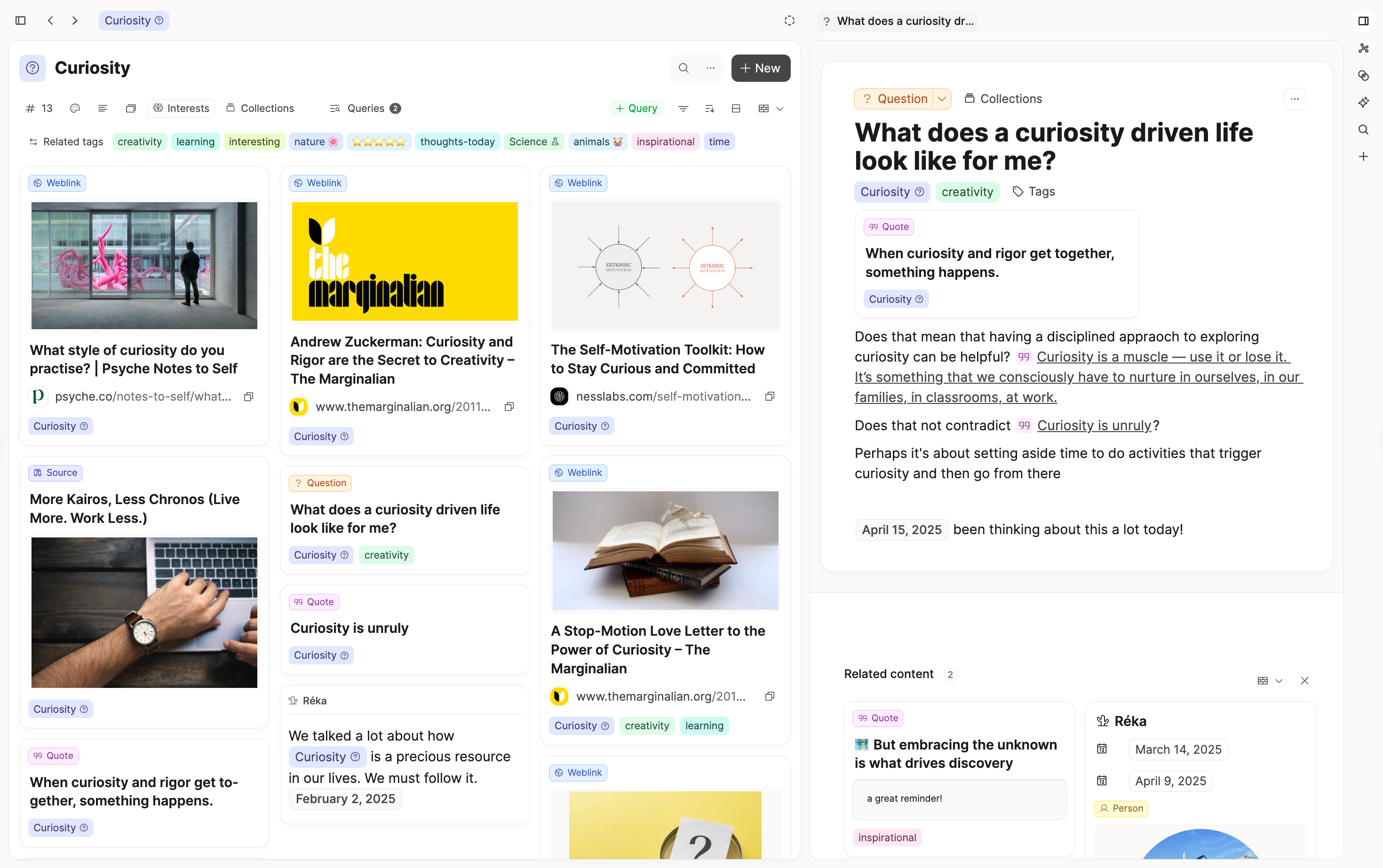
For example, you could tag everything related to your interest in Curiosity with #Curiosity: articles, highlights, conversations with friends, inspiring quotes. When you open that tag, you'll see all related items from across your space.
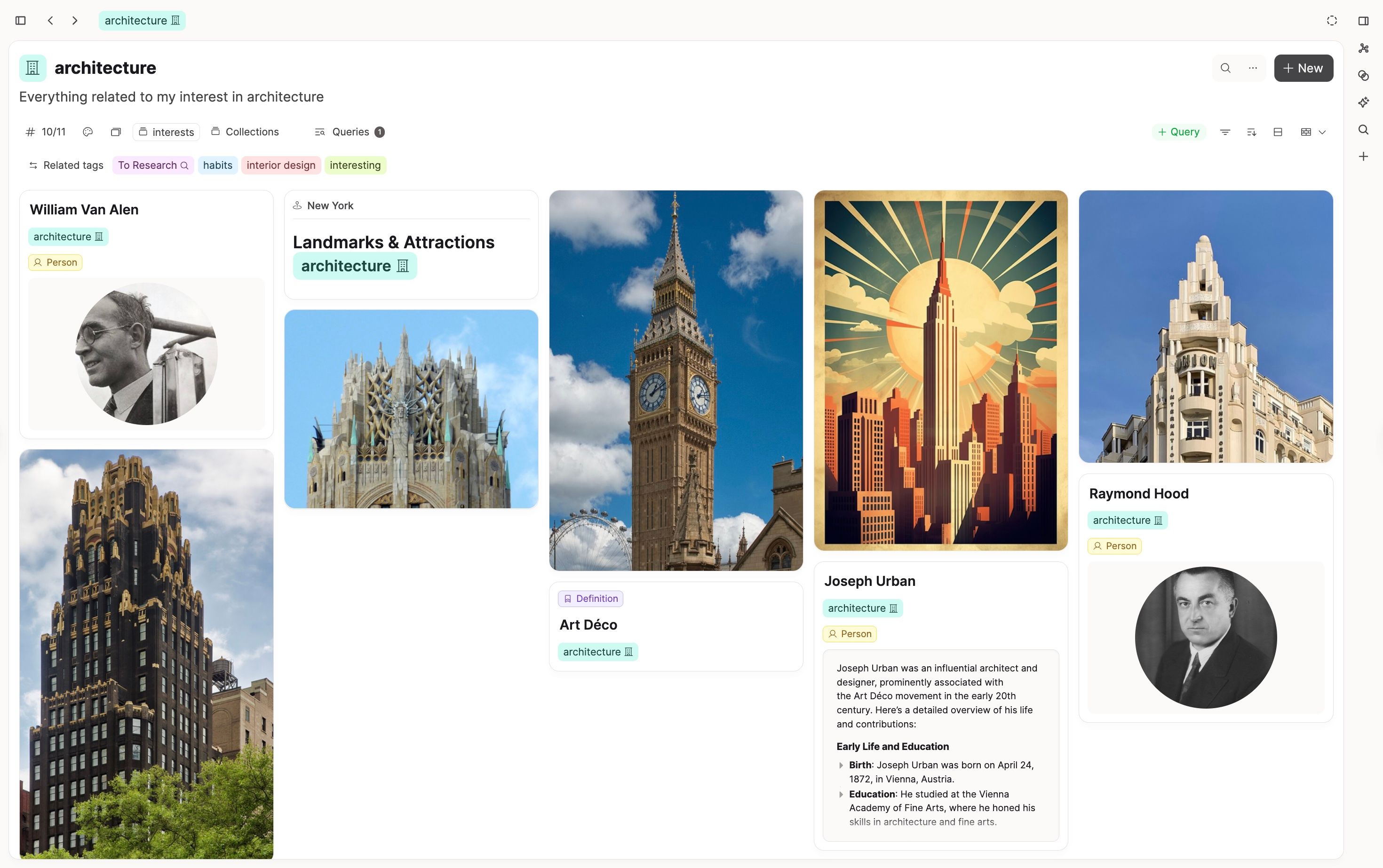
Another example is architecture. Tag reference images, Person objects about famous architects or architecture definitions.
Why tags are helpful
Tags help you organize your content across types, taking into account what they have in common. For example, linking meetings, notes, and resources about one topic.
Tags also help you navigate your content by theme. Instead of thinking just about its object types: "show me all meeting notes", you can think "Show me all content about architecture".
Tags are a great starting point for deeper inquiry into a topic in your space. For example, the items you collect and tag can help you think deeper.
How to add and use tags
You can add tags in two places:
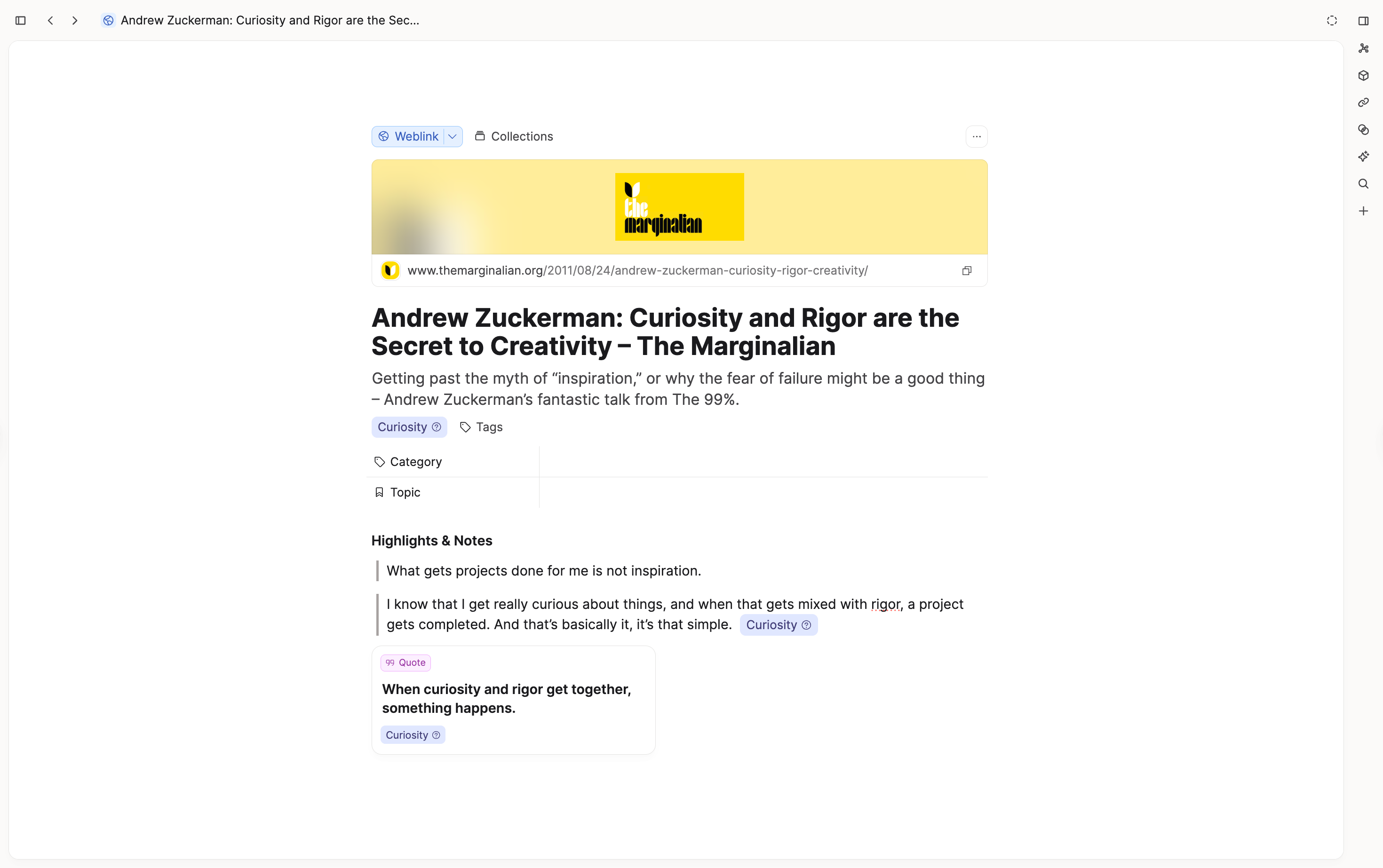
- under the title of an object. This suggests the whole object is about that topic.
- in text via
#. This suggests just that block is about that topic.
Tag pages
Click on any tag to open the tag page. Here you can:
- explore all connected content
- change view (list, table, wall, gallery)
- apply filters and sorting
- navigate via related tags
Related tags
Capacities calculates related tags from shared context in your content and shows the most relevant ones at the top of a tag page.
This gives you a fast way to move from one idea to nearby ideas without manually searching.

Embedding a tag view
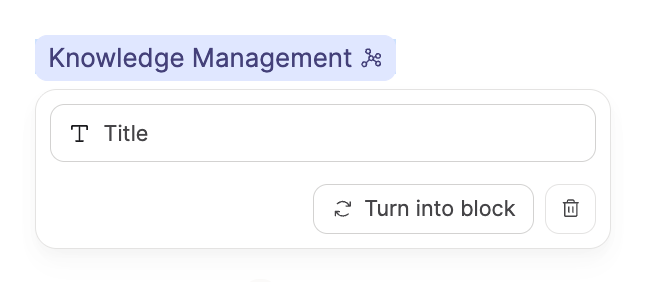
You can embed a tag view on any page. Type #<tag-name> at the beginning of a new paragraph and confirm the result to insert it as a link block.
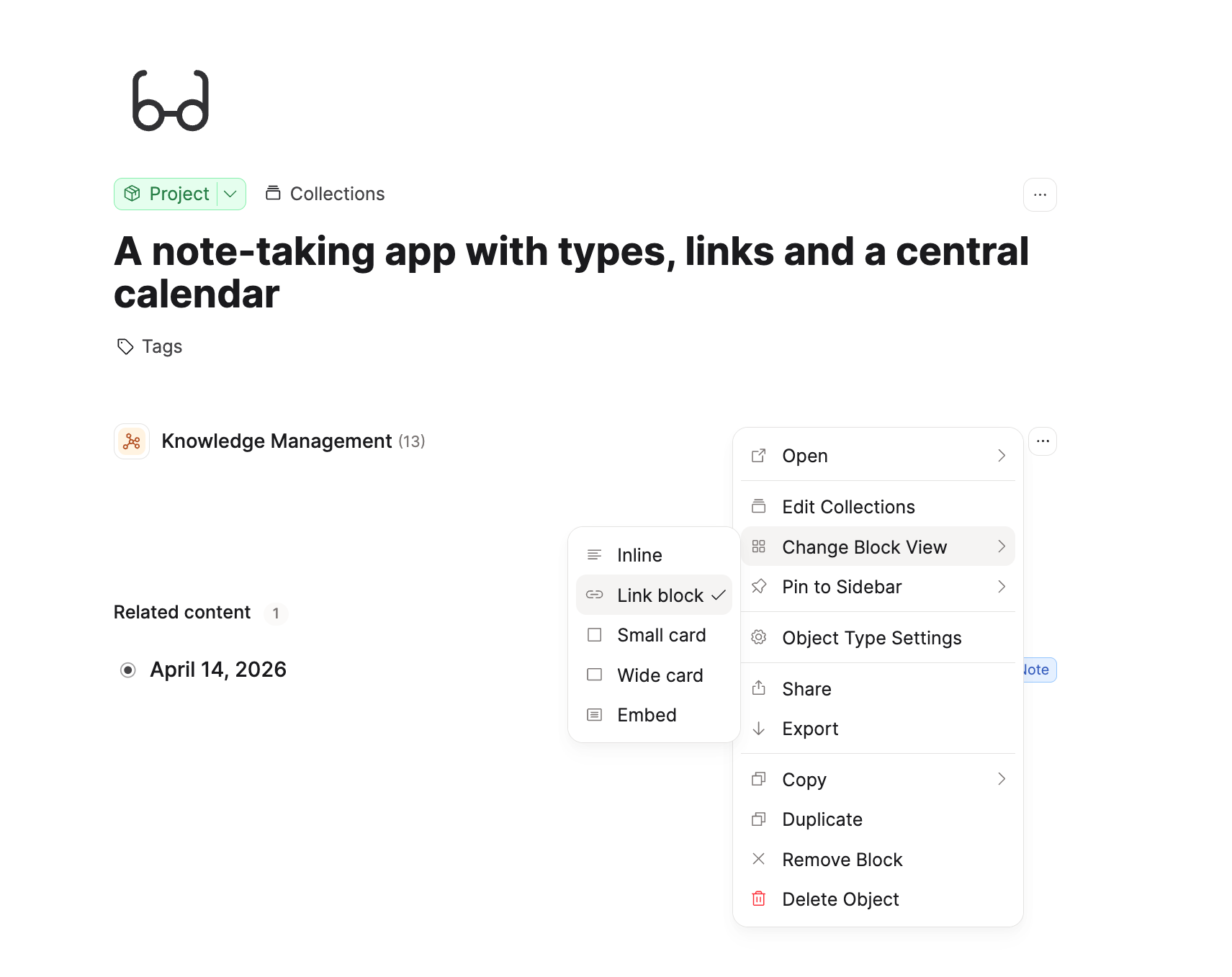
Then open the three-dot menu (...) on the block and select Embed to display the tag view inline.
If the menu does not appear, the tag is currently an inline link. Convert it to a link block with option + click, then embed it.
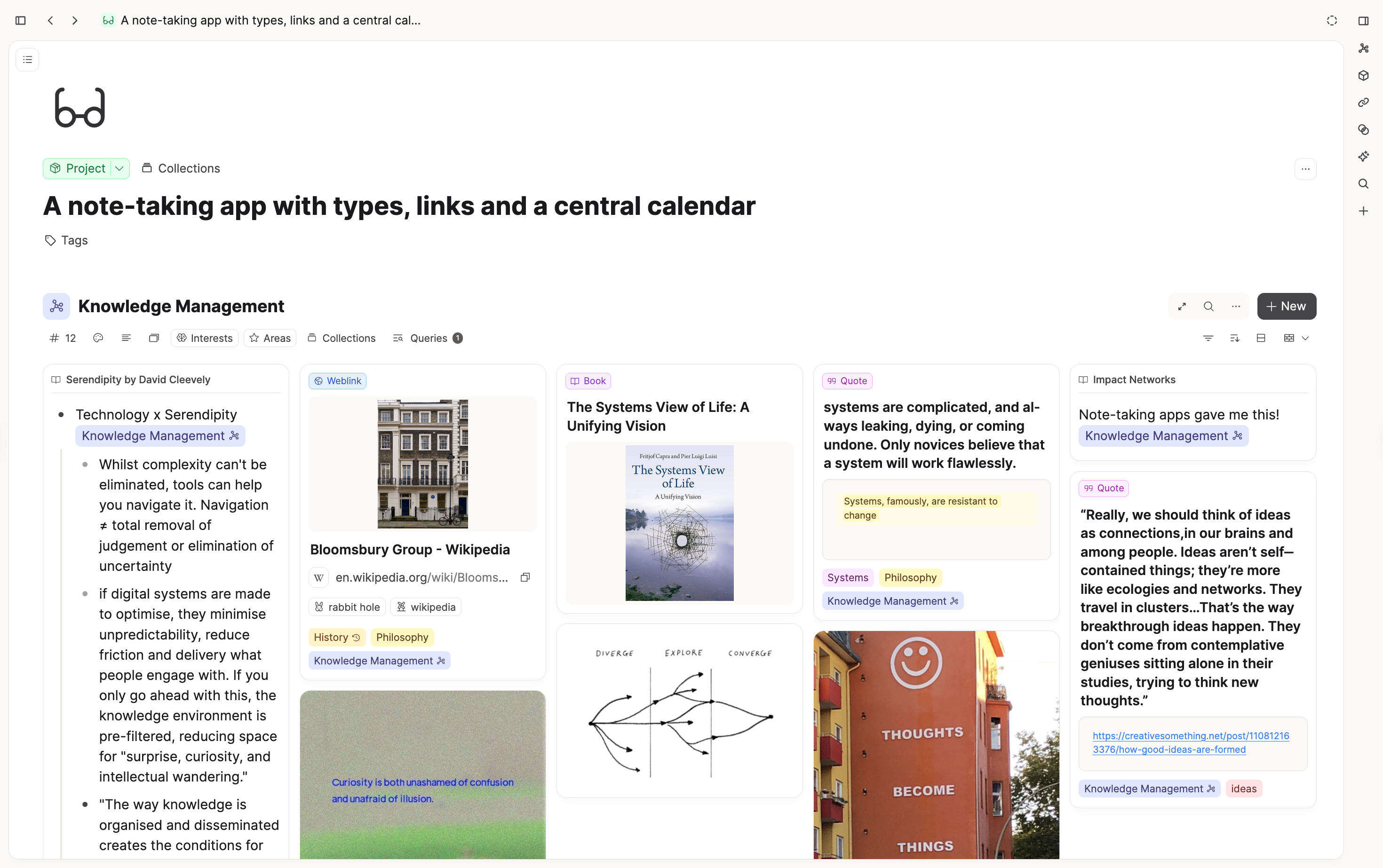
Embedded tag views can be filtered, sorted, and viewed independently from the original tag page. This lets you keep different local views of the same tag across different pages.
For a practical walkthrough, see Working with tags.
Tag aliases
Tags can include aliases, which helps when you use different wording for the same concept (for example, abbreviations or multiple languages).

Learn more in Properties: aliases.
Tags vs folders
If folders answer the question "Where does this belong?", tags answer a different question: "What is this related to?"
Instead of putting a page into one place, you can tag it from multiple angles. For example, a strategy note could have #positioning, #q3-planning, and #decision-making at the same time.
This is why tags scale better for knowledge work:
- one note can belong to several contexts without duplication
- you can browse by topic instead of remembering one storage location
- as your space grows, tags surface connections across object types
Tags and queries
Tags are often the best starting point for themed retrieval. When you want dynamic, rule-based retrieval, use queries:
Related pages
FAQs
- Should I use tags like
#meetingor#person?
Usually no. Those describe what something is, which is what object types already do.
Use tags for themes and contexts like#decision-making,#q3-planning, or#attention-management. - Should I use tags for specific companies or clients?
Usually no. If it is a specific entity, create an object (for example in Person, Company, or Client) and link to it.
Use tags for cross-cutting concepts, not for duplicating entities. - When should I use tags vs collections?
Use collections to manually group content within one object type.
Use tags to connect content across different object types. - When should I use tags vs labels/properties?
Use properties/labels when you need consistent structure inside one object type (for example status, priority, stage).
Use tags when you want semantic grouping across types. - Can I use tags for status?
Usually, status is best as a property/label within one object type.
Use a status tag only when you intentionally want one shared status context across multiple object types. - How many tags should I add to one note?
Start with a few high-value tags. If you add many broad tags to everything, retrieval quality drops.
Prefer specific tags that help you find and think with content later. - Can tags and collections be used together?
Yes. A common pattern is: use collections for curated groups within an object type, then use tags to connect those objects to broader themes across your whole space.
Ask a question! - The Docs Assistant knows everything about the documentation, and the ideas and feature requests from other users.
Create a ticket on our feedback board. - Let us know if you have an idea for a feature, improvement or think there is something missing.
Request additions to the documentation. - If your questions are not getting answered, let us know and we will extend the documentation.