Use cases
Meeting notes
Use cases
Meeting notes
Meetings produce decisions, open questions, and follow-ups. The payoff is not the transcript alone — it is opening the next conversation already knowing what you agreed, which projects were involved, and what you still owe someone.
Capacities treats each meeting as an object with properties and a notes section. This guide follows one path through that workflow: set up once, create from your calendar, capture and link during the call, turn commitments into tasks, and reuse meeting history from person, project, and organization pages.
For calendar setup and sync behaviour, see Calendar integrations. For query embeds on hub pages, see Queries examples.
Set up once
Meeting type
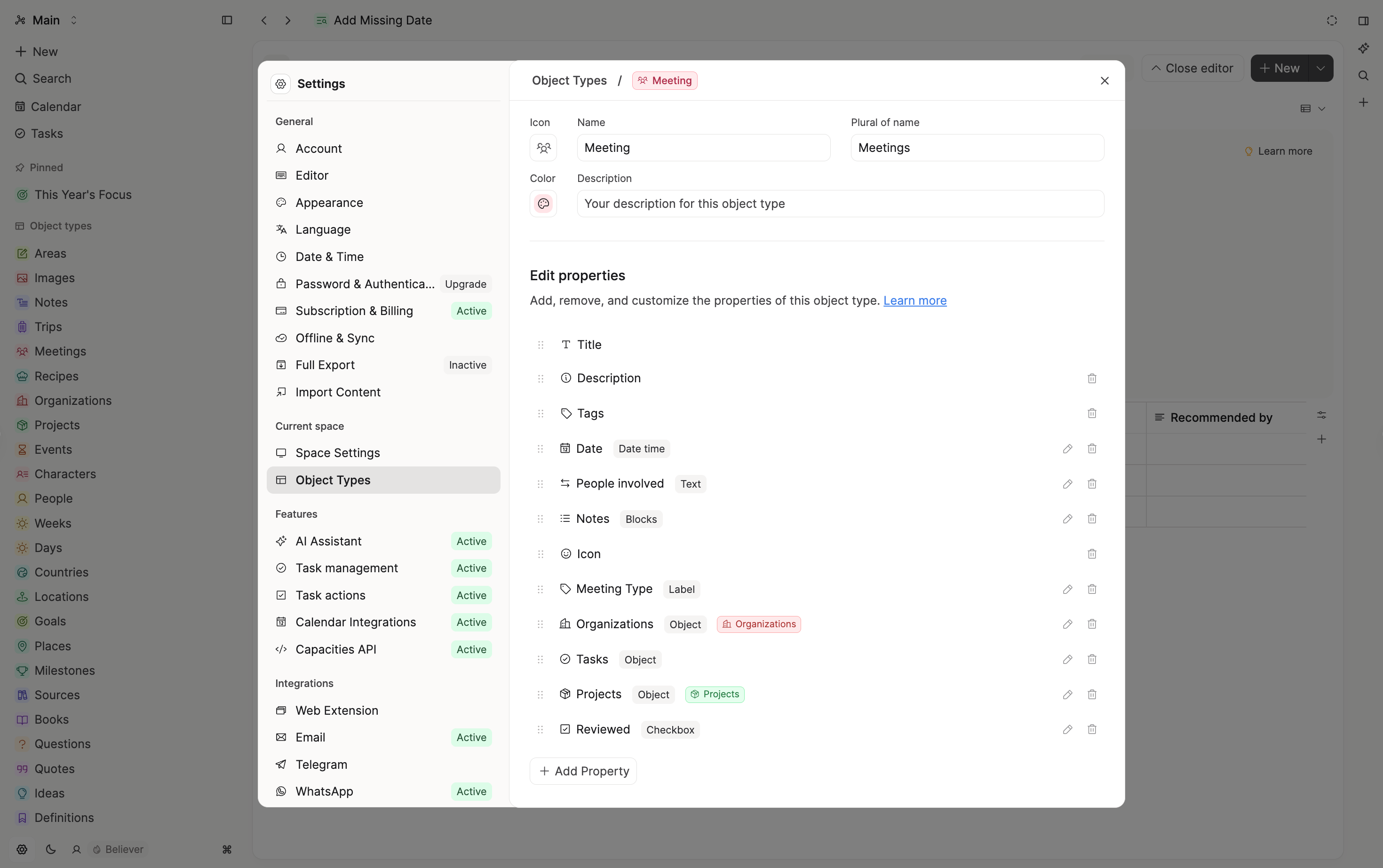
Start with the built-in Meeting type. It includes a Date property, People Involved for attendees, and a meeting type label (1:1, client call, review, and so on).
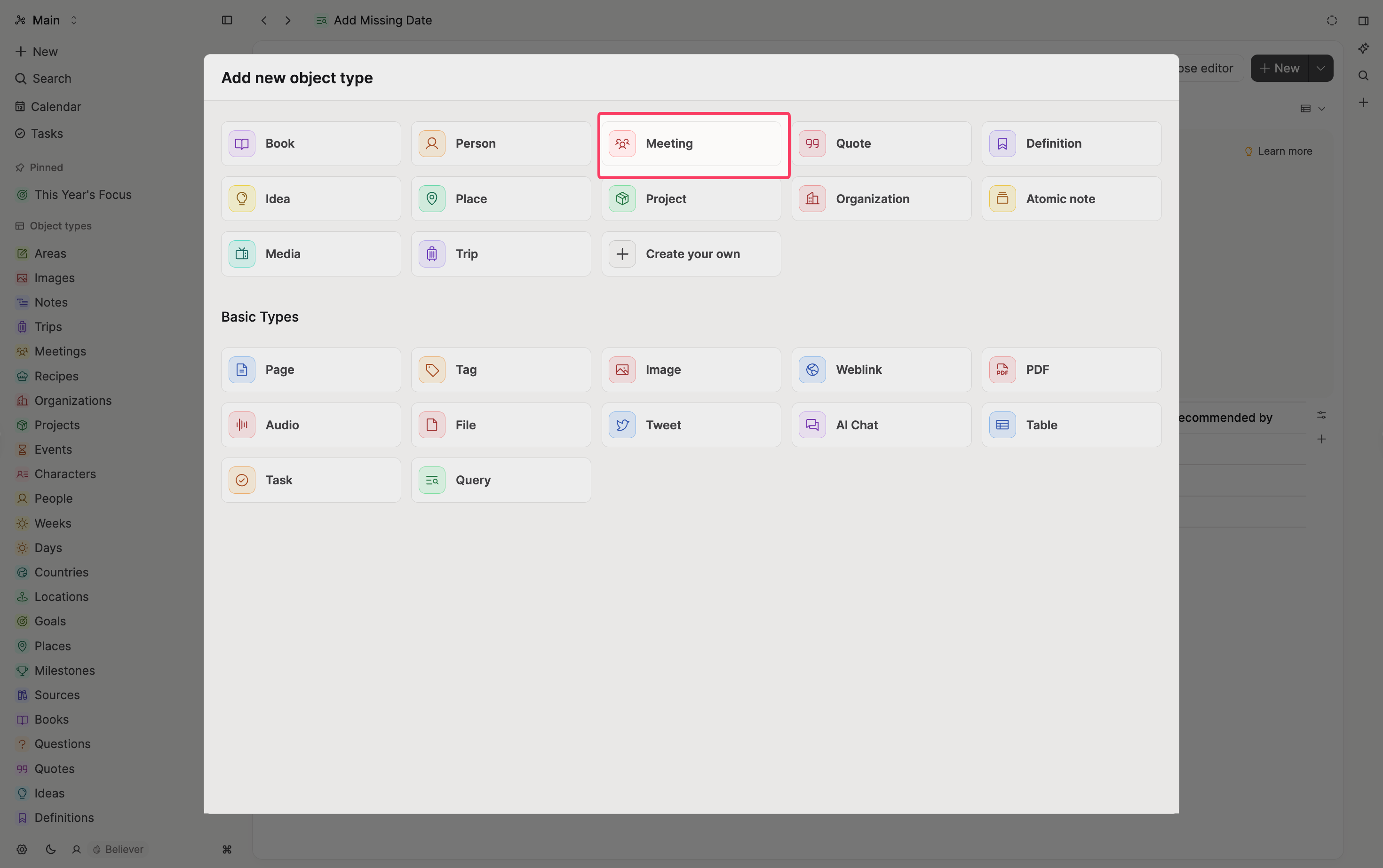
Keep the type minimal at first. New properties you add later appear on existing meetings too, so you can grow into more structure without migrating elsewhere.
Templates
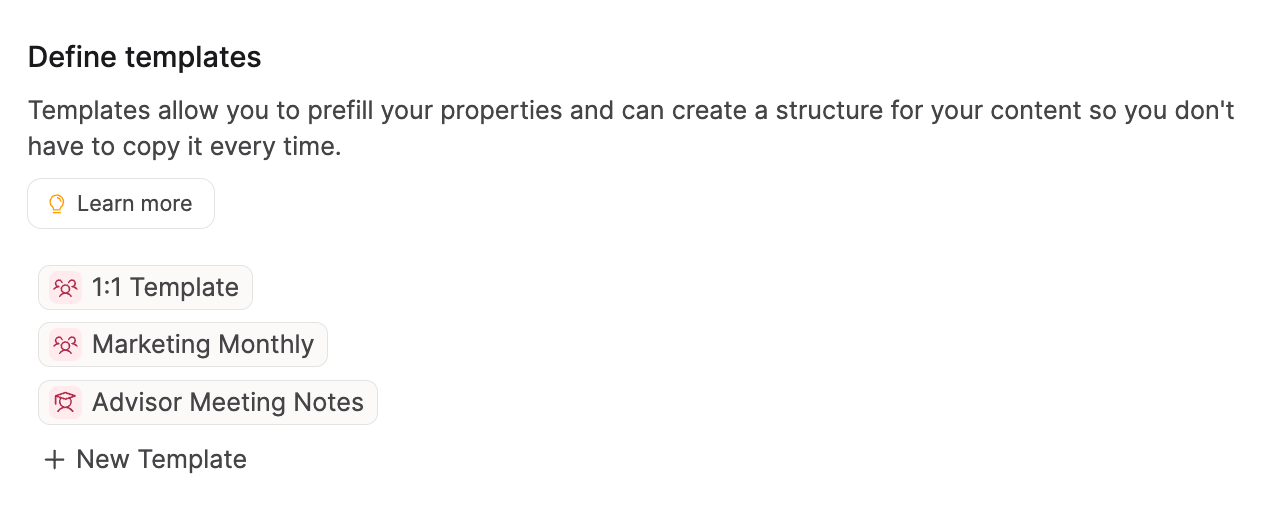
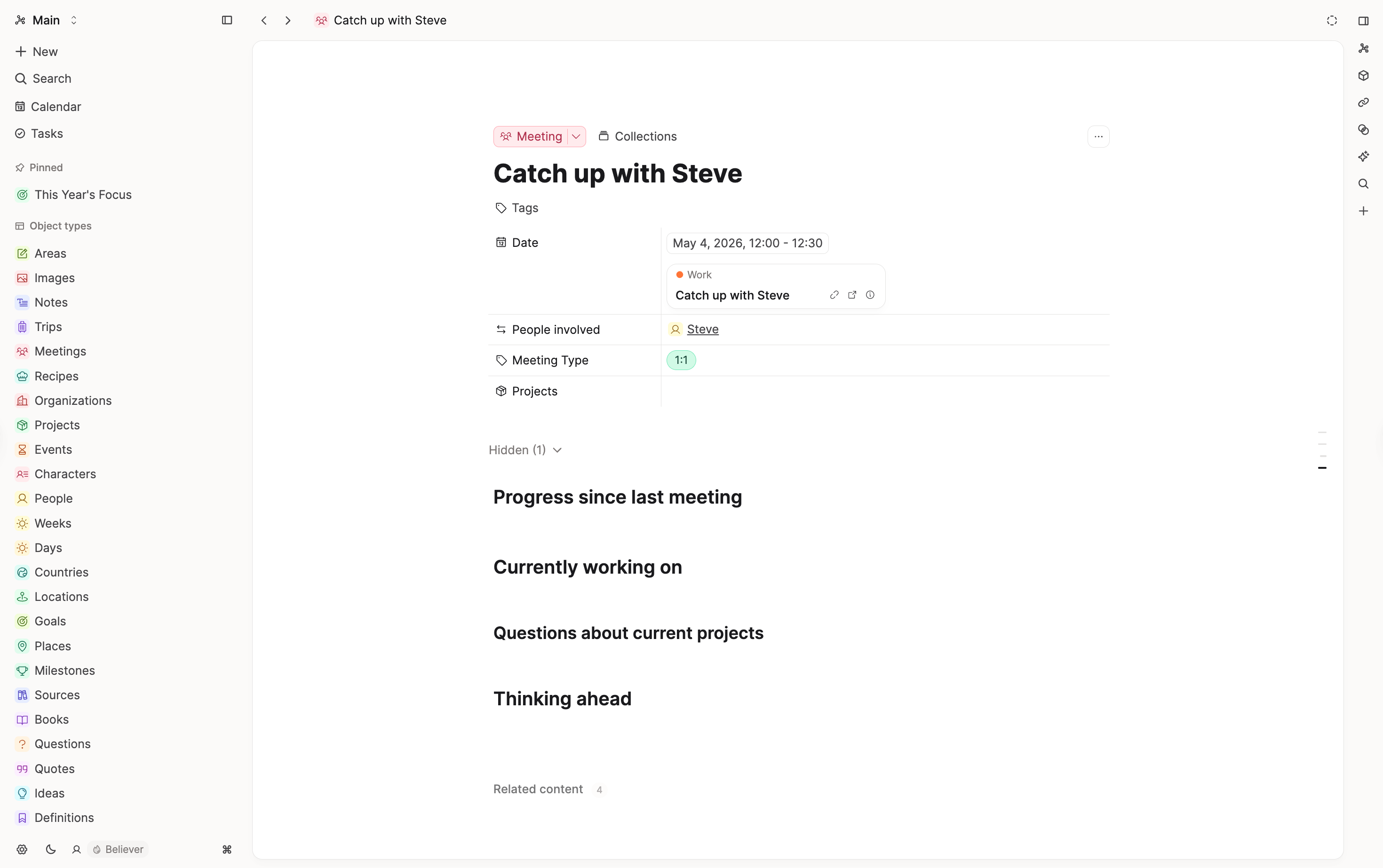
A weekly sync and a quarterly 1:1 do not need the same blank page. Templates prefill properties and blocks so each format opens with the right skeleton:
- 1:1 — headings for updates, feedback, and next steps, with the other person set in People Involved
- Recurring sync — agenda items, decisions, and action items
- Client call — a standard attendee list and project link
Create templates under Settings > Object Types > Meeting > Define templates. Apply them from the + New menu, with Cmd/Ctrl + U and the template name, or by typing /your-template-name on any page.
Create meetings from your calendar
If your week runs on a calendar, calendar integrations (Pro) show today’s events in Capacities. Create a meeting object linked to an event in one step — date and time land on the Date property automatically.
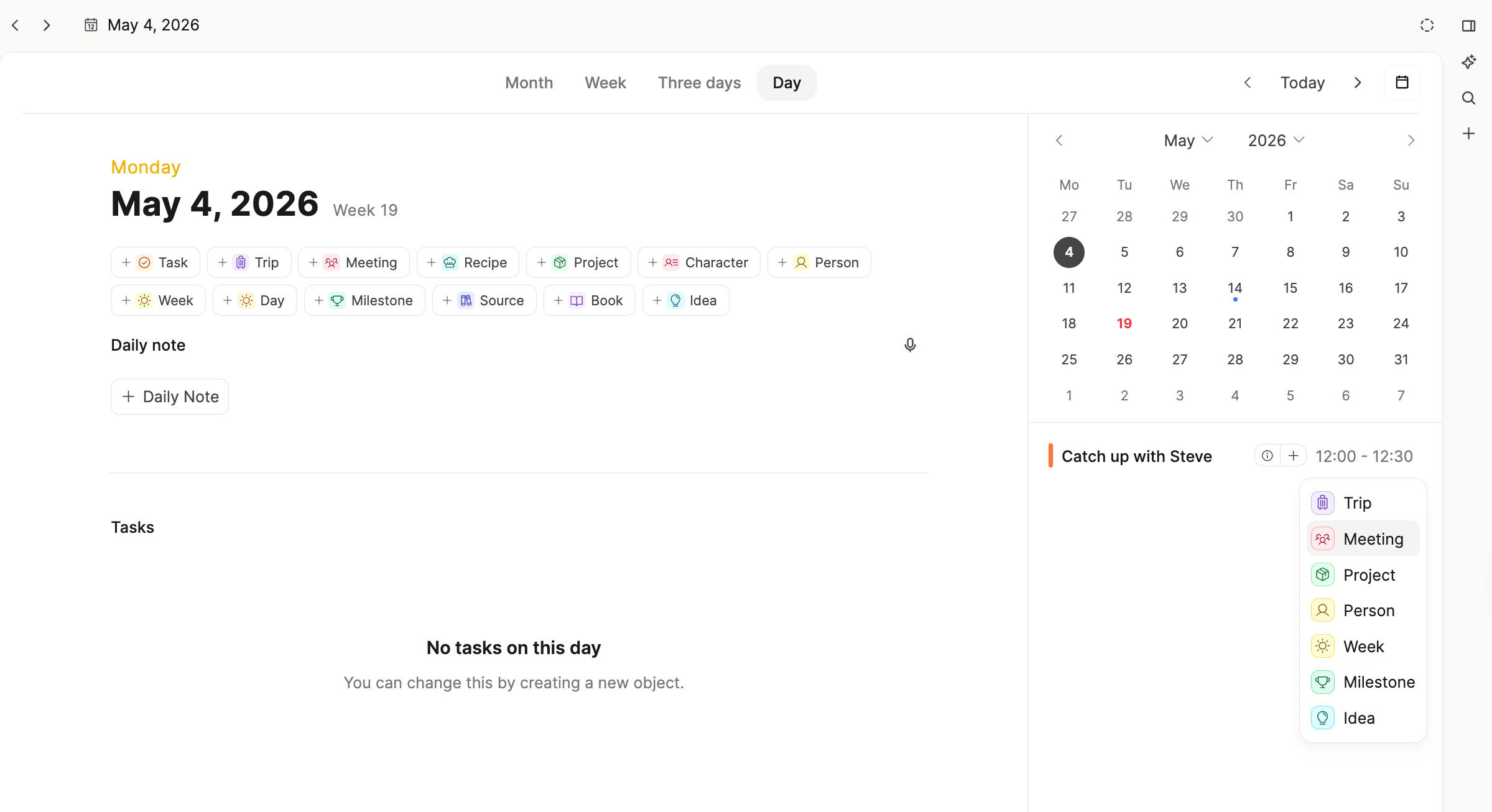
The link works both ways: change the time in Capacities or in your calendar provider and the other side updates (allow up to ~30 seconds for sync). You can also create a calendar event from an existing meeting that already has a date.
Events are not imported as notes automatically. You choose which appointments become meeting objects, which keeps casual holds and personal blocks out of your knowledge base.
Create the meeting before the call when you want a prep space. Set Date early so the object appears on that day in the calendar view and in the daily note for that day. Agenda, links to prior notes, and open questions can sit in the object while the event stays on your calendar.
Capture and link the conversation
You do not need every section every time. These blocks are a reliable default you can bake into templates:
- Preparation — links you want open during the call: the person’s page, a project hub, prior meeting notes, reading material. Pull them in with
@or[[]]so you are not searching mid-conversation. - Agenda — what you intend to cover. Even a short list makes it obvious when the meeting is done.
- Notes — running capture during or right after the call. Writing in the meeting object keeps the discussion tied to date, attendees, and projects.
While you write, link outward so the meeting stays findable later:
- Add attendees to People Involved and create or link a Person object for anyone new. Over time you build a roster you open before conversations, not a separate contact list you forget to update.
- Link people inline when their name comes up. The block’s context shows up in that person’s backlinks, which helps you remember why they were mentioned.
- Link projects and organizations when the conversation touches them. Client calls and vendor reviews often involve a company, not only individuals — an Organization object holds account-level context when attendees change.
- When a topic deserves its own long-lived note (a decision log, a spec, a research page), create that object from the meeting and link it. The meeting stays the event; the other object stays the reference material.
Follow up with Capacities tasks
Task management (Pro) turns meeting commitments into objects with status, priority, scheduled dates, and deadlines. What matters for meetings is context: a task can point at the meeting it came from, the person you owe, and the project it affects.
Capture action items
While you are in the meeting object, create tasks inline:
- Type
()and a space, or/taskfrom the slash menu - Use
Cmd + Shift + T(Mac) orCtrl + Shift + T(Windows) for the quick task modal - Click New Task in the meeting’s Tasks tab
Creating a task inside the meeting fills Context with that meeting automatically. Add more links in Context when one action touches several places (the meeting, a project, a person). Every object with linked tasks gets a Tasks tab — on a meeting, an overview of all tasks produced without scrolling the narrative notes.
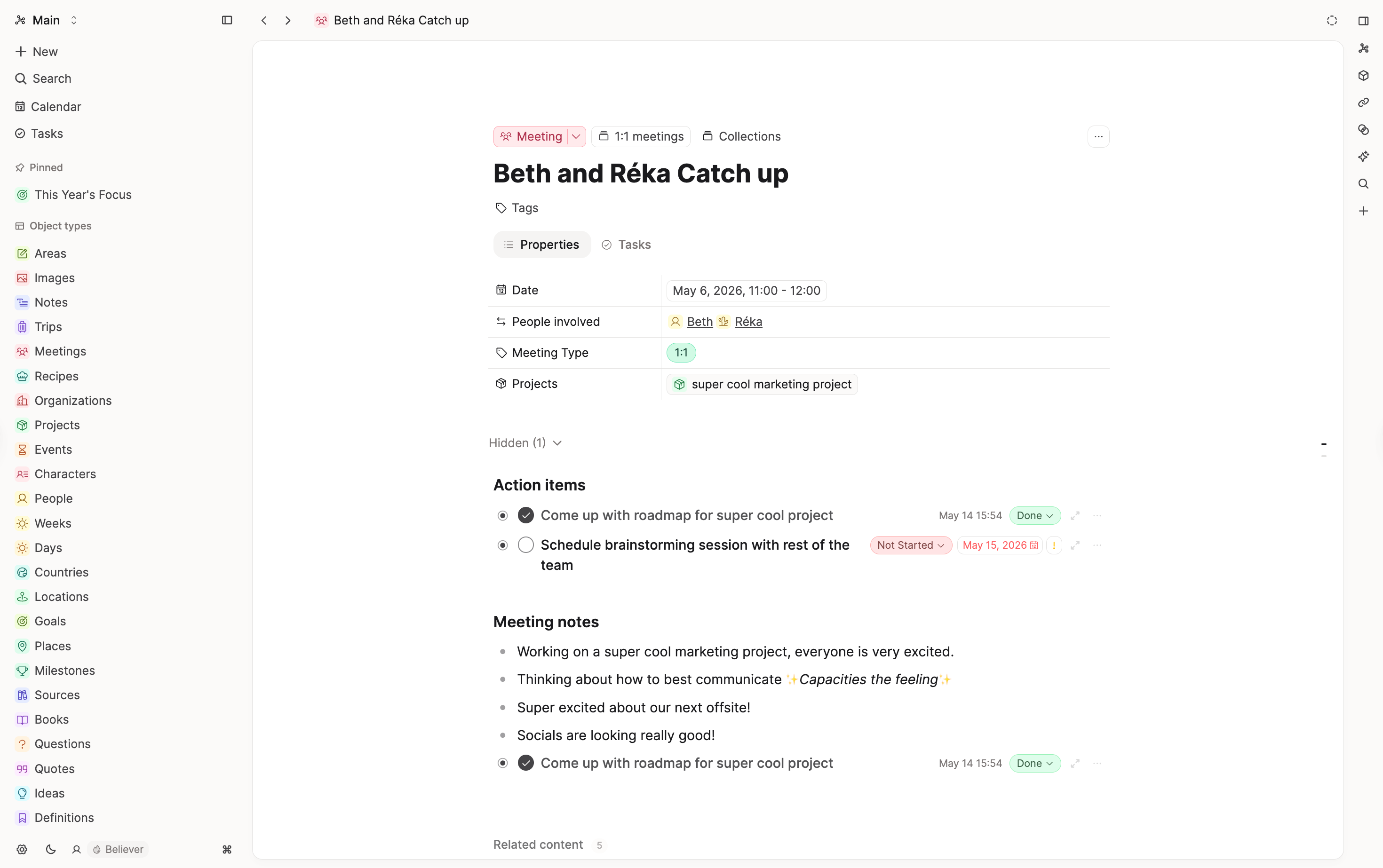
When someone agrees to a date, set a scheduled date so the task appears on that day in the calendar beside your events. Use a deadline when something must be done by a day even if you plan to work on it earlier. Overdue and due-today tasks surface on today’s calendar view.
When the work is done, mark the task complete. Completed tasks stay linked to the meeting, so revisiting the note later still shows what was agreed and what you finished.
Naming shortcuts save time after a dense call: a title like Send revised timeline !! Friday can set medium priority and a scheduled date from the text alone. See Task management.
Todo blocks (/todo or [] plus space) are fine for items that only matter inside the meeting note. When something needs a date, status, or a home on a person or project page, use a Task object instead. If you use an external task manager, task actions send a todo block out with one click — a separate path from Capacities tasks with context links.
For a weekly review habit, add a recurring task (for example “Process meeting follow-ups”) on the day you batch-process follow-ups, or a saved query on the task dashboard for tasks whose context includes meetings this week. See task dashboard sections.
Reuse meeting history from hub pages
Once meetings link to people, projects, and organizations, those objects become entry points for prep and review — not only the Meeting type dashboard.
Person pages for 1:1s
Before a recurring 1:1, open the Person object. Embed a query for meetings where People Involved includes this person, sorted by date, and check the Tasks tab for open work you linked to them. Together, meeting history and tasks answer “what did we last discuss?” and “what do I still owe them?” — often faster than rereading every past note.
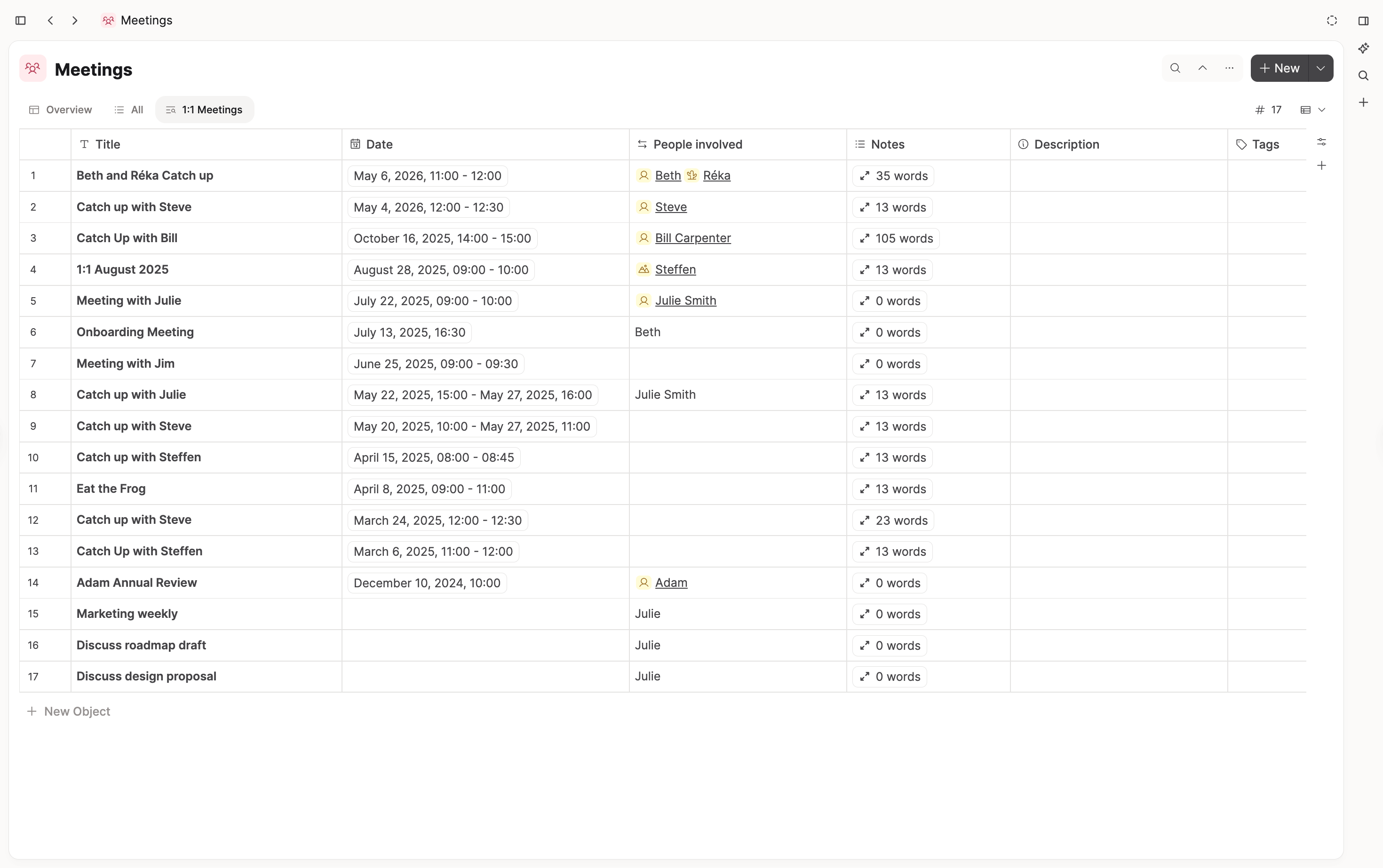
When the query rules are specific enough (meeting type plus person filter, often with a variable query on a template), New on the query block starts another meeting with those fields prefilled.
Setup: Meetings with this person.
Project pages
On a Project object, embed a query for meetings linked to this project. Planning conversations, status reviews, and client calls accumulate beside the project’s Tasks tab — delivery work in one place, conversation history in another.
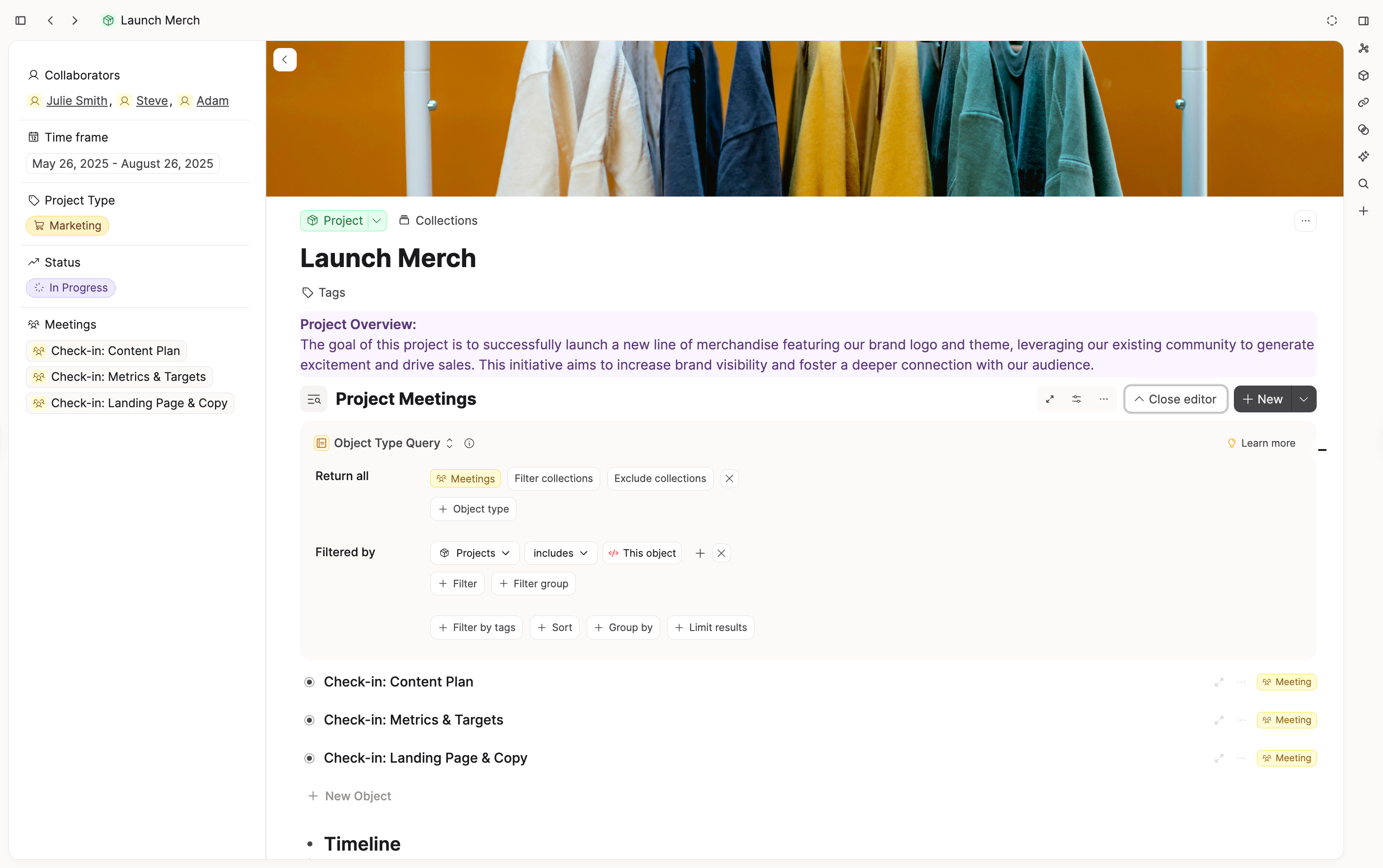
Add the embed to your project template so every new project inherits it. Setup: Meetings on this project.
Organization pages
For external conversations, embed a query for meetings linked to this organization on the org page. You get a timeline of touchpoints without hunting through unrelated notes. Link both the Person and their Organization when someone new appears on a call tied to an account.
Carry decisions beyond the meeting
A meeting note should not be the only place a decision lives. When an outcome matters for a project narrative, copy a block reference into the project page so the update keeps its original wording but appears where you read project news.
If notes are long after a dense call, the AI assistant can summarize themes or suggest action items. Turn anything you keep into tasks with context filled in so follow-up stays in your task views, not only in the meeting body.
Find meetings again
As volume grows, make views that help you quickly find relevant meetings. For example, all 1:1s this month, client calls for one tag, meetings without a project link (a useful maintenance query if project links are part of your workflow).
Pin those queries on the Meeting dashboard or embed them on a planning page. Sort by Date descending so the latest work is on top.
Where to go next
- Calendar integrations for Google and Microsoft setup
- Templates to define meeting formats
- Queries for person, project, and maintenance embeds
- Task management for inbox, calendar, recurring tasks, and dashboard sections
- Task actions if you send todo blocks to an external task manager
- Working with tags if you classify meetings by topic or area
FAQs
- Is it possible to create recurring meetings?
No, this is not supported.
Ask a question! - The Docs Assistant knows everything about the documentation, and the ideas and feature requests from other users.
Create a ticket on our feedback board. - Let us know if you have an idea for a feature, improvement or think there is something missing.
Request additions to the documentation. - If your questions are not getting answered, let us know and we will extend the documentation.