Use cases
Getting Things Done
Use cases
Getting Things Done
David Allen's Getting Things Done (GTD) starts from a simple idea: your mind is for having ideas, not holding them. The method is not a quick fix. It is a system you trust to hold your commitments so you can engage with your world without mental clutter.
Capacities fits that model because it is a note-taking app with tasks, not a task manager with a comment box. Reference material can sit on the same page as the work it supports. This guide walks through a practical GTD setup you configure once, then use for capture, clarification, and weekly review so every active project still has a next action.
It assumes task management is active in your space. For calendar-linked meetings, see Meeting notes. For capture habits outside tasks, see Daily notes.
📺 Watch this video or read on for a step-by-step walkthrough.
Getting Things Done®, GTD®, and "Your mind is for having ideas, not holding them"® are registered trademarks of the David Allen Company. This guide is not affiliated with or endorsed by the David Allen Company.
Set up once
You only need to do this configuration once. After that, day-to-day work is mostly capture and clarification, with a regular review to keep the system honest.
Apply the GTD task status preset
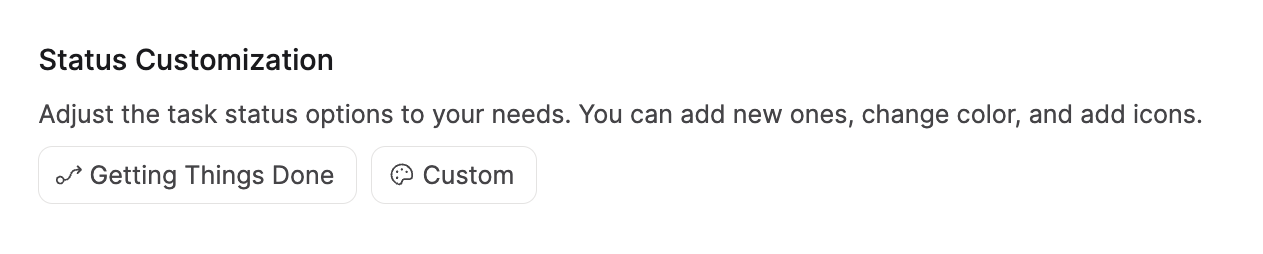
Open Settings > Task Management > Status Customization and choose the Getting Things Done preset. It replaces the default status set with labels that match common GTD lists (including Next Up and Waiting For).
You will assign these statuses while processing the task inbox. A task leaves the inbox as soon as it has a date, a deadline, or a status, so "Someday" style items still count as processed even when you are not ready to do them yet.
Add task dashboard sections
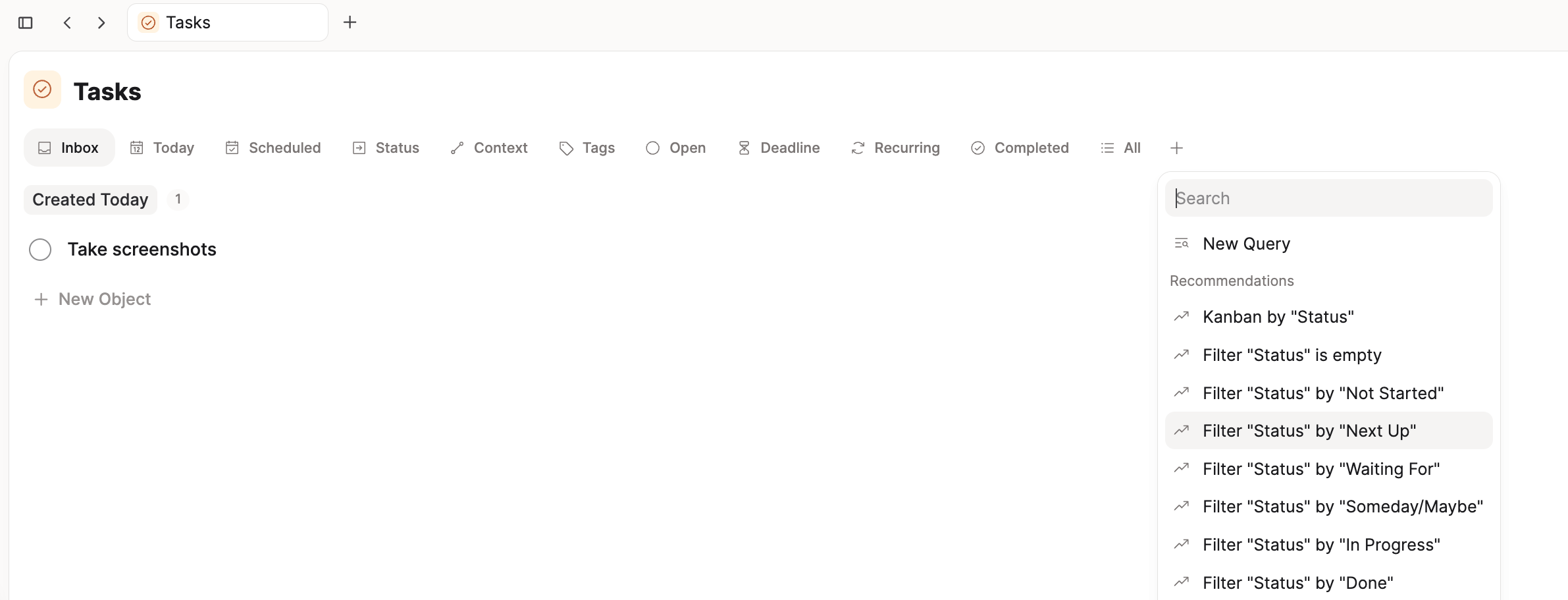
Open the Tasks dashboard in the left sidebar. Hover the section tabs until you see +, then add saved queries for the lists you work from most often. For filter and grouping options, see Queries.
- Next actions: filter where Status is Next Up. Rename the tab (click the label, then the edit control) and drag it near the front of the bar.
- Waiting for: filter where Status is Waiting For.
- Someday: filter where Status is Someday (or the equivalent label from your preset).
The built-in Inbox, Today, and Scheduled sections stay useful for dated work. You can customize your dashboard by hiding tabs you do not need; saved queries are not deleted when you remove them from the dashboard.
Add Project, Area, Person, and Meeting types
In Settings > Object Types, use Create to add templates you will lean on throughout GTD. See Content types if you are new to custom types in Capacities.
- Project (one note per outcome that takes more than one action). The project template includes a status property with labels such as In Progress and On Hold.
- Area (ongoing responsibility with no finish line, such as home maintenance or health).
- Person (someone your tasks or projects depend on).
- Meeting (optional, but helpful if you want meeting notes linked to people and calendar events).
Each type gets its own entry in the left sidebar: a home base for every project, area, person, or meeting in your space.
Add project dashboard sections
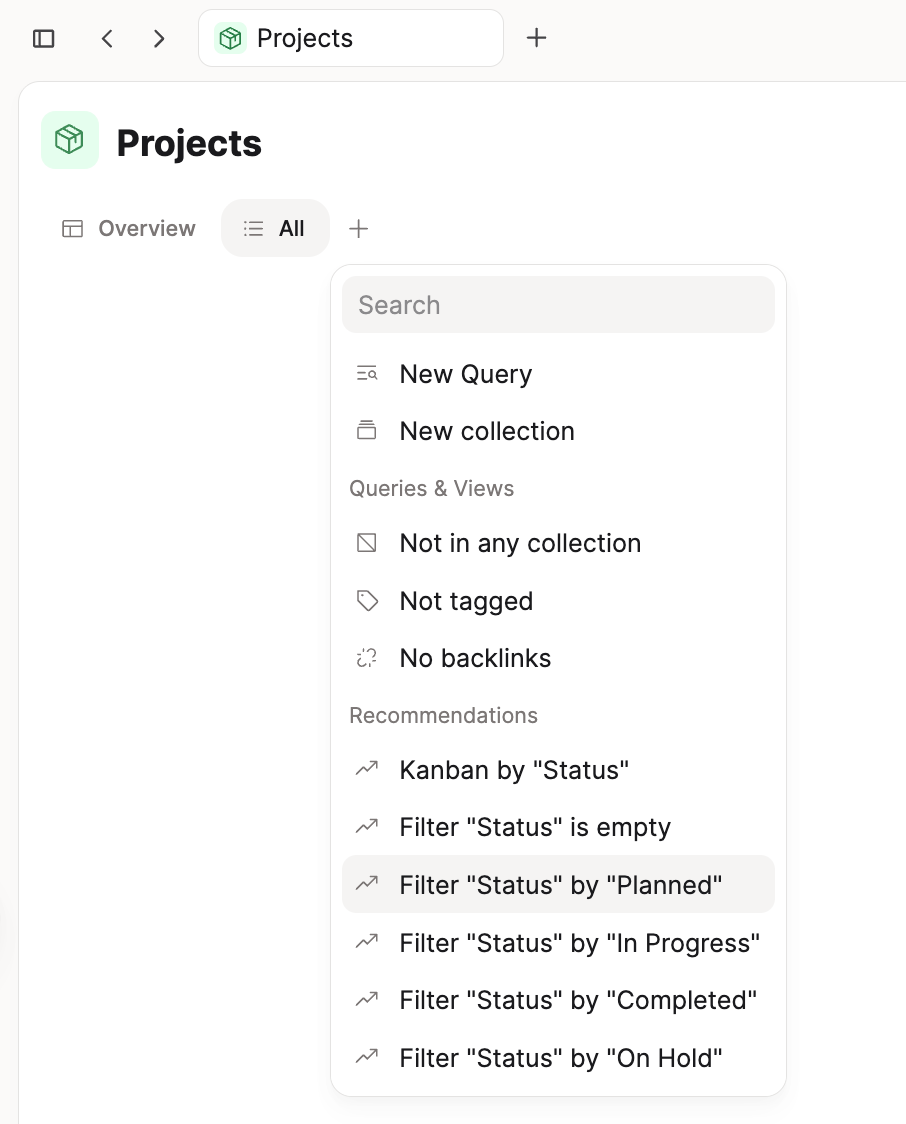
On the Project type dashboard, add query sections that mirror how you review work:
- In progress: filter where the project status is In Progress.
- On hold: filter where status is On Hold.
- All projects: an unfiltered or lightly filtered view you can scan during the weekly review to catch projects missing a status.
During review, every In progress project should have at least one open Next Up task linked to it.
Capture tasks
GTD begins by getting open loops out of your head. Create tasks wherever you are:
()then space, or/taskin the editorCmd + Shift + T(Mac) orCtrl + Shift + T(Windows) for the quick-add modal (use@in the modal to set Context while you type)- New on the Tasks dashboard or the
+on the Tasks item in the left sidebar
You do not need to classify everything at capture time. Dump tasks first; clarify status, dates, and links when you process the inbox.
Projects and areas
In GTD, anything that needs more than one step is a project: your mind would otherwise keep an open tab on the broader outcome. Capacities holds that context on the project note instead.
An area is different. Areas are open-ended responsibilities. Work tied to them often repeats, but the area itself does not "complete" the way a project does. Home maintenance is an area; renovating a bathroom is a project.
Keeping separate Project and Area notes makes the distinction obvious when you decide what kind of action you are taking.
Link tasks to projects
When a task belongs to a project, set Context on the task to that project (search the project title in the property, or link from the project page so context fills in automatically). See Contextualize a task for scheduling and linking in one place.
Linking does two things at once:
- The task appears on the project note and in the project's Tasks tab.
- The project becomes part of how you filter and group tasks elsewhere (for example on your Next actions list).
Open the project and task side by side with Shift + click from search or the sidebar. See Side panel if you want to work across two notes at once.
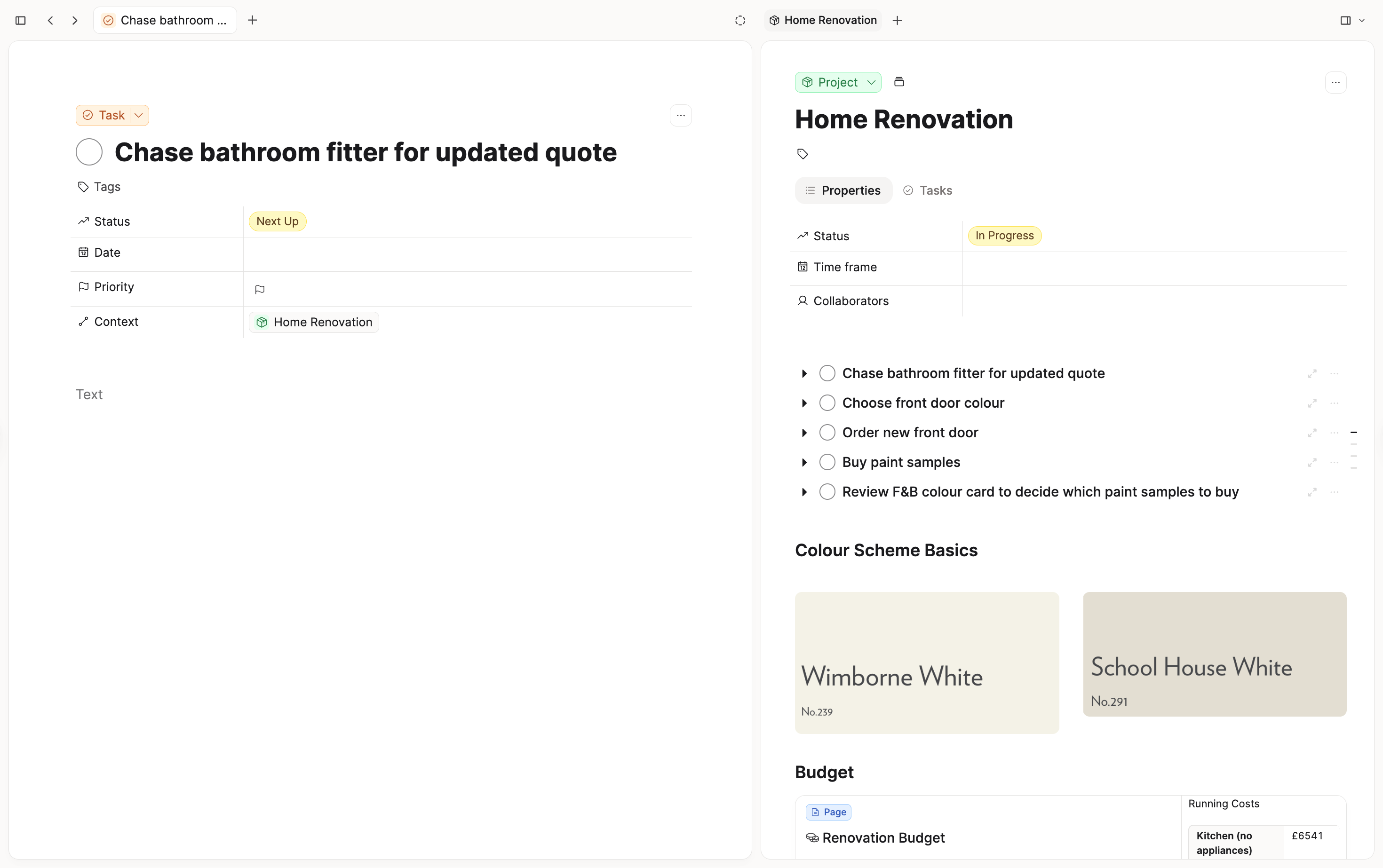
Because Capacities is note-first, the project page is where scripts, research, quotes, and half-finished plans live alongside tasks. Add a new task inline with () while you write, or filter the Tasks tab to Open when you only want actionable items. Your reference material does not need a separate app or folder.
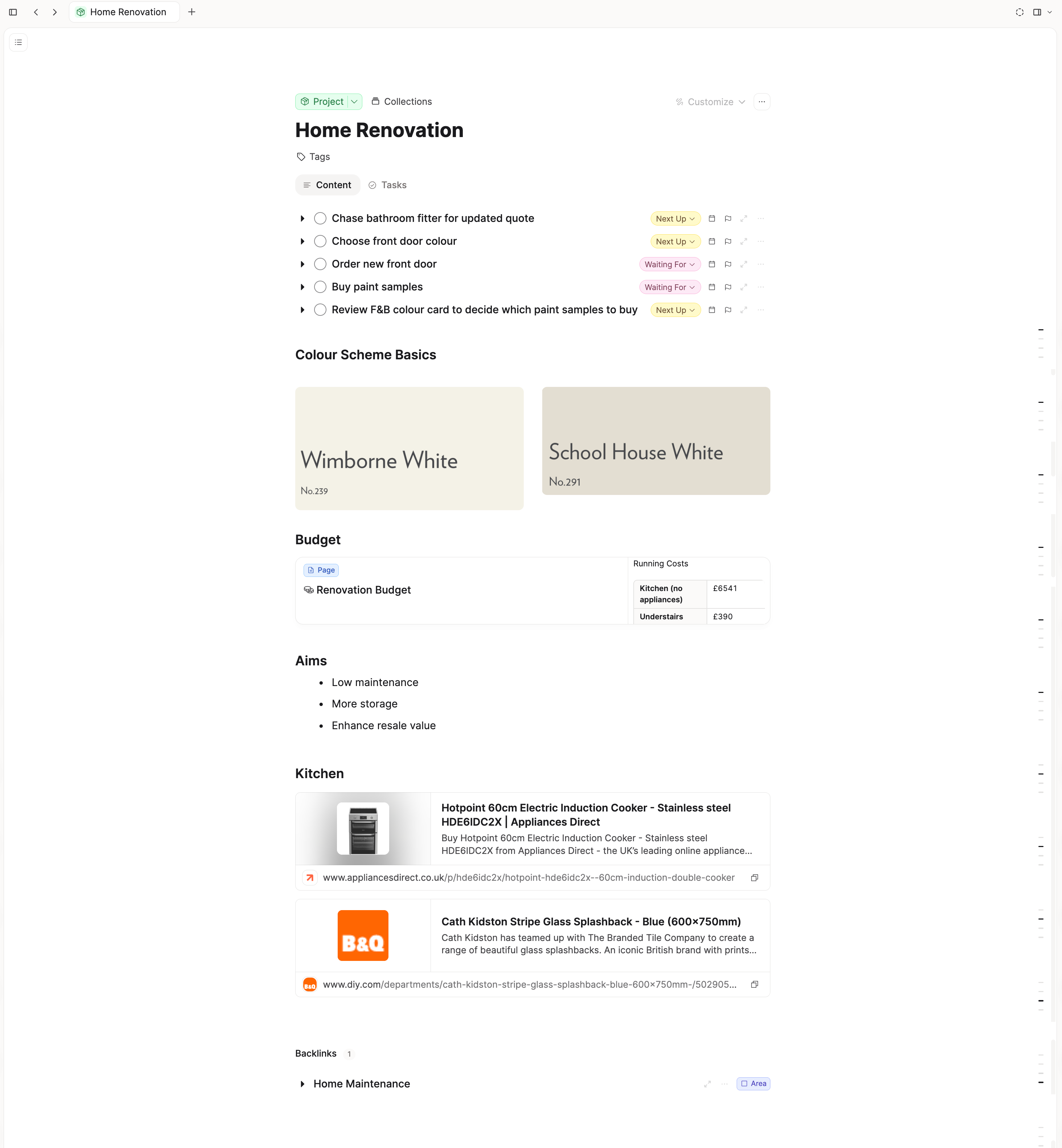
Already-created tasks can be linked later: open the task, set Context to the project, or set context from the project and search for the existing task.
Areas and recurring tasks
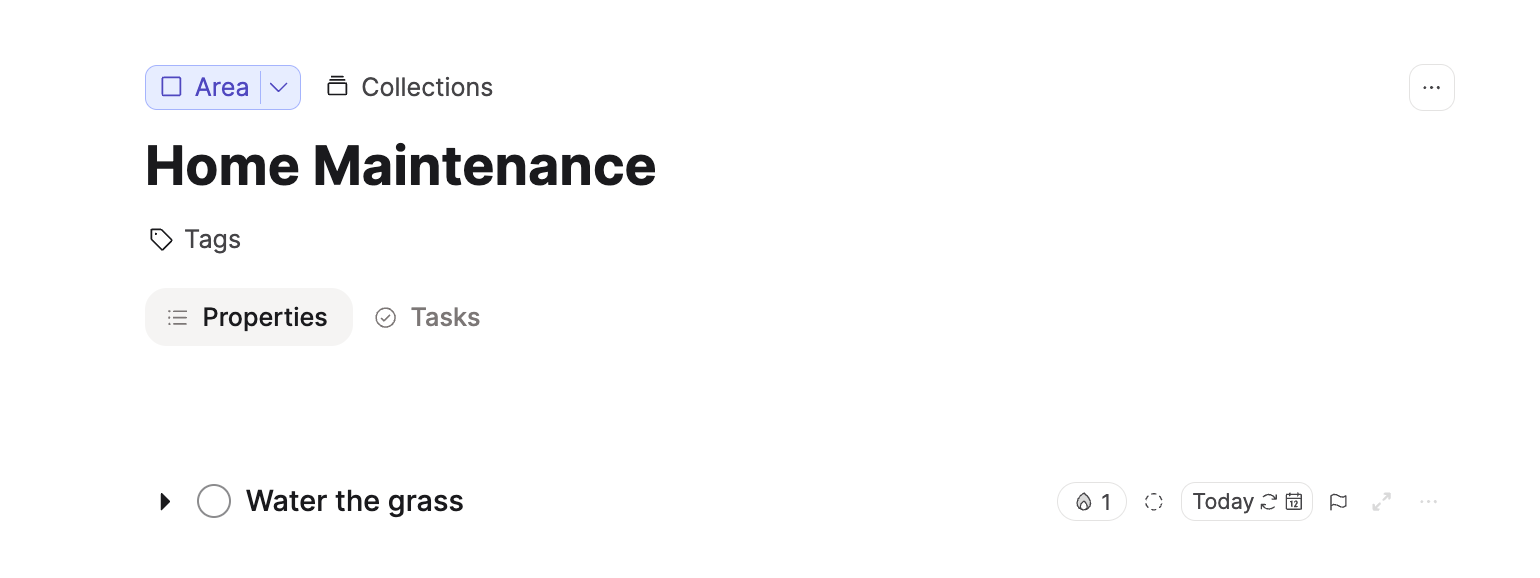
Area work is often repeating. On a task such as watering plants or reviewing a budget, follow the steps in Recurring tasks:
- Set a date for the next occurrence.
- Open the date picker and choose repeat with the cadence you need.
Completing a recurring task schedules the next instance and, on the task page, shows stats (streaks, completion rate) so you can see how consistently you maintain that responsibility.
Link recurring tasks to the relevant Area note in Context when you want area-level visibility. Dated recurring tasks appear under Scheduled and in the Recurring view on the task dashboard.
One-off tasks and the calendar
Not everything is a project. A single errand can stay a standalone task: give it a date if you plan to do it on a specific day, and set Status to Next Up when it is the very next thing you will do.
Scheduled tasks show on your calendar for that day, which helps if you plan work day by day instead of only from the next-actions list.
Process the inbox
Processing is deciding what each captured item means and where it should show up next.
Work project by project when it helps:
- Mark the true Next Up action for each active project.
- Set Waiting For on tasks that are blocked until something else happens (including tasks blocked on your own earlier step).
- Leave future steps on the project note or in the task list with a non-actionable status until they become relevant; you do not have to re-type them later.
For standalone tasks, assign a date or status so they leave the inbox.
When every item has a date, deadline, or status, the inbox is clear. Your Next actions, Waiting for, and Someday sections hold the clarified work.
Work from next actions
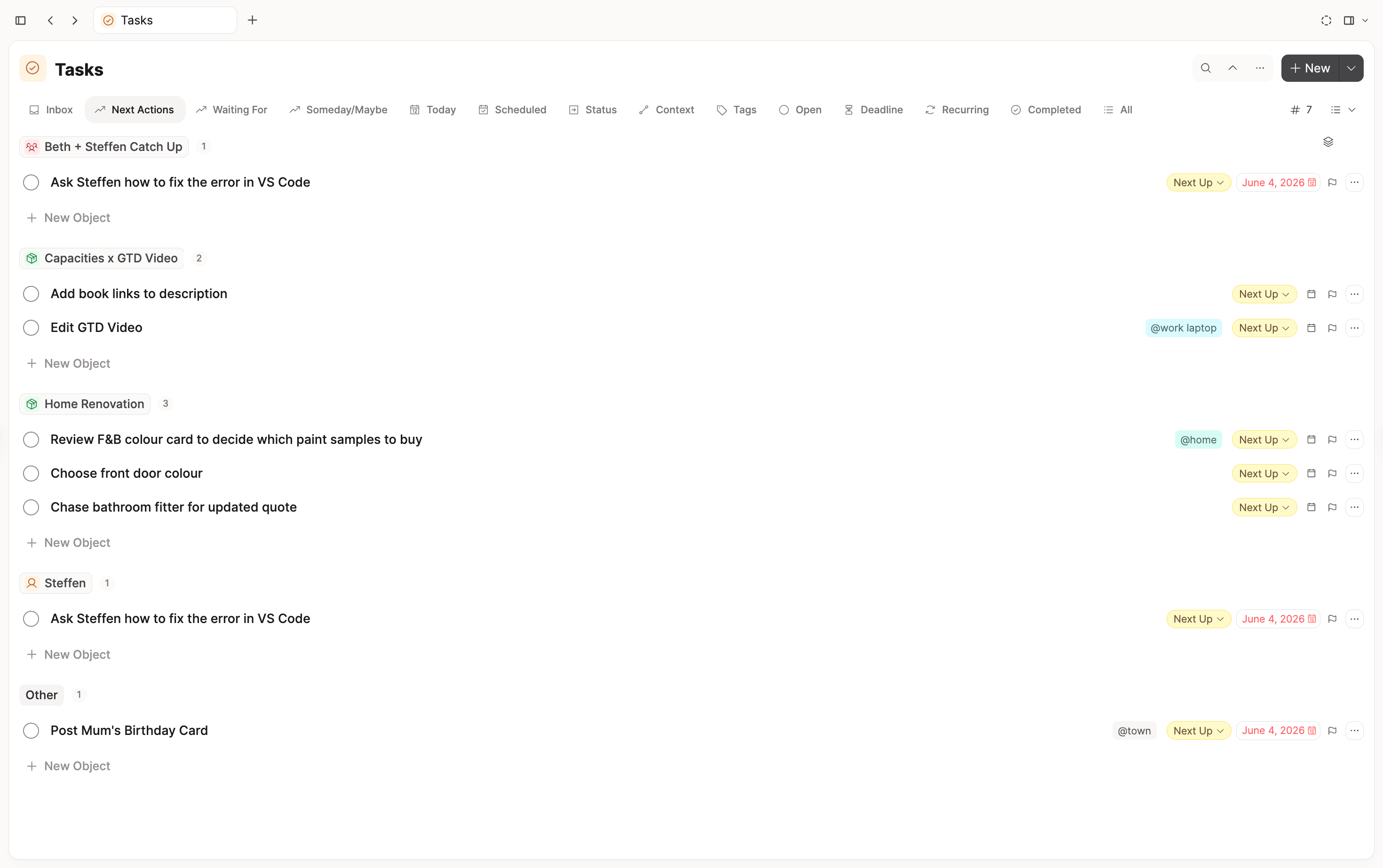
The Next actions section is where most execution happens. If you want more context at a glance, open the section query, choose Open and edit, and group by Backlink objects (the objects linked through each task's Context property). See Backlinks for how that filter works.
You get next actions clustered by project, with one-click access to the project note for reference material. Tasks with no project still appear; they simply sit in their own group.
This pattern is what we mean by contextualised task management: the list tells you what to do, and the linked note tells you why and how.
Location contexts with tags
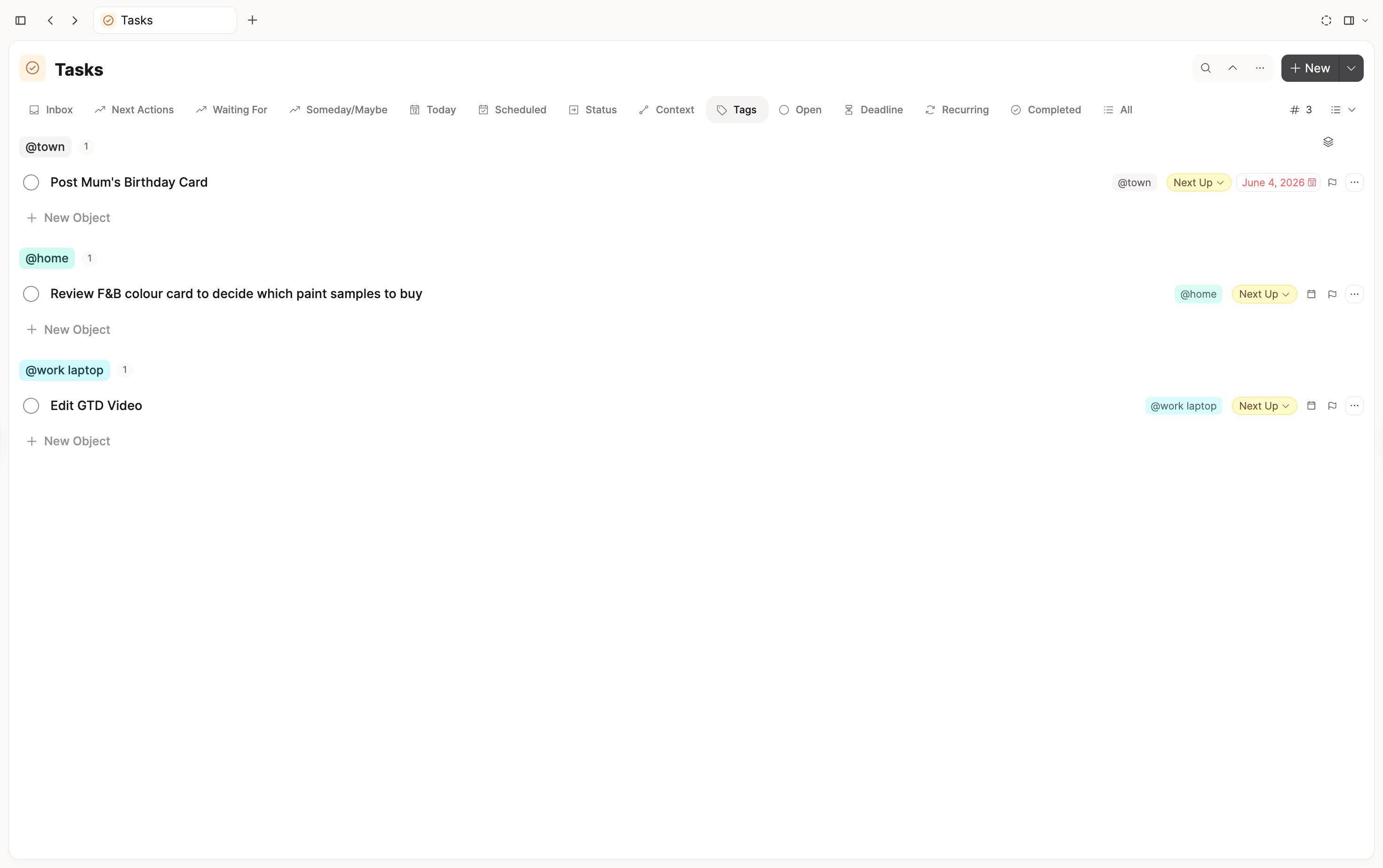
GTD also cares about where you can do something. Capacities models those location- or tool-based contexts with tags on tasks (for example #work-laptop, #home, #town).
The task dashboard includes a Tags section that groups open tasks by tag. You can also build a custom section that filters Tags includes your label.
When a tag reminds you of another errand, add a task in that view and fill in properties in place. Completed tasks drop off the list automatically.
The built-in Context section groups by linked objects (projects, people, meetings). Tags and object context solve different problems; many people use both.
People as an agenda
Tasks that involve someone should link to their Person note in Context. The next time you speak with them, open their page and check the Tasks tab (filter to Open before a 1:1).
You capture in the moment; the person page becomes the agenda for the conversation. The same task can also appear on Next actions and on your calendar if it is dated.
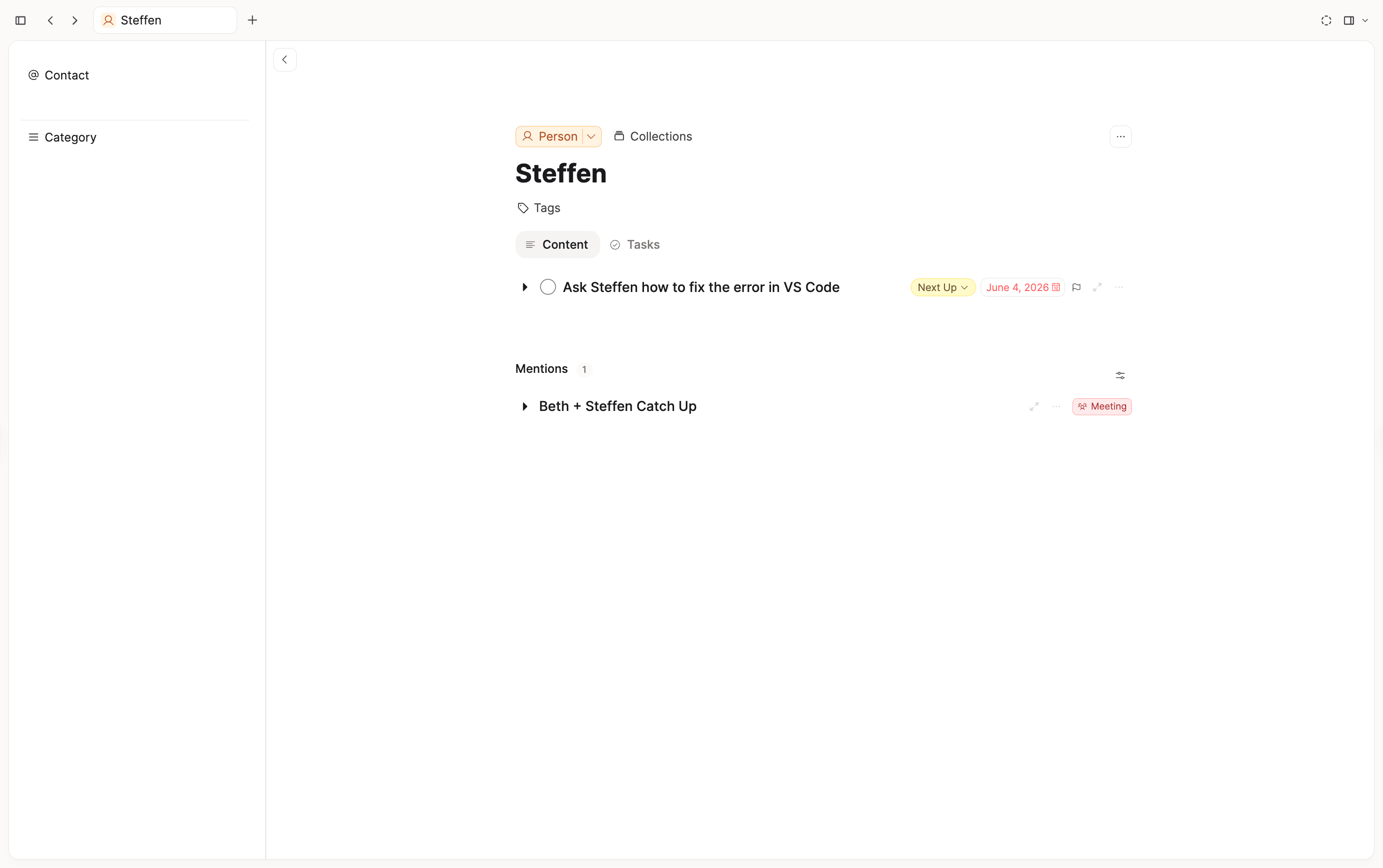
For standing meetings, create a Meeting object, link it to the calendar event if you use calendar integrations, and link open tasks or questions in the meeting note. A task can point at the meeting, the person, and a project at the same time if that is how you will rediscover it.
Capacities does not force a single "correct" filing location. Link everywhere the task is useful and let the system surface it when you open the relevant note, list, or day.
Weekly review
The weekly review restores clarity: you know your open projects, your next actions, and what is still waiting.
A workable sequence:
- Process the task inbox so new captures have a status or date.
- Walk your next-actions list and confirm each item is still the real next step; update or complete what changed.
- Check waiting-for items and move anything unblocked back to Next Up.
- Skim recurring and area-linked tasks if you use areas for maintenance habits.
- Review projects on the Project dashboard: for each In progress project, confirm there is a Next Up task in Context; revisit On hold projects and move or reactivate them when the world changes.
You will adapt the rhythm over time. Some people live in Next actions all week; others assign dates and work from the calendar. Both are valid once the system is current.
Where to go next
- Tasks and projects: outcomes vs next actions, areas, calendar visibility, and progress
- Task management: inbox rules, dashboard queries, and GTD-style tag contexts
- Recurring tasks: cadence, stats, skip, and catch-up
- Queries: saved filters for task and project dashboards
- Tags: location contexts and cross-type grouping
- Backlinks: Backlink objects filters and object hubs
- Content types and Templates: Project, Area, Person, and Meeting setup
- Navigation: side-by-side project and task work
- Meeting notes: templates, calendar capture, and follow-up tasks
- Daily notes: capture before tasks exist
- Network of people: extending Person objects beyond task agendas
- PARA in Capacities: another way to think about projects and areas in Capacities
- Calendar integrations: link meetings to calendar events (Pro)
Ask a question! - The Docs Assistant knows everything about the documentation, and the ideas and feature requests from other users.
Create a ticket on our feedback board. - Let us know if you have an idea for a feature, improvement or think there is something missing.
Request additions to the documentation. - If your questions are not getting answered, let us know and we will extend the documentation.