Use cases
PARA in Capacities
Use cases
PARA in Capacities
Here at Capacities, we believe folders limit our thinking, and we therefore built an app without them. Instead, we think in objects.
But if you have used Tiago Forte’s PARA system elsewhere, you might be wondering how a PARA setup could translate into Capacities.
What follows is a suggestion from the Capacities team. It is not the only option, but it’s one that might help you think through what PARA could look like for you in our tool.
📺 Watch this video or read on for a step-by-step walkthrough.
What is PARA
Before we start, let’s define the components of PARA, with definitions from the PARA method.
PARA is an acronym for a multi-platform organizational structure for digital information, created by Tiago Forte.
Taking each component in turn:
Projects: “short term efforts in your work or life that you’re working on now”
Areas: “long term responsibilities you want to manage over time”
Resources: “topics or interests that may be useful in the future”
Archive: “inactive items from the other three categories”
Now we know the definitions, let’s explore how this could look in Capacities.
Projects
We recommend using a project object type. We have a template for this available already, which includes a few useful properties such as status, time frame, and collaborator. You can add your own properties if needed. Every project will automatically have all properties.
This is a more functional and flexible approach to unifying information related to one of your projects. This is the reliable project hub. You can fill out the information you need and get to work.
This might include brain dumping tasks or bringing resources together.
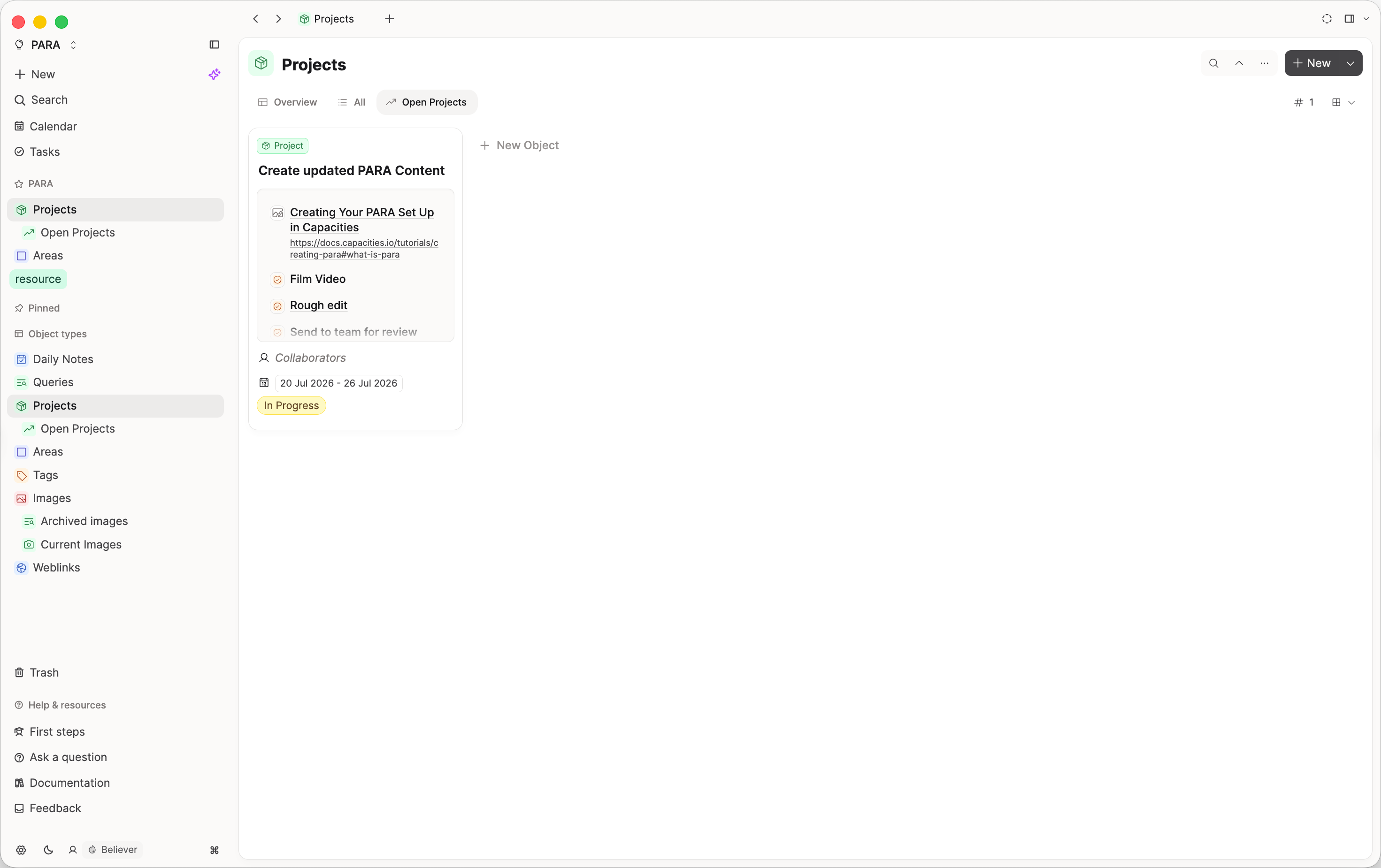
This is also a good moment to explain a very important point about Capacities: unlike files in folders and subfolders, your content doesn’t live anywhere specific. Objects aren’t moved from A to B; they are just linked to whatever they are useful for.
For example, if you have a resource that can help with your project, just link to that resource from your project object with @ or [[]]. Repeat this as much as necessary, until you have all you need to do your project.
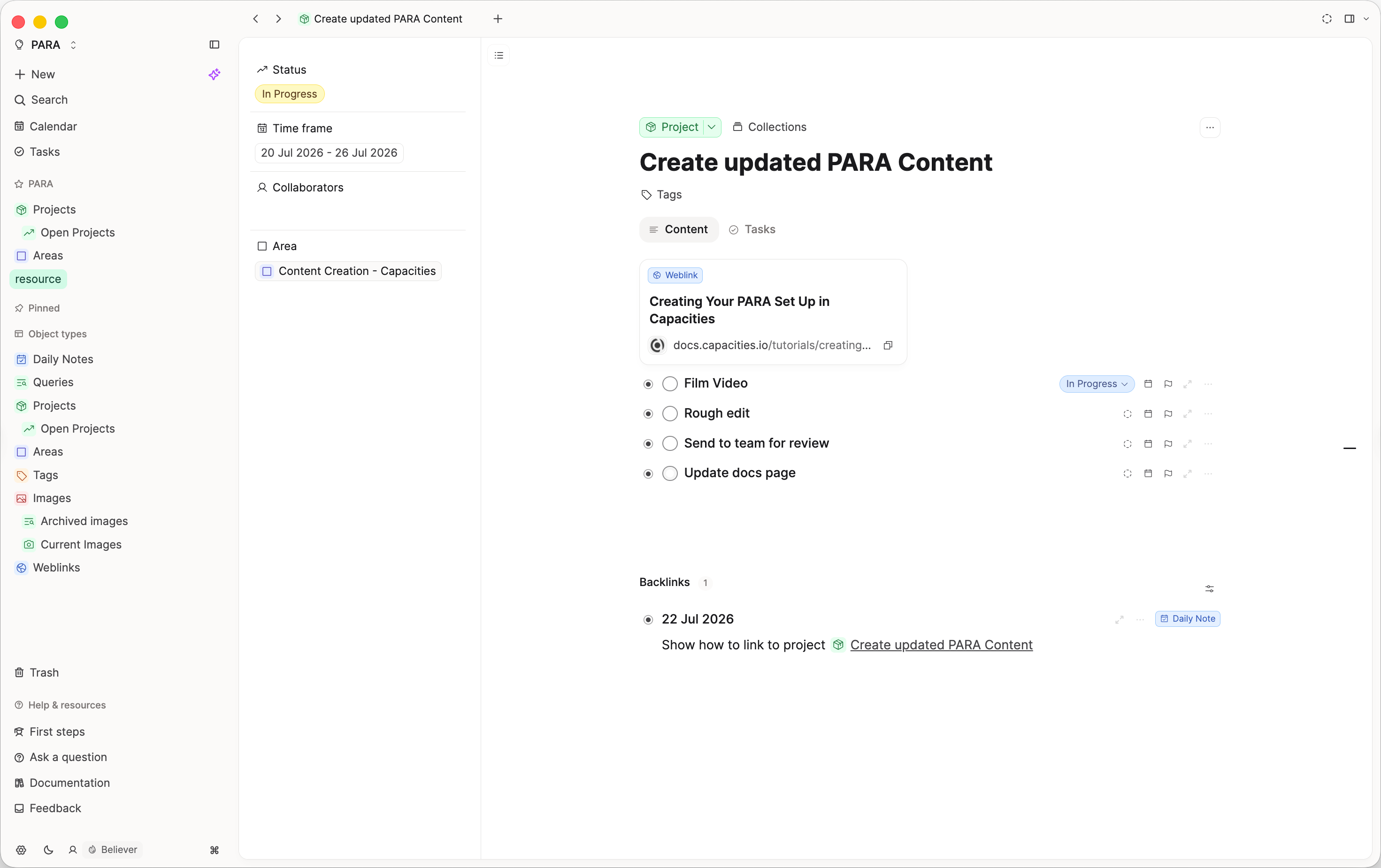
This is what we mean when we say the page becomes a hub. The project note replaces a project’s subfolder, and the project object type replaces your projects folder. Then, instead of moving materials into a subfolder, you just link whatever is useful.
The result is the same: click on one place to find all your projects, open each project to see related materials. But it’s much more flexible. This method recognizes that resources might be useful for more than one project, but with linking, there is no conflict with where materials need to live.
Long term, this is a sustainable and intuitive system that will help you organize your digital life.
Areas
Areas are clearly very personal, as are the responsibilities within them.
We recommend setting these up as their own object type too. Head to object types, click Add, and use the Area template that's already there. Create a new area, name it, and use it as somewhere to type, not just a place to file things away.
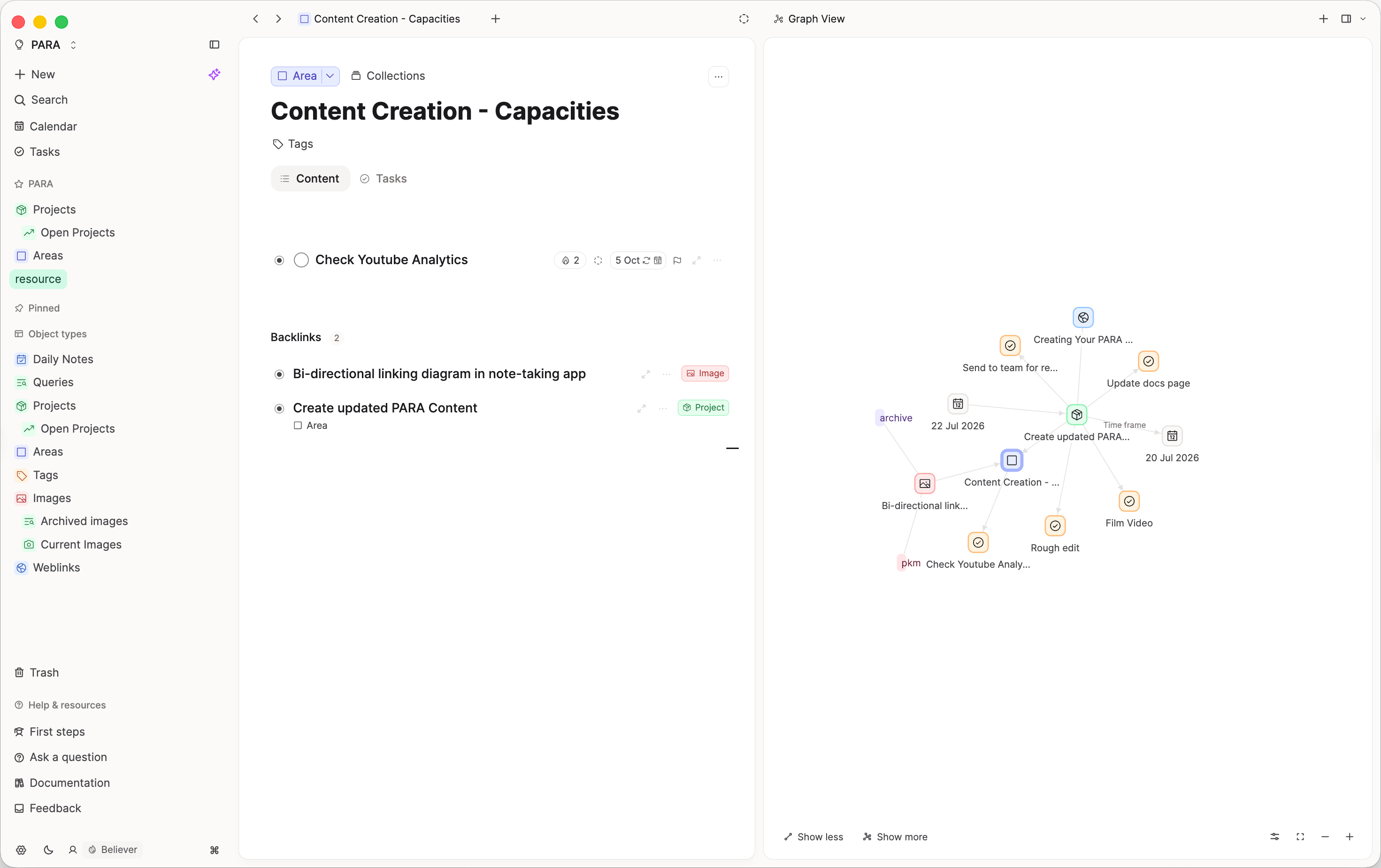
To link an existing note to an area, use @ or [[]]. This brings up a menu to search through, and you'll see your projects and other objects appear as results (each one clearly labeled, so you can tell a project from an area at a glance). If you open the graph view, you'll see the connection between the area and everything linked to it.
This is a loose way of connecting projects and areas. If you'd rather formalize it, so every project is explicitly tied to one area, add an object select property linked to Area. This gives you a dropdown of your existing areas right on the project itself, and it shows up as a backlink on the area too, so you can see all notes related to that area.
Resources
Your resources are probably going to be lots of different types of information, presented in various formats, about lots of different topics. There is huge variation here, but we'd encourage you to see your entire Capacities space as a resource. It's all stuff that's meant to help you, and if it's no longer relevant, that's more of an archive question.
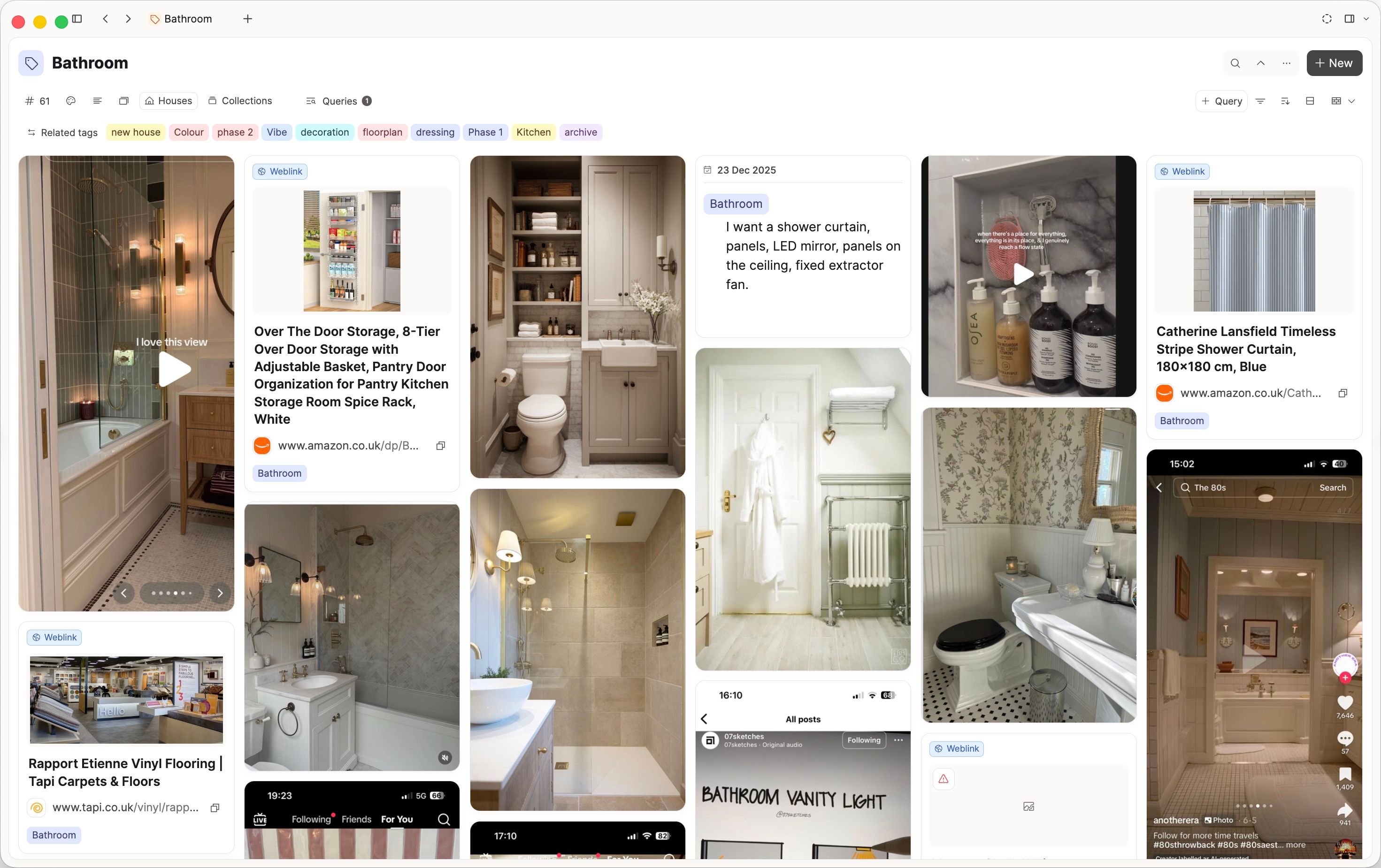
Rather than deciding upfront "is this a resource, and where does it live," the more useful question in Capacities is: "where would it be helpful for this to resurface?" A web link pasted into a project, an image you've tagged with an interest area, or a note tagged with a theme can all resurface exactly where you need them, without you ever having to file them.
That said, if you don't resonate with "everything is a resource" and would rather have an explicit answer to "where are all of my resources," there's a simple solution: create a tag called #resource, and apply it to anything you'd have called a resource in your existing PARA system.
Archive
Archiving is assigning a status to your information, so it can apply to anything in your space: projects, areas, images, pages, or anything else.
The simplest mechanism is a tag: create a tag called #archive, and apply it to anything you no longer need to see day-to-day. If you didn't want an archive tag but were using tags elsewhere, you could simply untag whatever's no longer relevant.
Either way, the archive isn't a separate place things get moved to. It's just an approach to filtering what you see. Archived content is still fully searchable in Capacities, whether you search directly or browse by object type.
To hide archived content from your everyday view, add a filter (filter where tag doesn't include #archive) and save it as a query. For example, call it "Current Images" and it'll automatically show only images that aren't archived.
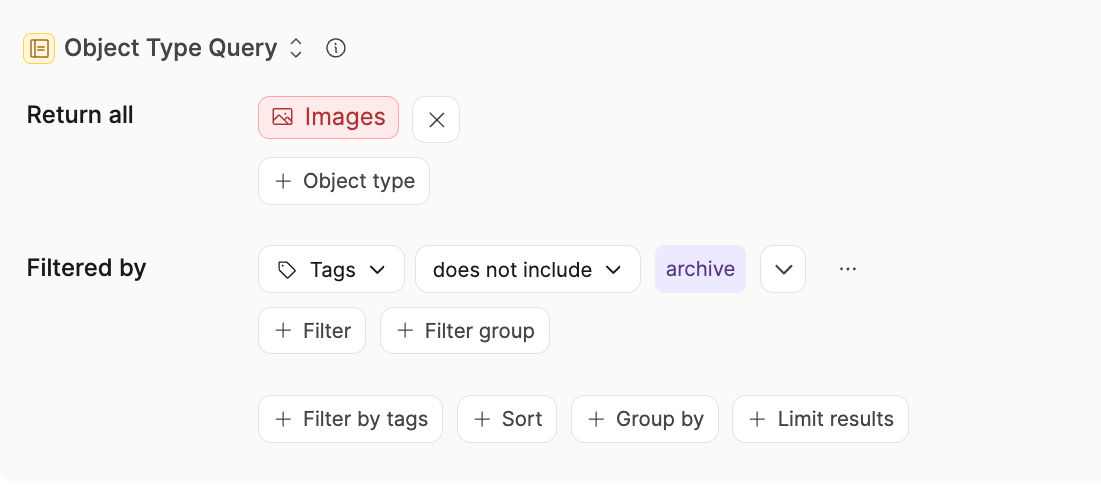
This idea works everywhere, and for some object types you don't even need a separate archive tag. For projects, for instance, you can filter for status does not include completed. That alone gives you a live view of everything still open, and you can set it as your default view. The same works for tasks: use the Completed section to keep your day-to-day task view to just what's open.
Inbox
Finally, Tiago Forte also talks about having an inbox: a place where everything lands before you've decided what it is or where it's useful.
In Capacities, your daily note is best suited to this. Anything that comes to mind throughout the day (an idea for a task, or a thought related to a project or area) you can just write down in that day's note and link it to whatever it relates to. The next time you open that project or area, you'll see your thought in the backlinks.
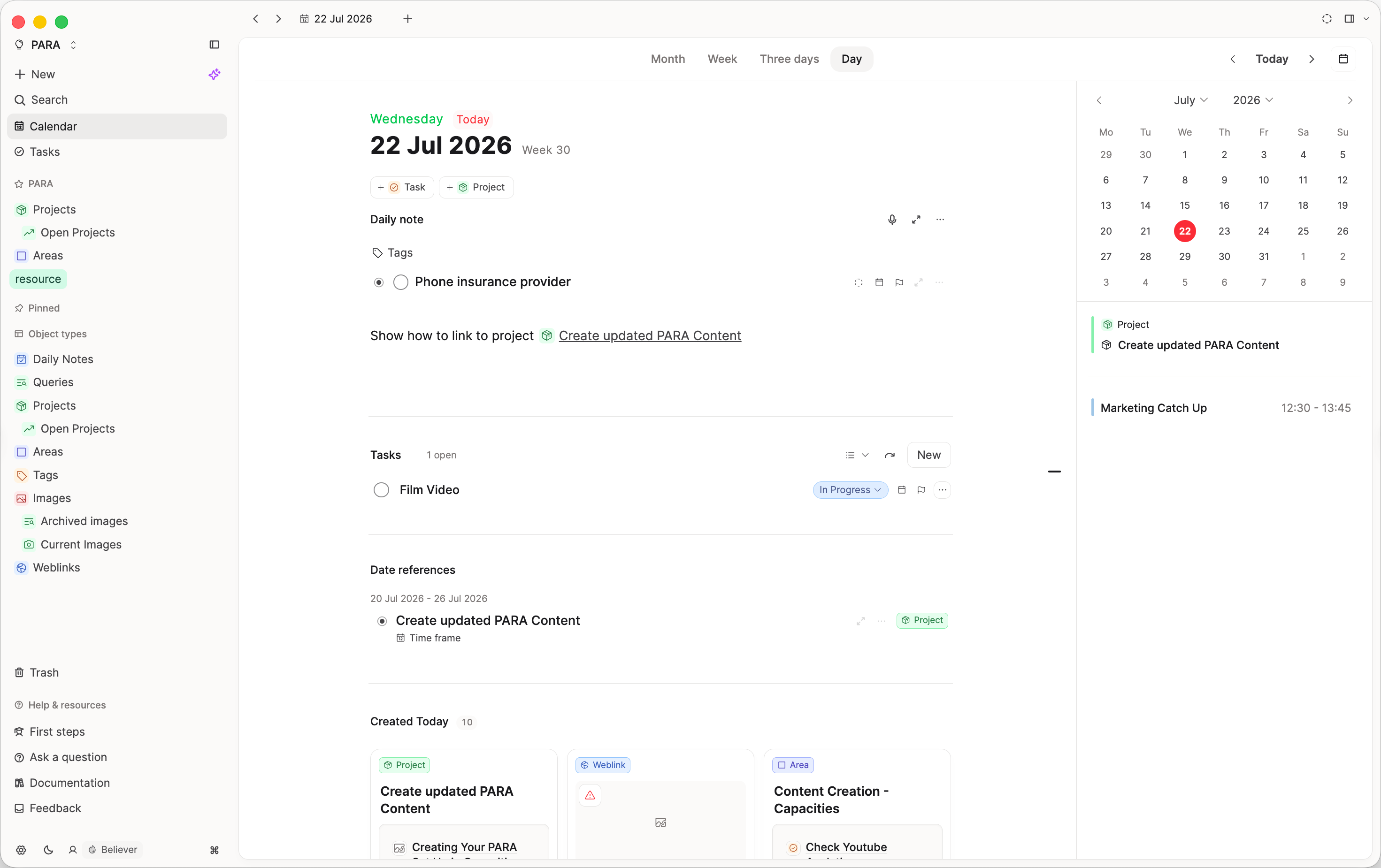
The bargain with any inbox is that you need to review it, and the daily note gives you a natural weekly cadence for that: use the arrows to move back through each day, and you'll see any tasks completed or due that day, any dates referenced, and anything else you created.
Forte talks about reviewing your calendar, tasks, and emails as part of a weekly review. Your daily note can show your calendar right there too, and if an email is worth keeping as a resource you can forward it in; if it's really a task, just write the task out directly so it shows up with everything else you need to review.
Learn more in Daily notes, or watch this daily note processing walkthrough.
Summary
Overall, the PARA method is a popular way of organizing information that can work very well in Capacities. To find success with PARA in Capacities, it's important to adjust thinking about folders, subfolders, and files toward the more intuitive approach Capacities offers with objects in a network. These are two of the three core pillars Capacities is based on. We suggest making good use of tags and object properties, which give you a flexible structure for categorizing and connecting your objects.
While this might be a change from what you're used to working with, we are confident that you will find our alternative intuitive and sustainable in the long term.
FAQ
Is there any alternative to setting up Areas as their own object type?
Yes. You can treat areas purely as tags rather than a dedicated object type:
Some examples of areas are: health, home, marketing. As these are long-term categories rather than types of information, they are well suited to tags: one tag per area. You could even put all your area tags in a collection and pin it for easy access in the left-hand sidebar.
Any time you have an object that relates to one of your areas, simply tag it. All objects can be tagged. If something relates to two areas, just tag both. When you click on the tag, you will see all objects tagged with that area. This is a flexible and easy-to-review set up.
You could also build some Map of Content type pages in Capacities to give your areas a hub. For example, you could create an area object type, where you'd have a Health Area object, a Home Area object and so on, or you could use pages and make a collection of areas. Do whatever makes sense for you!
If you'd rather not create a new object type just for areas, tags alone work fine. You lose the dedicated hub note per area, but if you don't need to write about the area, this might be preferable to you. You can always create an object type later if needed.
Where to go next
- Getting Things Done: projects and areas with a task workflow on top
- Daily notes: using the daily note as an inbox
- Organizational structures: how types, tags, collections, and queries fit together
- How do I structure information instead of using folders?: a shorter overview of the same idea
Ask a question! - The Docs Assistant knows everything about the documentation, and the ideas and feature requests from other users.
Create a ticket on our feedback board. - Let us know if you have an idea for a feature, improvement or think there is something missing.
Request additions to the documentation. - If your questions are not getting answered, let us know and we will extend the documentation.