Basic types
Whiteboards
Basic types
Whiteboards
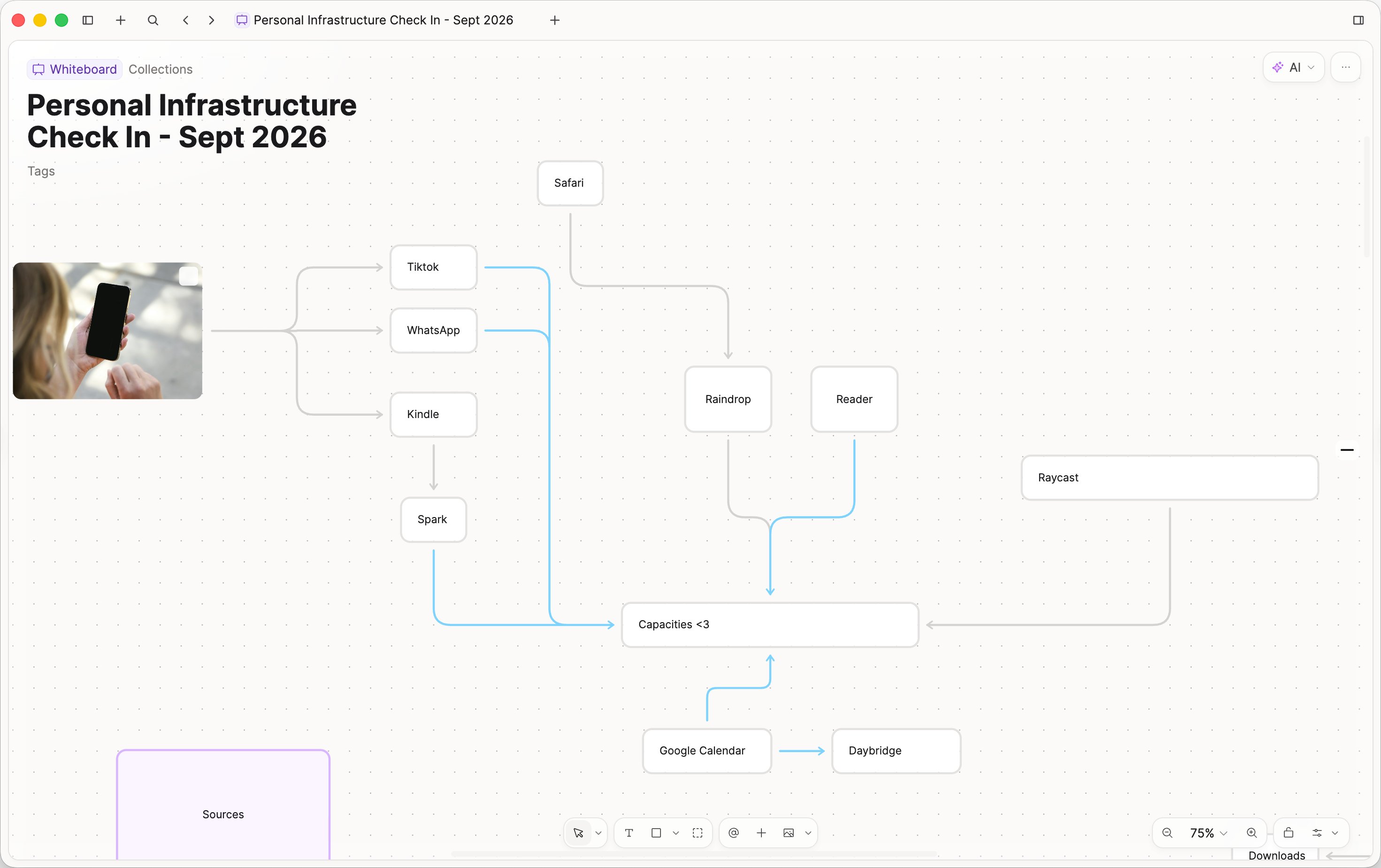
A whiteboard is a basic object type with an infinite canvas instead of a scrolling page. Use it to lay out notes and media from your space, connect them with lines and arrows, and draw shapes or frames around regions of the board.
You can put objects from your space on the board (pages, meetings, images, tasks, and so on) and move or connect them like anything else on the canvas. Open a card to work with that object: it is the same note you already have, shown on the board. Shapes and free text exist only on the whiteboard; they are not separate objects in your sidebar.
Like pages, whiteboards are objects in your space. You can tag them, search them, share them, pin them, and link to them with @ or [[]].
When to use a whiteboard
Use a whiteboard when you want to arrange things in space, not only in a list or a long note. Lay out the notes, books, PDFs, and daily notes you already have. Add text and shapes, and connect them with arrows.
A board can help you make sense of a group of content, or see that content in a new layout. For example:
- Research projects
- Moodboards with images, PDFs, weblinks, audio, and files
- Diagrams
- Meeting agendas laid out as regions
- Sketching a structure with shapes and arrows before you write a longer note
- Framing sections of a board so you can jump between areas later
If you mainly need a written note with headings and paragraphs, start with a page. For a diagram from text, see Mermaid diagrams.
Desktop and mobile
You edit whiteboards on the computer. On phone and tablet you can open a board and look through it, but you cannot change it there.
Create a whiteboard
You can create a whiteboard from:
+ New Content/ create menus- Search or create (
Cmd/Ctrl + KorCmd/Ctrl + P) - Global add, where that control is shown
The first whiteboard you create adds Whiteboards to the left sidebar.
You can also:
- Use Turn into whiteboard on content that supports it (this creates a new whiteboard)
- Drag objects from elsewhere in the app onto an open board
- Use Move on a selection on a board to send it to a page or another whiteboard (
M)
You cannot put a whiteboard inside another whiteboard.
The board on desktop
Open a whiteboard on the computer to edit it.
Title and side panel
At the top left you see the usual object details: type, icon, title, description, and tags. There is no separate property sidebar on the board itself.
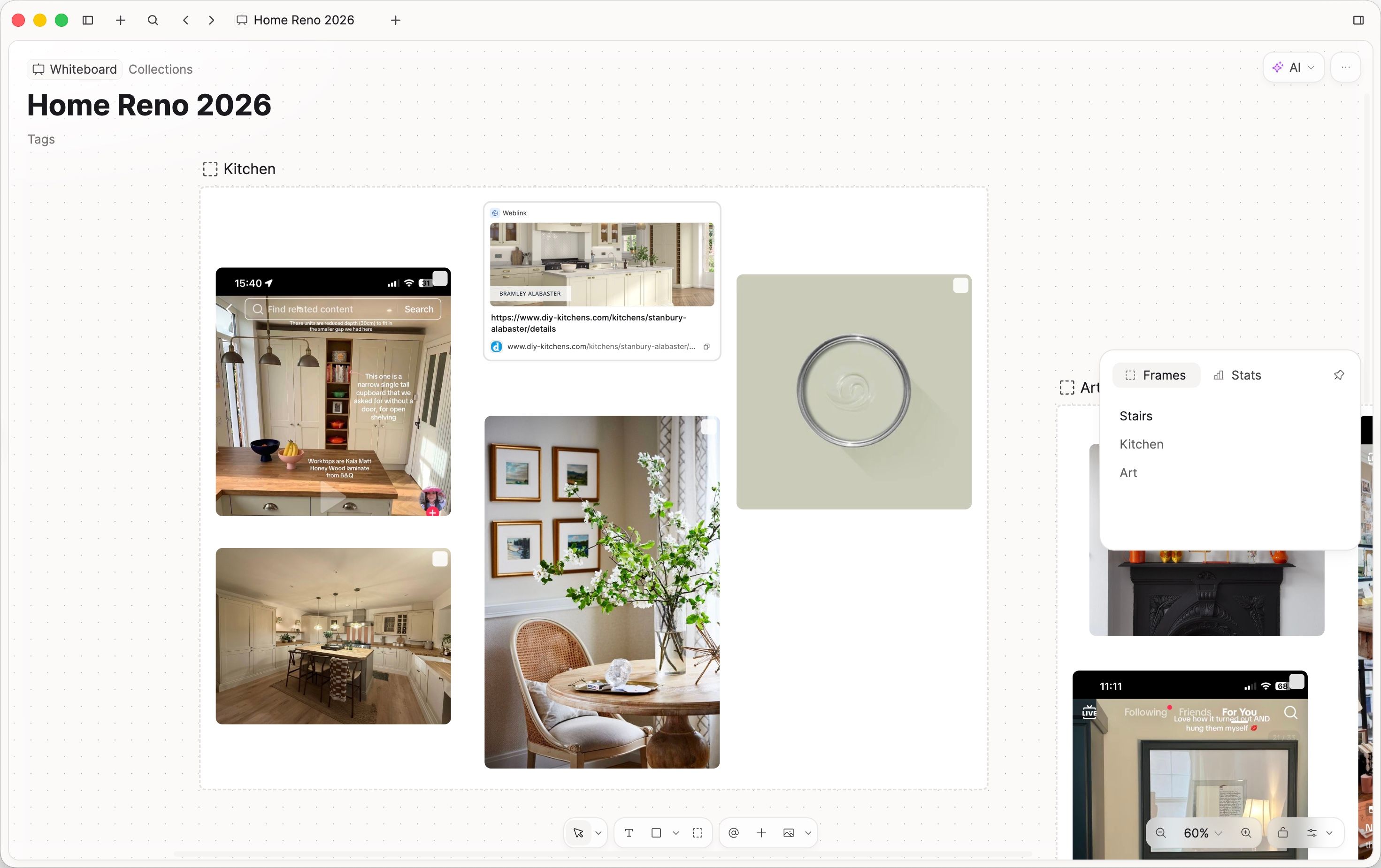
The same table of contents indicator shows on the whiteboard as in your other objects. Instead of headings, it shows Frames (regions on the board) and Stats about the board. Click a frame in the list to jump to it.
Tools at the bottom
When the board is not locked, a tool bar sits at the bottom.
| Tool | What it does | Shortcut |
|---|---|---|
| Move / Hand | Select and move items, or pan the board. Hold Space to pan for a moment. | V select, H hand, Space pan |
| Text | Click or drag to place text | T |
| Shapes | Connectors (lines or arrows) plus shapes (open the caret for the full list) | see Keyboard shortcuts |
| Frame | Draw a frame around a region | F |
Existing object (@) | Place an object that already exists in your space | |
New object (+) | Create a new object and place it on the board | |
| Media | Image, PDF, audio, file, or weblink |
Shapes and connectors in the shapes menu:
- Connectors: Line (
L), Arrow (Shift + L) - Shapes with letter shortcuts: Rectangle (
R), Ellipse (O), Triangle (P) - Other shapes from the menu only: Diamond, Parallelogram, Star, Bubble, block arrow, Heart
If you have panned somewhere with nothing visible, Capacities shows Nothing in this view with a Back to content button.
Zoom and display
Near the zoom controls you can:
- Zoom in and out
- Open the zoom percentage list (including Page fit to show all content)
- Lock whiteboard / Unlock whiteboard so nothing moves until you unlock (you can pan and zoom while locked)
- Open Canvas display settings
Canvas display options:
- Show dots: dotted background
- Zoom with scroll wheel (editors)
- Snap to grid and Snap to elements (editors)
Hold Ctrl while dragging to turn snapping off for that drag.
Selection bar
When you select something on the board, an edit bar appears above the selection. What you see depends on what you selected.
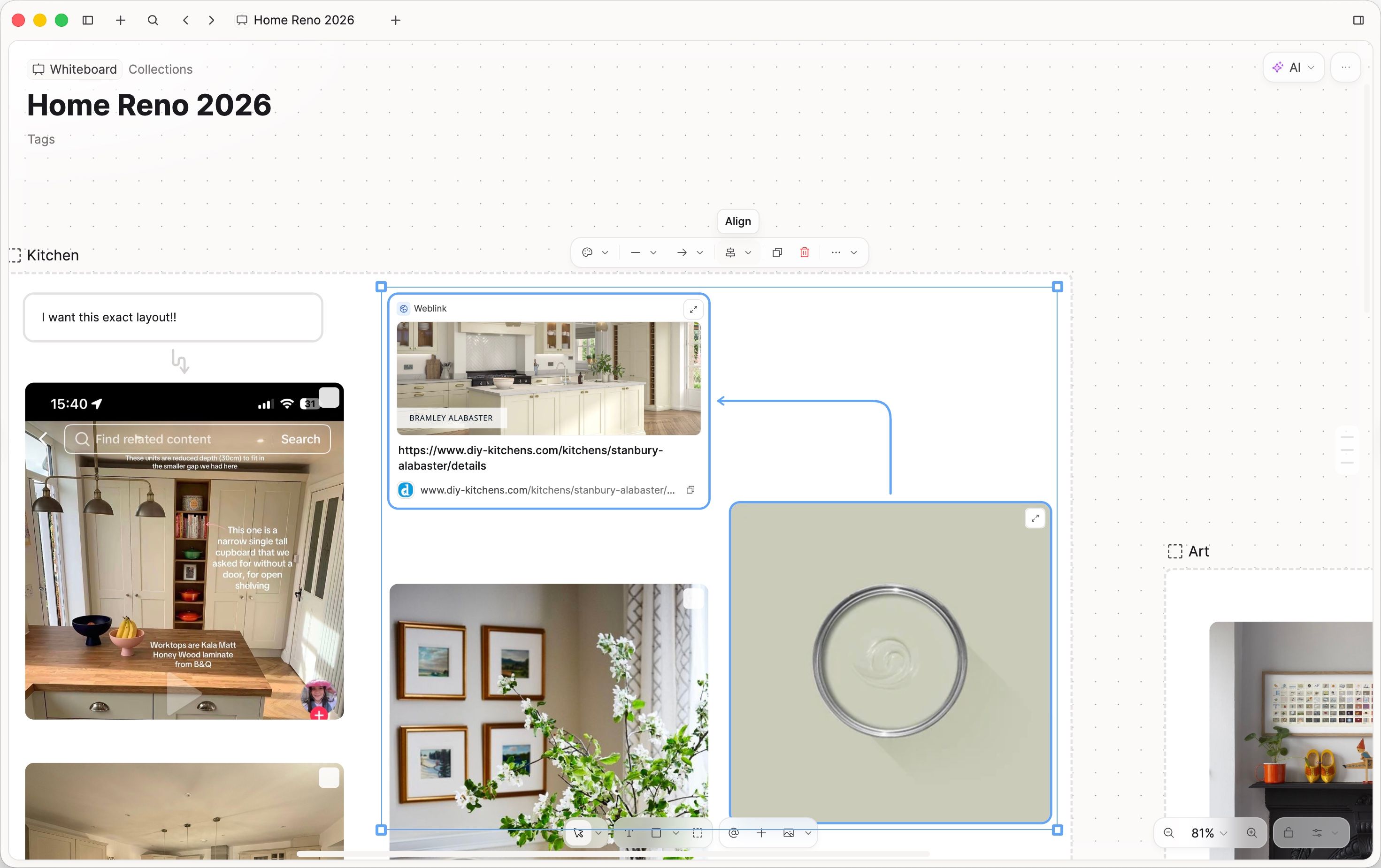
Common actions:
- Color
- View: how an embedded object or media item is shown (for example card vs fill, where available)
- Shapes: change the shape of selected shape items
- Text alignment on shapes that hold text
- Start tip / end tip on lines and arrows (none, arrow, dot, double arrow)
- Add or remove an arrow label
- Align when several items are selected (edges, centers, row, column, grid)
- Media controls for PDFs and audio when relevant
- Duplicate and Delete
- ⋯ (More) for move, flip, line style, frame title, stacking order, wrap in frame, zoom to selection, and clipboard actions
Resize handles appear on the selection. A single selected shape can also rotate. Hover an element to see connection points for drawing lines and arrows.
When you finish an arrow in empty space, a quick menu lets you create a shape or text, create a new object, link an existing object, or cancel.
What you can put on the board
Text
Place with the Text tool. Double-click or press Enter to edit. Press Esc to leave editing.
Shapes
Shapes can hold text. Double click to type. You can change color, flip, rotate (one shape at a time), and align text. Connect lines from the connection points on the sides.
Frames
A frame is a region on the board. You can give it an optional title. Select items and choose Wrap in new frame (Cmd/Ctrl + G), or draw a frame with the Frame tool. The Frames list in the side panel helps you jump between regions.
Objects from your space
Use Existing object, New object, drag and drop, or paste. How an item looks on the board depends on its type and how you added it (small card, titled embed, or media that fills its area). Use View on the selection bar when you want a different presentation.
Click an object to open or preview it. Task embeds show a task-style header. Media supports images, PDFs (page previous / next), audio (Play), files, and weblinks.
Lines and arrows
Both are connectors. Arrow starts with arrow tips; you can change tips anytime. You can also change the path (straight, cornered, or curved) and the stroke (solid, dashed, or dotted). Add a label from the selection bar; press Enter with the line selected to edit the label.
Select an arrow and drag a tip to move that end. Drag an anchor on an element to create a new arrow.
Arrange and navigate
- Pan with the Hand tool, middle-drag,
Space+ drag, or a trackpad - Zoom with the buttons, the percentage menu,
Cmd/Ctrl +/-,Cmd/Ctrl + 0for 100%, or scroll-wheel zoom when that setting is on - Fit everything:
Shift + 1or Page fit - Fit the selection:
Shift + 2 - Nudge with arrow keys; hold
Shiftto nudge farther - Resize with
Cmd/Ctrl+ arrows; addShiftto resize farther - Hold
Option(Mac) orAlt(Windows) while dragging to duplicate - Change stacking order from More or with
[/]shortcuts - Cycle selected items with
Tab/Shift + Tab
Esc steps out in layers: leave text editing, leave the element, clear the selection, then return to the Select tool.
Move content and export
- Copy a selection (
Cmd/Ctrl + C): paste onto another board, or into a normal page where Capacities can turn the selection into document-style blocks - Paste (
Cmd/Ctrl + V) onto a board: objects, files, URLs, and board content - Paste to replace (
Shift + Cmd/Ctrl + R): available when the clipboard matches the selection closely enough to swap in place - Move (
Mor More → Move): send the selection to a page or another whiteboard - Export: export the whiteboard as a JSON Canvas (
.canvas) file from the export menu. JSON Canvas is an open file format for infinite canvas data, so other apps that support it can open the file.
Undo and redo work the same way as in the rest of your space.
On phone and tablet
On phone and tablet you can open whiteboards and look through them. You cannot edit them there.
Switch between:
- Outline: a reading-order list of what is on the board, plus title and description
- Canvas: pan and zoom the board visually
To change content, open the whiteboard on a computer.
Keyboard shortcuts
Letter shortcuts for tools only work when you are not typing inside text.
Tools and canvas (also listed under Whiteboard in the in-app Shortcuts menu)
| Action | Mac | Windows |
|---|---|---|
| Select tool | V | V |
| Hand tool | H | H |
| Text | T | T |
| Line | L | L |
| Arrow | Shift + L | Shift + L |
| Rectangle | R | R |
| Ellipse | O | O |
| Triangle | P | P |
| Frame | F | F |
| Pan (hold) | Space | Space |
| Duplicate while dragging | Option (hold) | Alt (hold) |
| Disable snapping while dragging | Ctrl (hold) | Ctrl (hold) |
| Flip horizontal | Shift + H | Shift + H |
| Flip vertical | Shift + V | Shift + V |
| Bring to front | ] | ] |
| Send to back | [ | [ |
| Bring forward | Cmd + ] | Ctrl + ] |
| Send backward | Cmd + [ | Ctrl + [ |
| Wrap in frame | Cmd + G | Ctrl + G |
| Zoom to fit | Shift + 1 | Shift + 1 |
| Zoom to selection | Shift + 2 | Shift + 2 |
| Zoom to 100% | Cmd + 0 | Ctrl + 0 |
| Zoom in | Cmd + + | Ctrl + + |
| Zoom out | Cmd + - | Ctrl + - |
| Duplicate selection | Cmd + D | Ctrl + D |
| Nudge selection | Arrow keys | Arrow keys |
| Nudge farther | Shift + arrows | Shift + arrows |
| Resize selection | Cmd + arrows | Ctrl + arrows |
| Resize farther | Cmd + Shift + arrows | Ctrl + Shift + arrows |
| Cycle selected objects | Tab | Tab |
| Cycle backward | Shift + Tab | Shift + Tab |
Other useful keys
| Action | Keys |
|---|---|
| Delete selection | Backspace / Delete |
| Select all | Cmd/Ctrl + A |
| Copy | Cmd/Ctrl + C |
| Paste | Cmd/Ctrl + V |
| Paste to replace | Shift + Cmd/Ctrl + R |
| Move selection… | M |
| Enter / edit selected item or arrow label | Enter |
| Step out / clear selection / back to Select | Esc |
See also the general Shortcuts page for app-wide keys.
Questions people ask
Can I edit on my phone or tablet?
You can view and navigate (Outline and Canvas). Editing is on the computer.
Can I put a whiteboard on a whiteboard?
No.
What is the difference between Line and Arrow?
Both connect items. Arrow starts with arrow tips. You can change tips on either afterward.
What is a frame?
A region on the board, with an optional title. Use frames to group areas and jump to them from the Frames list. Wrap a selection with Cmd/Ctrl + G.
Why did my tools disappear?
The board may be locked, or you may be on phone or tablet.
Snap feels too sticky
Turn off Snap to grid or Snap to elements in canvas display, or hold Ctrl while dragging.
Paste to replace is greyed out
It only works when the clipboard matches the selection closely enough to replace in place.
Objects look different on the board
How something was added (media tool, @, paste, drag) and its type affect card, embed, or fill. Use View on the selection bar when it is available.
I lost the content on screen
Use Back to content, zoom to fit (Shift + 1), or Page fit in the zoom menu.
Can AI edit the whole whiteboard like a page?
No. AI does not treat the board as a normal page document. You can create and link objects with the usual tools.
Where to go next
- Pages: written notes when you do not need a canvas
- Object types: how basic types fit in your space
- Shortcuts: app-wide keyboard shortcuts
- Export: exporting content from Capacities
- Mobile: working in the mobile apps
Ask a question! - The Docs Assistant knows everything about the documentation, and the ideas and feature requests from other users.
Create a ticket on our feedback board. - Let us know if you have an idea for a feature, improvement or think there is something missing.
Request additions to the documentation. - If your questions are not getting answered, let us know and we will extend the documentation.