Features
Reminders
Features
Reminders
Reminders send a push notification to your devices to help remind you of a date, and you can turn one on for any date you use in your space.
Reminders are in beta for Capacities Believer and they work on every device. After the Beta period they will be available on Capacities Pro.
The feature is still in beta, so some reminders might not arrive reliably on all devices. So please do not use it yet for your exams at university, your big presentation at work, or your wedding anniversary!
Notification Permissions
Notifications are not turned on by default but you'll be asked as soon as you create your first reminder on a device.
If you want to enable the functionality on a device, go to Settings > Notifications. Click 'Enable notifications on this device'. Repeat this for each device you use Capacities on. Send a test notification in the settings on each device to ensure it works.
Notifications are supported on all devices and on web. However, on desktop, notifications will only fire if the app is open. If you need notifications when away from your computer, setup mobile notifications in addition.
You can limit notifications on a device to certain spaces if you'd prefer. If you are in a space where there are no notifications, you will still see a red dot to inform you that another space has reminders.
How do I set a reminder?
Reminders are connected to a time, so use a date-time property in an object type, or use a timestamp in your notes.
Date-Time Property
Date-Time Properties allow you to click to pick a date. In that date picker, you will see a toggle for Reminders. Toggle that on. Choose when the reminders should fire.
Timestamps
Date and timestamps can be used anywhere in Capacities' text blocks. Type /{time} or /{date} and it will be recognized automatically. For example /7pm tomorrow or /now or /10am Monday. You can also do this with the @key.
To add a reminder for this, click on the date/time while holding down Option (Mac) or Alt (Windows). This will open the date picker and you will see the toggle.
Remind me
In any text block you can type /Remind me or @Remind me and some presets will appear
- Remind me 'Now'
- Remind me 'Today'
- Remind me 'Tomorrow'
- Remind me 'in a week'
- Remind me.
"Remind me" with no other timestamp opens the date picker for you so you can choose the date right away. It will have turned on reminders automatically.
When does it fire?
If the date has a time (for example Tuesday at 14:00), it can fire at that time, or 5, 10, 15, 30, or 60 minutes before, or 1 day before.
If the date is all-day (a day with no time), you pick a time of day such as morning at 9:00, and whether it should fire on the day, 1 day before, or 2 days before.
How will I be notified?
| Where | When it can reach you |
|---|---|
| Notification centre | Always, in that space, and unread until you open, mark it as read, or archive it |
| Desktop app | A banner, only while Capacities is open |
| Browser | A banner, only while the Capacities tab is open |
| Phone | A push notification, even if the app is closed |
| A fallback if a reminder cannot be sent to your device, to the address on your Capacities account |
On your phone, you get the notification even when Capacities is closed. On a computer or in the browser, open the notification centre, because the banner only shows while the app or tab is open.
Where do I change notification settings?
Go to Settings > Notifications. From there you can turn notifications on or off for this device, see other devices that can notify you, choose which spaces send reminders, send a test notification, and open OS permission if the phone or computer is blocking Capacities.
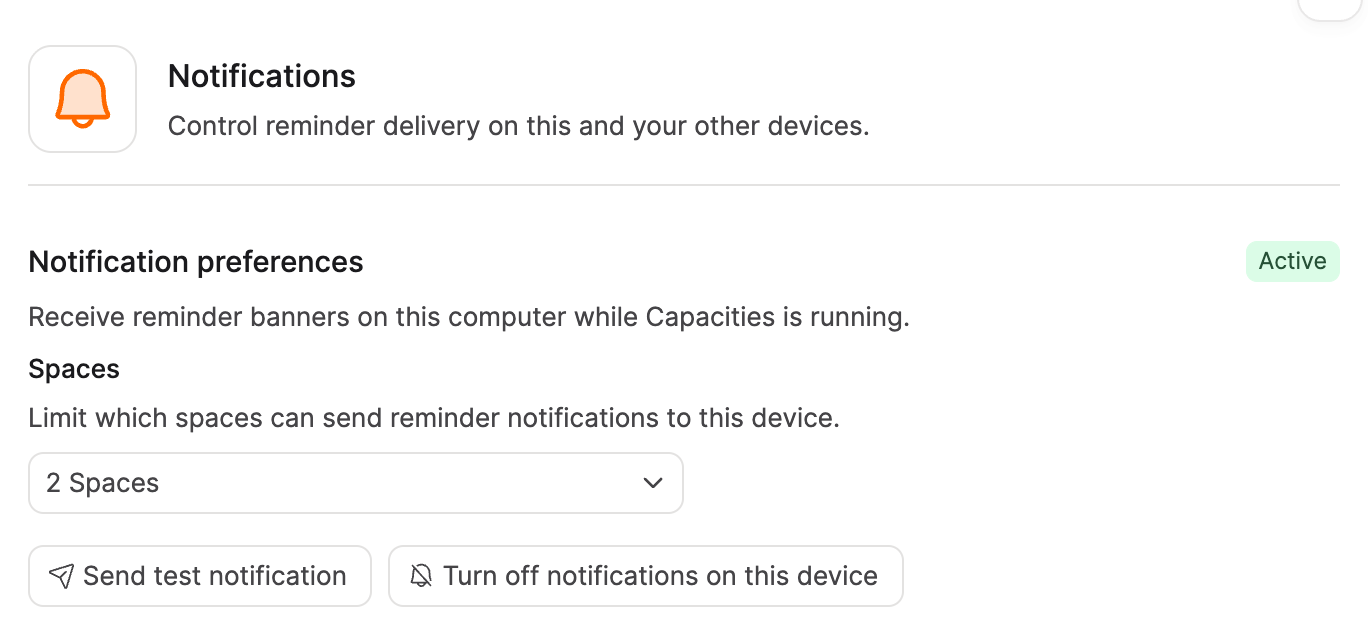
On a phone, also allow Capacities in the iOS or Android notification settings; if a test fails, that OS toggle is usually why.
The first time you set a reminder, Capacities prompts you to turn notifications on, and after that you use Settings.
Where do I review reminders?
The task dashboard has a Reminders tab. In a query, you can filter date properties that have a reminder or have no reminder.
The notification centre is for what just fired. The dashboard tab is for what you have set.
Do reminders work with recurring tasks?
Yes. When the scheduled date moves to the next occurrence, the reminder remains on the task and uses the new date.
FAQs
- Do you have notifications?
Yes. This page is the full guide. - How is a reminder different from a due date?
A scheduled date is when you plan to do the work: the task shows on the calendar and in Today whether anyone notifies you or not. A deadline is when it must be finished, and it changes how tasks rank, but Capacities does not notify you for it. A reminder is the notification itself, which you can turn on for any date you use in your space. Recurrence is separate again: that is when the next occurrence is created. See Recurring tasks. - Is this the same as Apple Reminders?
No. Apple Reminders is a different app, and Capacities does not sync with it. You can still send a to-do or task there with task actions. - I did not get a ping. Why?
Check that you are on Believer, that the reminder is on a date you use in your space, and thatSettings > Notificationsis on for this device and this space. On a phone, iOS or Android also has to allow Capacities. Send a test notification from Settings. If you were only on desktop or in a browser tab, that banner only appears while the app or tab is open. - Can I get email instead of phone notifications?
If a reminder cannot be sent to your device, you get an email as a fallback, to the address on your Capacities account. For notifications while you are out, use the phone app. - Can I set a reminder without a date?
No. Pick a date first (and a time, if you want one), then add the reminder. - Does a deadline reminder exist?
No. Use the scheduled date if you want to be notified, and keep the deadline if you still need a finish-by day.
Ask a question! - The Docs Assistant knows everything about the documentation, and the ideas and feature requests from other users.
Create a ticket on our feedback board. - Let us know if you have an idea for a feature, improvement or think there is something missing.
Request additions to the documentation. - If your questions are not getting answered, let us know and we will extend the documentation.