Graph view
Graph view
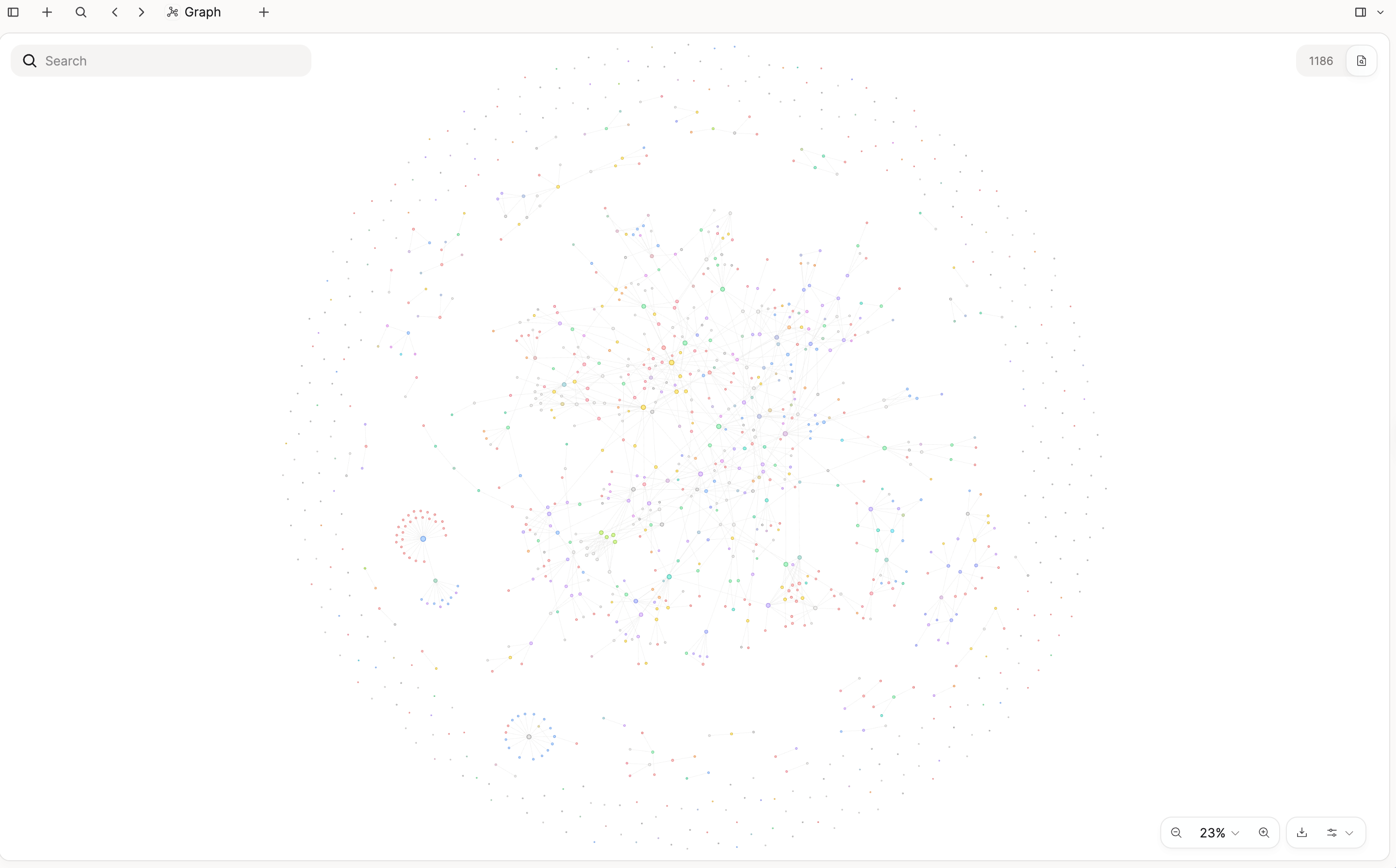
Once you have created links between two or more objects, you can use graph view to see how they connect. Each link becomes a line in the diagram.
How to open graph view
On desktop and web, click Graph in the left sidebar for a diagram of the whole space.
On a computer, the full space graph plays an animation of your notes expanding over time.
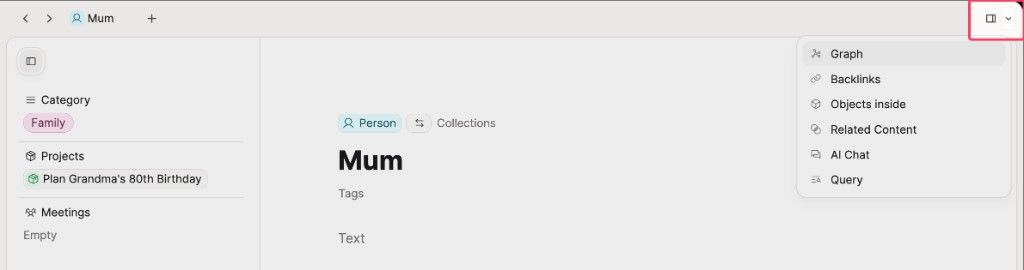
You can also click the toggle in the top right of the window, then click Graph.
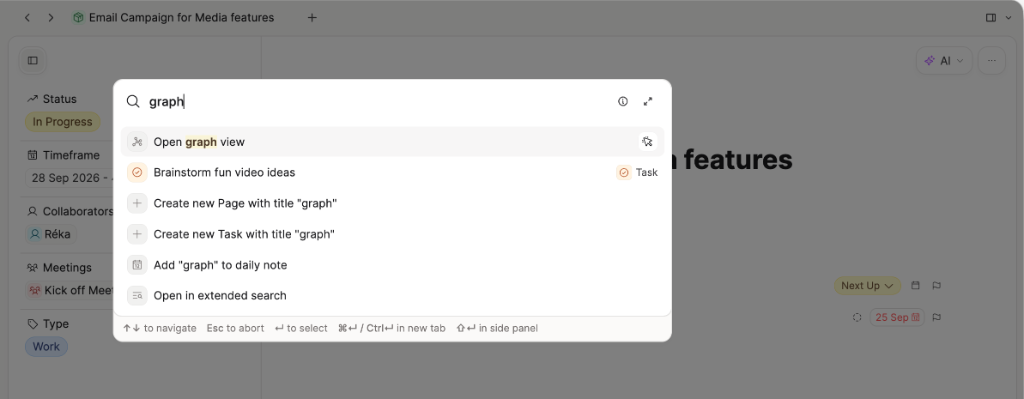
Or open the command palette with Cmd/Ctrl + P or Cmd/Ctrl + K, type graph, and select Open graph view.
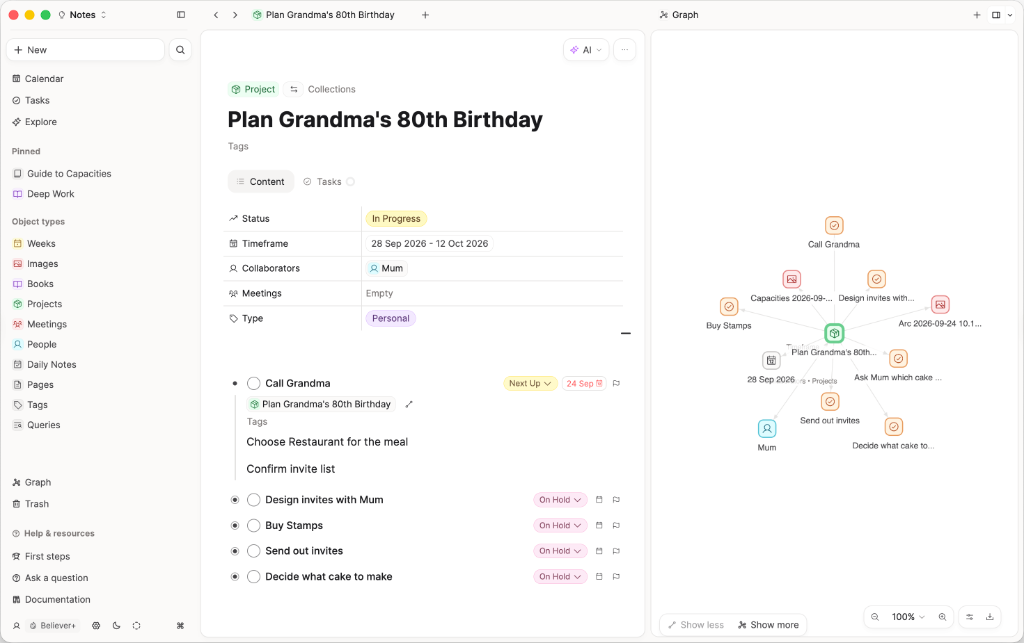
You can also open a graph on a collection, a tag, a query, an object type dashboard, or in extended search. The graph shows the objects in that list and the links between them.
Graph view will update based on what is in the left side of the screen. Open queries, collections, object types, extended searches or individual objects in the left, and the graph view will update on the right.
If you need a list of connections instead of a diagram, use backlinks and related content in the right side panel.
Phone and tablet do not have a full space graph view.
What the graph shows
The graph shows links between objects. Each object is a node. Each link is a line.
- Backlinks appear as links. Unlinked mentions do not.
- Links from properties can appear with the property name as a label between nodes.
- Links created in the page body still appear as connections, usually without a property label.
- Tags and objects without a title show as Untitled.
When the left side shows one object, the graph centres on that object. You can click Show more to reveal more connections around it, or Show less to pull back.
You can click a node to open that object. How it opens follows your setting for how a page opens.
Search in the graph
On the full space graph, use Search at the top of the diagram.
Capacities ProType a search term to narrow by topic. The graph keeps the objects related to that topic and drops the rest. This is part of Capacities Pro.
You can also search for a specific object to go to that note. The graph moves the view to it.
Graph controls
Click the controls at the bottom of the graph for zoom, filters, and export.
Zoom
- − and +: zoom out or in.
- 100% (or the current percent): click to pick a zoom level.
Filter and display menu
Click the sliders button to open the menu. A number badge on that button means one or more filters are active.
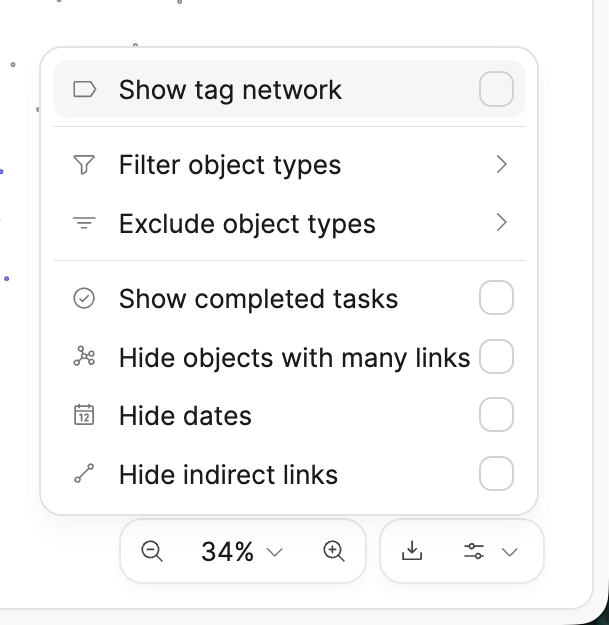
- Show tag network: draws every tag, and a link where one object points at two of them. The space graph has the same option.
- Filter object types: pick which object types to include. Only those types are shown. Open the submenu, then turn types on or off. Deselect all clears that filter.
- Exclude object types: pick which object types to hide. Everything else is shown. The number in brackets (for example (1)) is how many types you have excluded.
- A link that never touches a visible object is hidden.
- Show completed tasks: when on, finished tasks appear in the graph. When off, they are hidden.
- Hide objects with many links: when on, busy hub objects (notes with a lot of connections) drop out so the graph is easier to read.
- Hide dates: when on, date objects are left out of the graph.
- Hide indirect links: removes a link that only passes through a hidden object.
- Show simplified graph: when on, Capacities draws a simpler layout with less detail, so large graphs are easier to scan. That row is hidden when the graph is already drawn as circles.
If there is nothing to draw, or your filters hide every object, the graph says so.
Export
Click the download button to export the current graph as a PNG.
FAQs
- Why is graph view missing from the right side panel?
Open a query, collection, object type, extended search, or individual object on the left first. The right side panel follows that content. It does not open the full space graph. For the whole space on desktop or web, see How to open graph view.
Where to go next
- Views: object views and data views
- Navigation: the right side panel
- Backlinks: the connections that feed the graph
- Networked note-taking: linking and when the graph helps
Ask a question! - The Docs Assistant knows everything about the documentation, and the ideas and feature requests from other users.
Create a ticket on our feedback board. - Let us know if you have an idea for a feature, improvement or think there is something missing.
Request additions to the documentation. - If your questions are not getting answered, let us know and we will extend the documentation.