Object type reference
People
Object type reference
People
A person note holds what you want to remember about someone. You can keep notes, the projects you share, the meetings you have had, and anything you need to raise with them next time. You can also keep a gift idea, or what they eat when they come for dinner. It is the hub for that person.
How to add people to Capacities
People is most likely already in your left sidebar. If it is missing, open Settings > Object Types and use Create to add the Person template.
Once you have this, click New in the top left of the app window, and click Person. Name the person.
Properties
The Person template gives each person these properties:
- Category can be more than one label. The template includes Author, Philosopher, Politician, Scientist, Artist, Entrepreneur, Academic, Journalist, Family, Friends, and Colleague.
- Projects links this person to Project. The same link shows on the project as Collaborators.
- Meetings links this person to Meeting.
- Organizations links this person to Organization.
- You write in Notes. Picture is the picture at the top.
How to use people day to day
If you are getting started, add the important people in your life. That might be close family, or colleagues you are working with right now. Set Category so you can find them later. You can add more people as you use Capacities more.
The person note is then the hub for everything about them. When you learn something about them, write it on their page. If you are on the daily note instead, write it there and link the person with @. Open the person later and that note is under Backlinks.
If you have something to raise with them, add a task on their page if you are already there. Type () then space, or /task. If you are somewhere else, add the task the way you usually do, for example with Cmd + Shift + T on Mac or Ctrl + Shift + T on Windows, and set Context to the person with @. The task is then on the person, including the Tasks tab. You can open the two side by side with Shift + click.
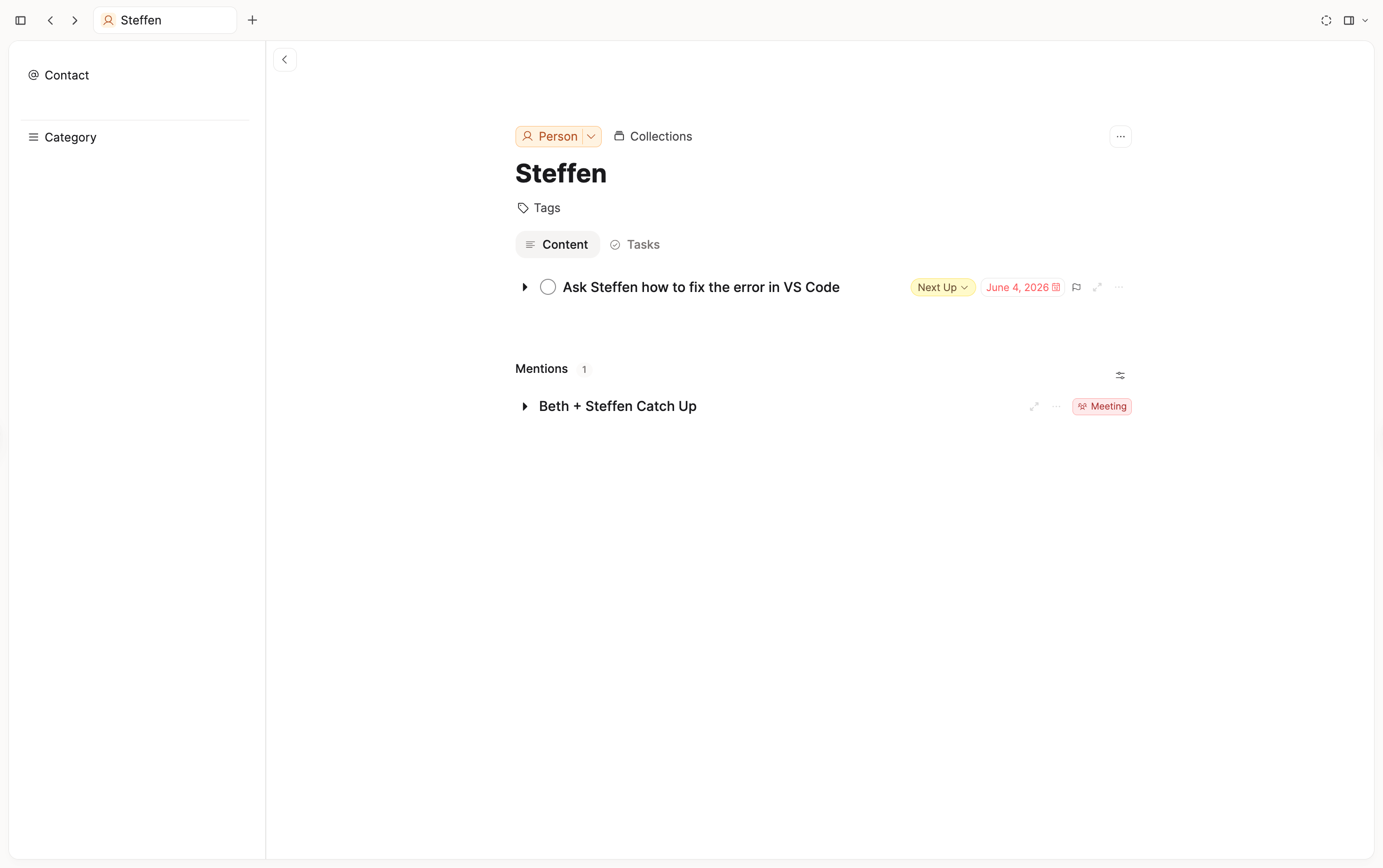
After you capture a note or a task, make it clear enough that you know what to do. A task on a person should be the thing you will actually say or do with them. Date it only when you plan to do it that day.
When you are about to talk to someone, open their page and check the Tasks tab. That list is what you will raise with them. On People, By category groups everyone by Category, including anyone with none yet.
Query ideas
Queries are part of Capacities Pro. Start each one with + New > Query, then Filter > Object types > Person. Add the rest under Filter > Properties. To keep a query as a tab on People, open People, click the + near the controls on the right, and add it.
- Family: Category includes Family. Do the same for Colleague or Friends.
- People with no category: Category is empty. Fill these in when you have a moment.
- People at this organization: type
/queryon an organization, then set Organizations includes This object. The same query then works on every organization.
FAQs
- Can I store a phone number or an address?
Yes. The Person template does not include them. OpenSettings>Object Types, open Person, then Properties, and click Add property. Choose Text, and name it Phone, Email, or Address. That property is then on every person. A text property supportstel:andmailto:links, so a phone number can open your phone and an email address can open your mail app. See Text. - Can I add properties?
Yes. OpenSettings>Object Types, open Person, then Properties, and click Add property. The new property is on every person. See How to edit properties. - Can I remove properties?
Yes. In that same Properties list, delete the property. It comes off every person. - Can I edit the categories?
Yes. Open the Category property in those settings and edit the options. You can rename a label or add another. - Should friends, colleagues, and customers be different types?
Keep them as one Person type. Set Category, and use a query to list each group. Add the properties each group needs. A property is on every person. You cannot show a different set for each category, and a template cannot hide properties. Make a separate type when a group needs its own properties. See People, one type or many?. - Can I add a picture?
Yes. On the person, click the squiggle icon (Customize) in the top right, then Add cover image. That fills Picture. See Cover image. - Can I add an icon?
Yes. In the Person type settings, click Add property, then choose Icon. See Icon.
Where to go next
- Network of people: linking a person to an organization or a place
- Getting Things Done: a person page as the agenda for a conversation
- Meeting notes: the notes for the meetings you link
Ask a question! - The Docs Assistant knows everything about the documentation, and the ideas and feature requests from other users.
Create a ticket on our feedback board. - Let us know if you have an idea for a feature, improvement or think there is something missing.
Request additions to the documentation. - If your questions are not getting answered, let us know and we will extend the documentation.