Object type reference
Projects
Object type reference
Projects
A project note holds everything you need to keep track of for a project. You can keep notes, tasks, links to resources, and links to the people also working on it, plus anything else the work needs. It gives you one hub that helps you move forward on your projects with confidence.
How to add projects to Capacities
Projects is most likely already in your left sidebar. If it is missing, open Settings > Object Types and use Create to add the Project template.
Once you have this, click New in the top left of the app window, and click Project. Name your project.
Properties
The Project template gives each project these properties:
- Status is Planned, In Progress, Completed, or On Hold. In Progress means you are working on the outcome, and On Hold means you have set it aside.
- Timeframe is when the work starts and when it is done.
- Collaborators links the people on the project to Person.
- Meetings links the meetings about the project to Meeting.
- Organizations links the organizations involved to Organization.
- Type is Work or Personal.
- You write in Notes. Cover image is the picture at the top.
How to use projects day to day
If you are getting started, think about the projects you already have open. Create each one and set Status to In Progress.
If you have a project idea you are not working on yet, create it and set Status to Planned.
The project is then the hub for that outcome. When you get a piece of information, write it on the daily note and link the project with @. Open the project later and that note is under Backlinks.
When you have a task, add it on the project page if you are already there. Type () then space, or /task. If you are somewhere else, add the task the way you usually do, for example with Cmd + Shift + T on Mac or Ctrl + Shift + T on Windows, and set Context to the project with @. The task is then on the project, including the Tasks tab. You can open the two side by side with Shift + click.
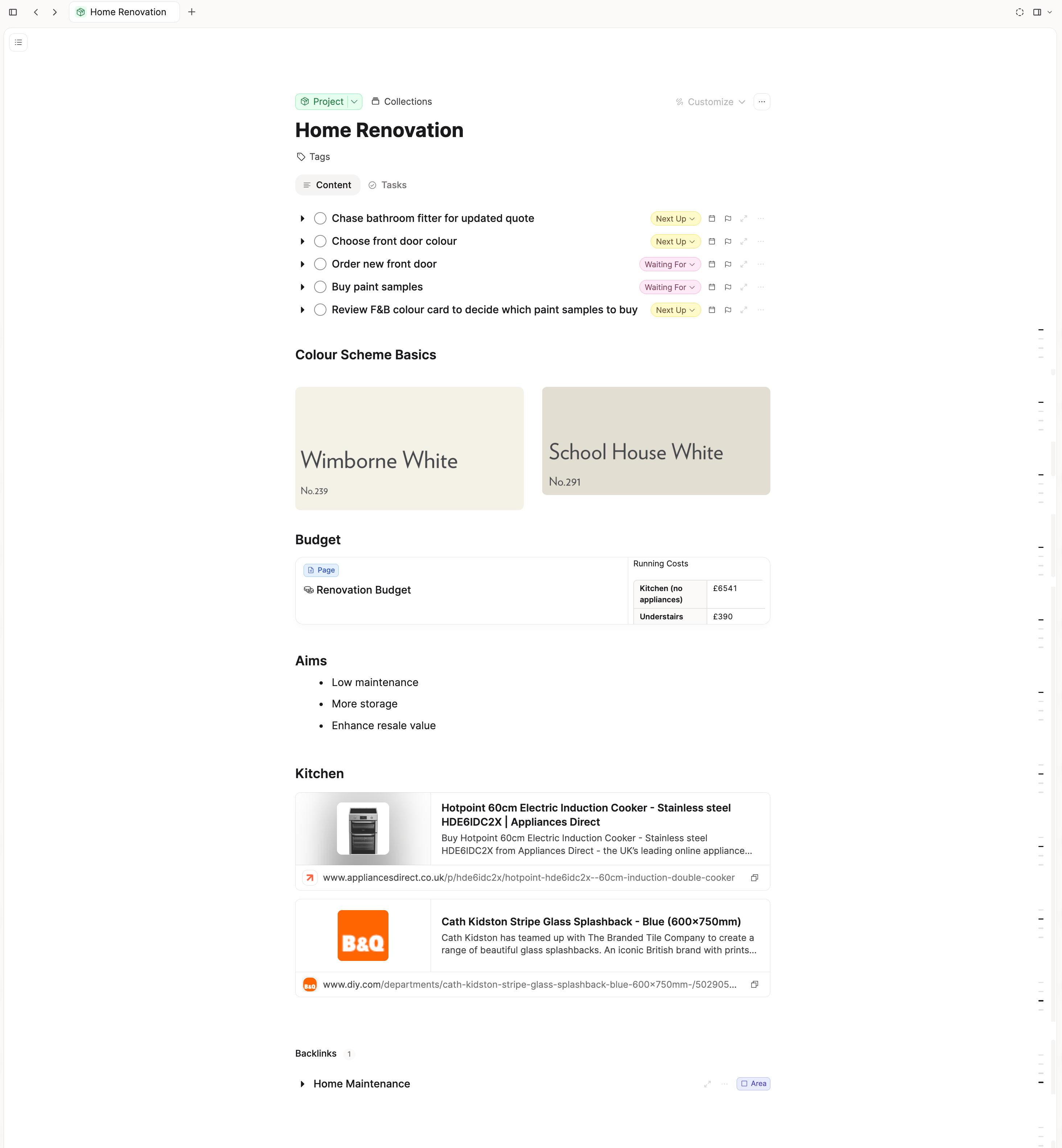
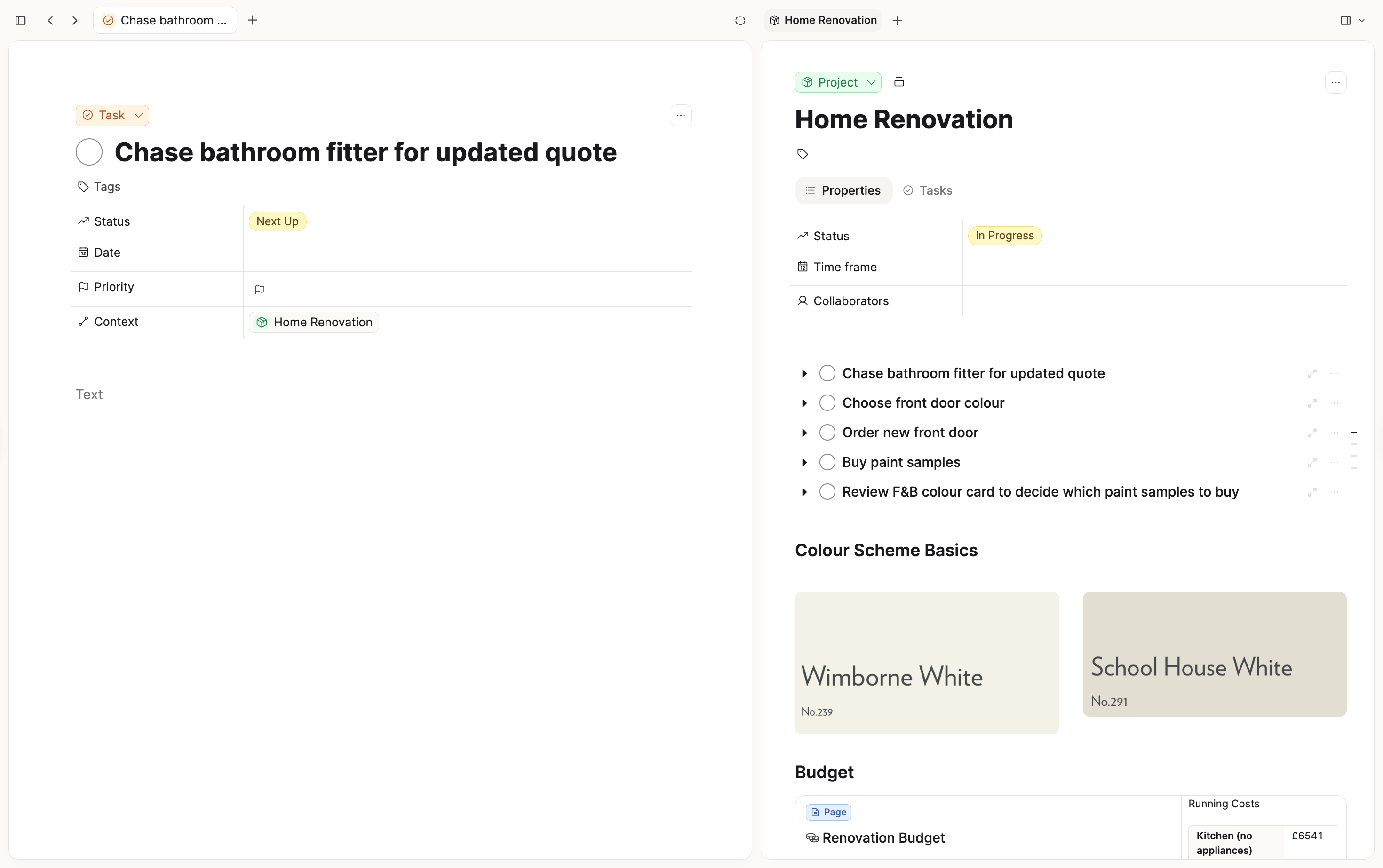
After you capture a note or a task, make it clear enough that you know what to do. Date only the step you plan to do that day. If the line on your daily note is the whole project, decide the next step before you leave it there.
Review your projects once a week. That is how you move them forward and close loops that are still open. Open Projects and use the Status tab, which groups every project by Status, including any that have none yet. For each In Progress project, check that there is a next step you can do. If you cannot act until somebody else has done something, set the project to On Hold and set those tasks to a status in the Blocked category, so they leave Today. You can also add a follow-up task. Put @ and the person in the title with the day, such as Follow up with @Jill on Friday. Capacities links Jill and sets the date. See Schedule a task.
Query ideas
Queries are part of Capacities Pro. Start each one with + New > Query, then Filter > Object types > Project. Add the rest under Filter > Properties. To keep a query as a tab on Projects, open Projects, click the + near the controls on the right, and add it.
- Projects with no status: Status is empty. Check this list in the weekly review.
- Work in progress: Status is In Progress. Click + Filter, leave the joiner on and, and set Type to Work.
- Finished this year: Status is Completed, and Timeframe is on or after January 1st and on or before December 31st.
- Projects with this person: type
/queryon a person, then set Collaborators includes This object. The same query then works on every person. - Open tasks from this project's meetings: on the project, type
/queryand click Edit. Set Object types to Task. Under Properties, set Backlinked (context) objects to include This object, Project meetings, and set Status so it does not include Done. Add the query to the project template and every project opens with that list. See Variable queries in templates.
FAQs
- How do I know if it is a project or a task?
Can you do it from start to finish in one sitting? If you can, it is a task. If you cannot, it is a project.
If you realize later that a task is a project, click the arrows next to Task at the top of the note and choose Project from the list. Capacities then asks where the task's information should go. When that looks right, confirm. See Changing object types. - Is a project the same as a page?
No. Use a specific object type where you can. A project has a status and a timeframe, so you can see what is in progress and what is finished. A page is only a backup for when no type fits, and it is not flexible, because it has no properties to filter or group by. - Does a project due date show on the calendar?
Yes. Fill in the date property. Timeframe is that property on the template, so the project shows on the calendar. See Date properties. - Can I add properties?
Yes. OpenSettings>Object Types, open Project, then Properties, and click Add property. The new property is on every project. See How to edit properties. - Can I remove properties?
Yes. In that same Properties list, delete the property. It comes off every project. - Can I edit the statuses?
Yes. Open the Status property in those settings and edit the options. The template starts with Planned, In Progress, Completed, and On Hold. Those are project statuses, not the task statuses inSettings>Task Management. - Can I edit the type?
Yes. Open the Type property in those settings. You can rename Work and Personal, or add another option. - Can I add a cover image?
Yes. On the project, click the squiggle icon (Customize) in the top right, then Add cover image. See Cover image. - Can I add an icon?
Yes. In the Project type settings, click Add property, then choose Icon. See Icon. - Do I need to use the timeframe?
No. Leave Timeframe empty if you do not want it. - Why would I use the timeframe?
A start and an end show the project on your daily note for the days in that range, as an open loop. If you use tasks, we recommend putting the specific task you need on the daily note instead, so you know how to move forward.
Where to go next
- Getting Things Done: a wider task workflow, if you also want an inbox and waiting lists
- Tasks and projects: areas, and what shows on the calendar
- Daily notes: the today view
- Task management: the task inbox and Context
Ask a question! - The Docs Assistant knows everything about the documentation, and the ideas and feature requests from other users.
Create a ticket on our feedback board. - Let us know if you have an idea for a feature, improvement or think there is something missing.
Request additions to the documentation. - If your questions are not getting answered, let us know and we will extend the documentation.