Features
Quick Capture
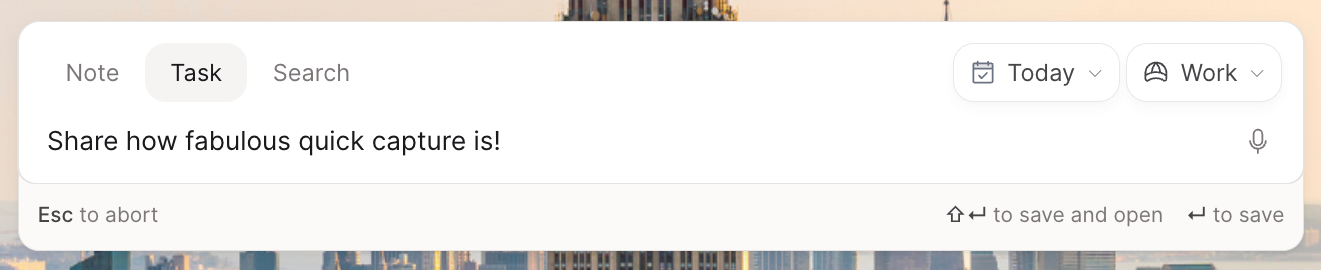
Quick capture lets you get a thought into Capacities from anywhere on your computer, without opening the main window. It works on Mac, Windows, and Linux. It's a small box that opens over whatever you're doing, so you can write it down and go straight back to your work. On your phone, see Quick Capture on mobile.
Open quick capture
Quick capture has a global shortcut for each tab, so it opens from any app:
| Open | Mac | Windows and Linux |
|---|---|---|
| Note | ⌃⌘N | Ctrl+Alt+Shift+N |
| Task | ⌃⌘T | Ctrl+Alt+Shift+T |
| Search | ⌃⌘K | Ctrl+Alt+Shift+K |
| Today's daily note in the app | ⌃⌘J | Ctrl+Alt+Shift+J |
You can also open it from the Capacities icon in the menu bar, which shows while Capacities is running. If you'd like different shortcuts, change them in Settings > Quick Capture. Any combination works as long as it includes a modifier key. You can turn off the menu bar icon there too.
Note
Write your note and press ⌘Enter (Mac) or Ctrl+Enter (Windows) to save it. If you want to see it in the app straight away, press ⌘⇧Enter or Ctrl+Shift+Enter to save and open it.
By default, a note goes to today's daily note. Open Add to with ⌥↓ (Mac) or Alt+↓ (Windows) to send it somewhere else: yesterday's or tomorrow's daily note, an object you've pinned or opened recently, or any object you search for. If you want a new object, click + next to the search field, or press ⌘N or Ctrl+N, and pick its type. ⌥1 and ⌥2 (Alt+1 and Alt+2 on Windows) send the note to today's or tomorrow's daily note without opening the menu.
Quick capture remembers where you sent your last note, so the next one goes to the same place.
You can format as you write. Start a line with [] for a to-do, - for a bullet, 1. for a numbered list, or > for a toggle. Tab nests a line under the one above it. Each line is saved as its own block.
You can also paste images, files, and links into a note, and they're added along with your text. On a Mac, click the microphone to dictate your note instead of typing it.
In Settings > Quick Capture, you can turn on Add the time to daily notes if you want each note to start with the time you wrote it, and Always start with today's daily note if you'd rather not have quick capture remember your last place.
Task
Capacities ProWrite the task's title and press Enter to save it, or Shift+Enter to save and open it.
Use the date chip next to the space to choose Today, Tomorrow, or No date. You can also press ⌥1, ⌥2, or ⌥0 (Alt+1, Alt+2, or Alt+0 on Windows). A task with no date goes to that space's task inbox. Quick capture keeps your last choice for the next task.
You can add more details, like a status or context, once the task is in the app. See Task Management.
Search
Search works like the command palette, without the actions. Press Enter to open a result in the app, ⌘Enter or Ctrl+Enter to open it in a new tab, or Shift+Enter to open it in the side panel.
If you have more than one space, you can search All spaces at once. Each result then shows which space it's in.
Spaces
Notes and tasks go to the space shown in the top right. Press ⌘↓ (Mac) or Ctrl+↓ (Windows) to open the space menu, or jump straight to a space with ⌘ and its number in the list, so ⌘2 picks your second space (Ctrl+2 on Windows). On the Search tab, ⌘0 or Ctrl+0 searches all your spaces at once.
Search has its own space picker, so searching another space doesn't change where your notes go.
Keyboard shortcuts
Everything in quick capture works from the keyboard. If you close the box with Esc, a note or task you were writing is thrown away. If you click outside the box instead, it's kept for next time.
| Action | Mac | Windows and Linux |
|---|---|---|
| Switch to the next or previous tab | ⌃Tab or ⌃⇧Tab | Ctrl+Tab or Ctrl+Shift+Tab |
| Save a note | ⌘Enter | Ctrl+Enter |
| Save a note and open it | ⌘⇧Enter | Ctrl+Shift+Enter |
| Save a task | Enter | Enter |
| Save a task and open it | ⇧Enter | Shift+Enter |
| Open the space menu | ⌘↓ | Ctrl+↓ |
| Pick a space by its number | ⌘1 to ⌘9 | Ctrl+1 to Ctrl+9 |
| Search all spaces (Search tab) | ⌘0 | Ctrl+0 |
| Open Add to (Note tab) or the date menu (Task tab) | ⌥↓ | Alt+↓ |
| Send a note to today's or tomorrow's daily note | ⌥1 or ⌥2 | Alt+1 or Alt+2 |
| Give a task today, tomorrow, or no date | ⌥1, ⌥2, or ⌥0 | Alt+1, Alt+2, or Alt+0 |
| Create a new object in Add to | ⌘N | Ctrl+N |
| Open a search result in a new tab | ⌘Enter | Ctrl+Enter |
| Open a search result in the side panel | ⇧Enter | Shift+Enter |
| Undo your last capture (empty box, within 10 seconds) | ⌘Z | Ctrl+Z |
| Close a menu, or close quick capture | Esc | Esc |
FAQs
- I saved something by mistake. Can I undo it?
Yes. Open quick capture again and press⌘Z(Mac) orCtrl+Z(Windows) in the empty box within 10 seconds of saving. This removes what you just added, including any object it created. - Does quick capture work when the Capacities window is closed?
Yes, as long as Keep running when the window is closed is on inSettings > Quick Capture. It's on by default, so closing the window keeps Capacities running in the background and your notes and tasks still save and sync. If you'd like quick capture ready as soon as you log in to your computer, turn on Start in the background at login too. - Quick capture doesn't open. What can I do?
OpenSettings > Quick Capture. Quick capture opens from the menu bar icon and from your shortcuts, so check that Show icon in the menu bar is on and that your shortcuts haven't been deactivated. On Linux, the menu bar icon starts off, so turn it on there first.
If a shortcut does nothing, another app may already use those keys. Click Change and choose different keys, or click Reset to defaults. Some Linux desktops, like GNOME on Wayland, don't let apps set global shortcuts, so you set them up in your system settings instead. - How can I open my daily note from anywhere on my computer?
Press⌃⌘J(Mac) orCtrl+Alt+Shift+J(Windows and Linux). Capacities opens today's daily note, whichever app you're in. You can also click Today's daily note from the Capacities icon in the menu bar. - Why is there no Task tab?
Tasks in quick capture are part of Capacities Pro.
Ask a question! - The Docs Assistant knows everything about the documentation, and the ideas and feature requests from other users.
Create a ticket on our feedback board. - Let us know if you have an idea for a feature, improvement or think there is something missing.
Request additions to the documentation. - If your questions are not getting answered, let us know and we will extend the documentation.